
Processing Full or Partial Invoice Refunds
This article explains how to process refunds in SigmaMD for cash, check, ACH, or credit card payments. Follow these steps to ensure refunds are handled correctly.
Step 1: Access the Invoice
Before processing a refund, ensure you have located the correct invoice in SigmaMD. Invoices are listed in Billing > Reports, on the Invoices tab, where you can filter by Invoice Status or Recipient (a patient or an employer) from the column headers.

Admins can refund a payment or mark it as refunded. Members can too if an Admin has turned on Refunds access for them on the Team screen (see Understanding Roles and Access Levels).
Step 2: Process the Refund
Below, we outline the refund process for each payment type. The Refund button appears on a payment that shows Successful or Partially refunded. Card and ACH payments can also be refunded while they show Pending batch.
Cash and Check Payments
The refund process for cash and check payments is the same and you can either mark the payment as failed or issue a refund. The right action depends on whether the payment was never valid or needs to be returned.
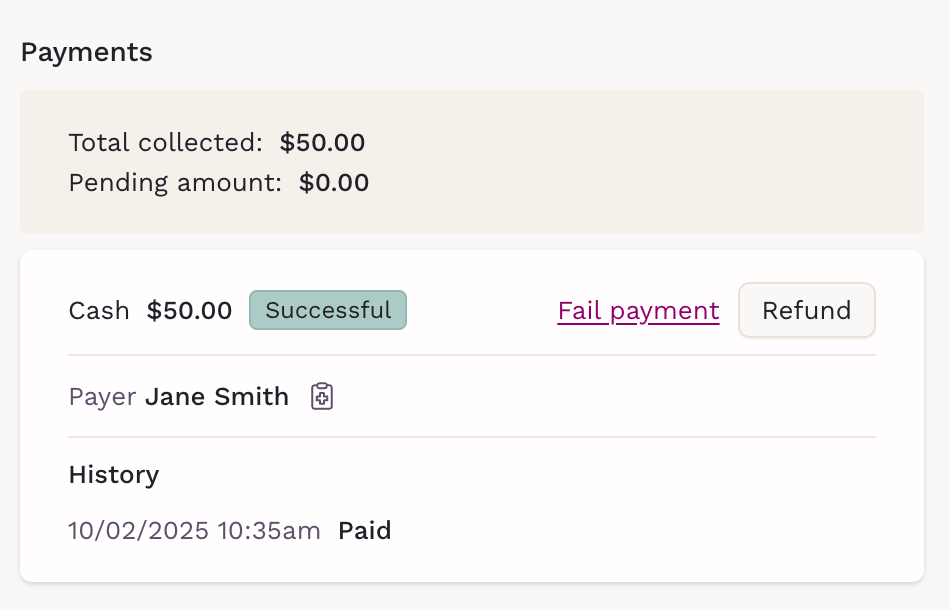
Failing a Payment
Use this option if the payment should not be considered valid. Failing a payment always applies to the full amount.
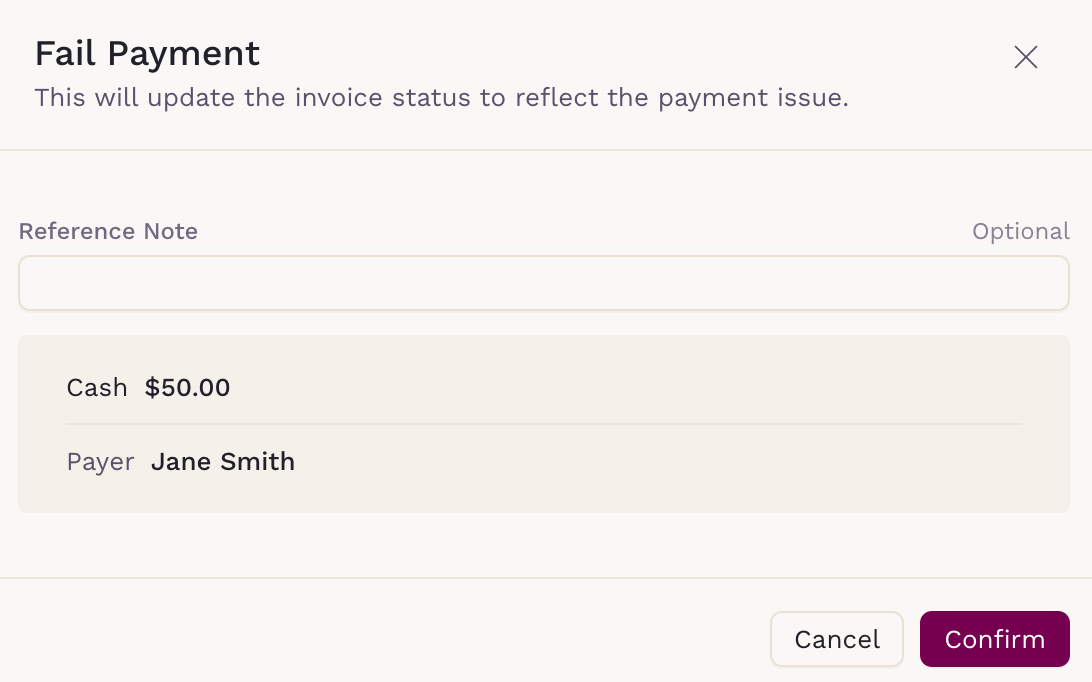
To fail a payment:
- Click Fail payment
- Optionally enter a Reference Note
- Click Confirm — the payment status changes to Failed, and the invoice returns to Issued, or to Partially paid if other payments remain
After failing a payment, you may edit the invoice and record a new payment with a different method or void the invoice if no further payment is needed. Patient membership invoices can't be voided, so they have no Void button. For those, edit the invoice to apply a discount, or mark it as bad debt instead; if another payment on the invoice is still waiting or retrying, cancel it first.
Refunding a Payment
Use this option if you need to return money to the payer. Refunds can be issued for either the full amount or a partial amount.
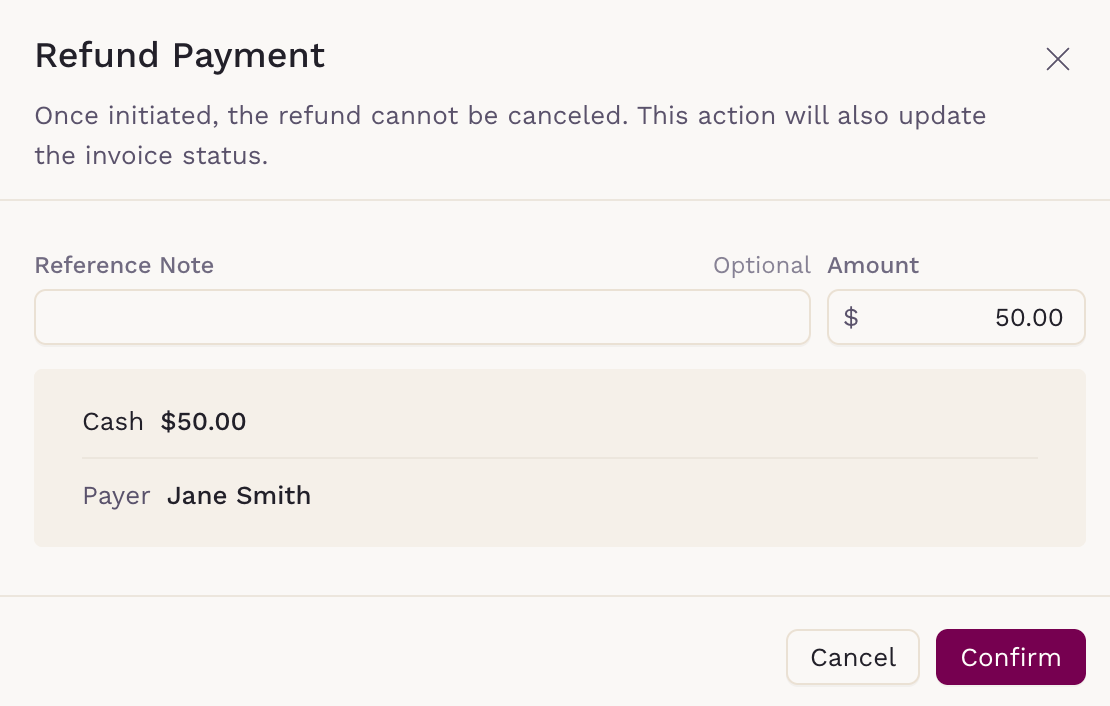
To refund a payment:
1. Click Refund
2. Optionally enter a Reference Note
3. Adjust the refund amount if needed
4. Click Confirm — the payment status will update to Refunded or Partially refunded, depending on the amount returned.
If you issue a partial refund, you may still edit the invoice and record a new payment with a different method. If you issue a full refund, the invoice can no longer be edited.
Credit Card Payments
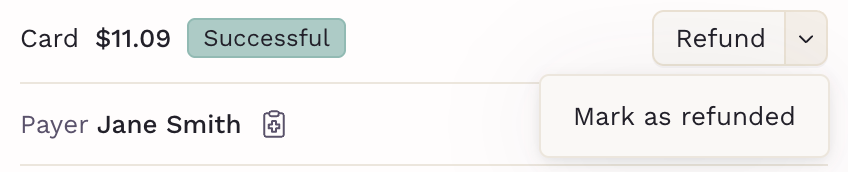
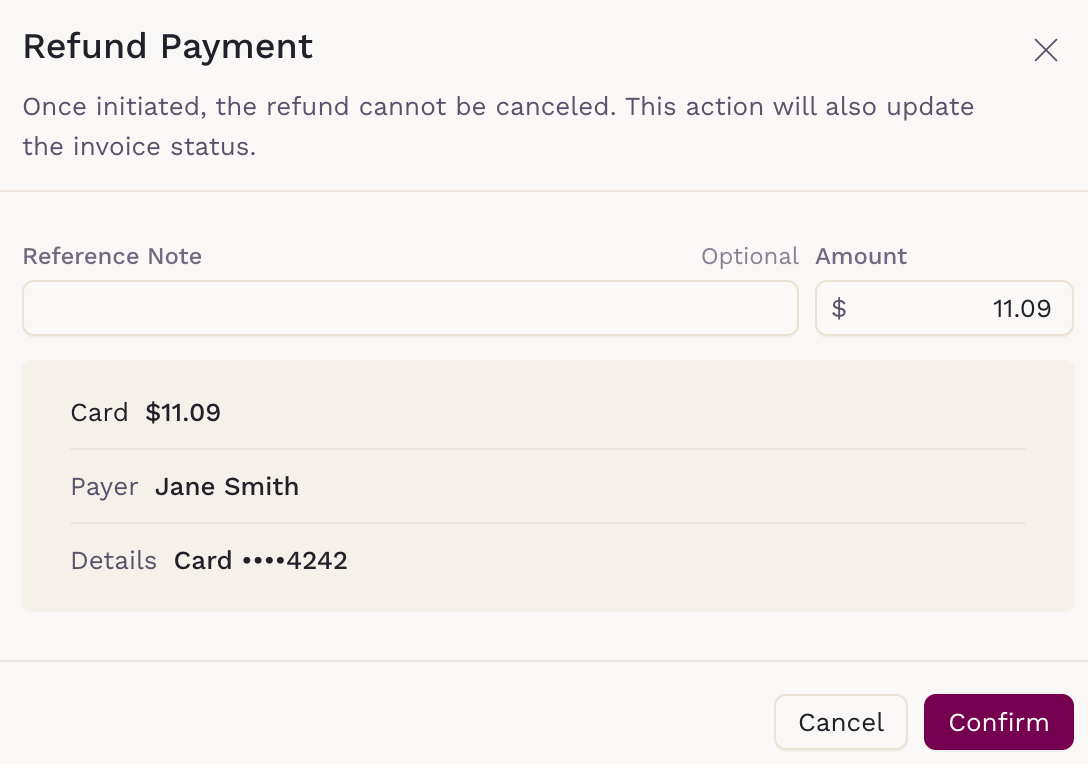
You can handle refunds in two ways:
- Refund through the system — the amount is returned directly to the original credit card.
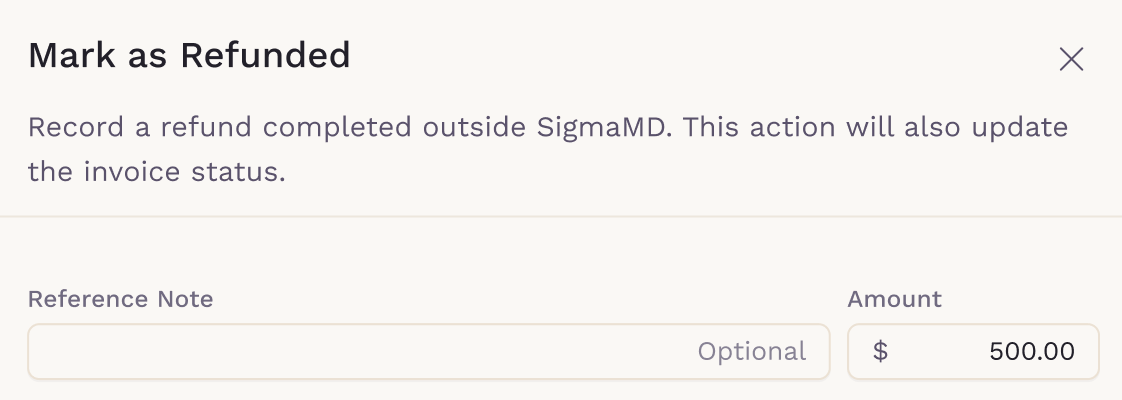
- Mark as refunded — use when the payment was already returned outside the platform (e.g., cash). This option records the refund without processing any money.
Partial Refund
- Enter the amount to refund.
- Optionally add a reference note.
- Click Confirm — the invoice status will update to Partially paid.
- You may collect the balance using Edit and adding a new payment method.
Full Refund
- Optionally add a reference note.
- Click Confirm — the invoice status will update to Refunded.
- No balance will remain.
ACH Payments
The refund process is identical to credit card refunds.
Refund through the system — the amount is sent back to the original bank account. If the payment is still within the ACH reversal window, it will be processed as a reversal. Once the window has passed, the refund is issued as an ACH credit, which requires your merchant account to be enabled for ACH credits, with sufficient credit limits.

Mark as refunded — use when the payment was already returned outside the platform (e.g., cash or manual transfer). This option records the refund without processing any money.
Partial Refund
- Enter the amount to refund.
- Optionally add a reference note.
- Click Confirm — the invoice status will update to Partially paid.
- You may collect the balance using Edit and adding a new payment method.
Full Refund
- Optionally add a reference note.
- Click Confirm — the invoice status will update to Refunded.
- No balance will remain.
Employer Payments
The process for refunding employer payments is the same as for other payment types. To locate invoices, open the Invoices tab in Billing > Reports and set the Recipient filter to Employers only.

Each refund or failed payment is recorded on the payment, and the invoice status updates to match what is still paid.