
Creating a Coverage Policy for Retail Memberships
If you need to offer specific discounts or surcharges by membership, follow these steps to create a coverage policy for retail memberships.
Step 1: Navigate to Coverage Policies
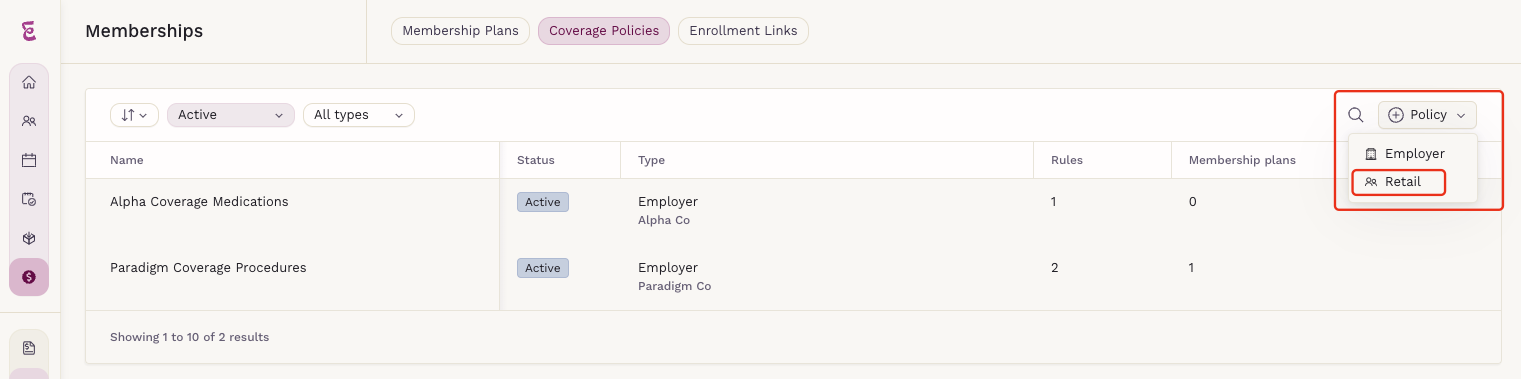
Go to Billing > Memberships > Coverage Policies and add a new Retail Policy.
Step 2: Define the Coverage Policy Rules
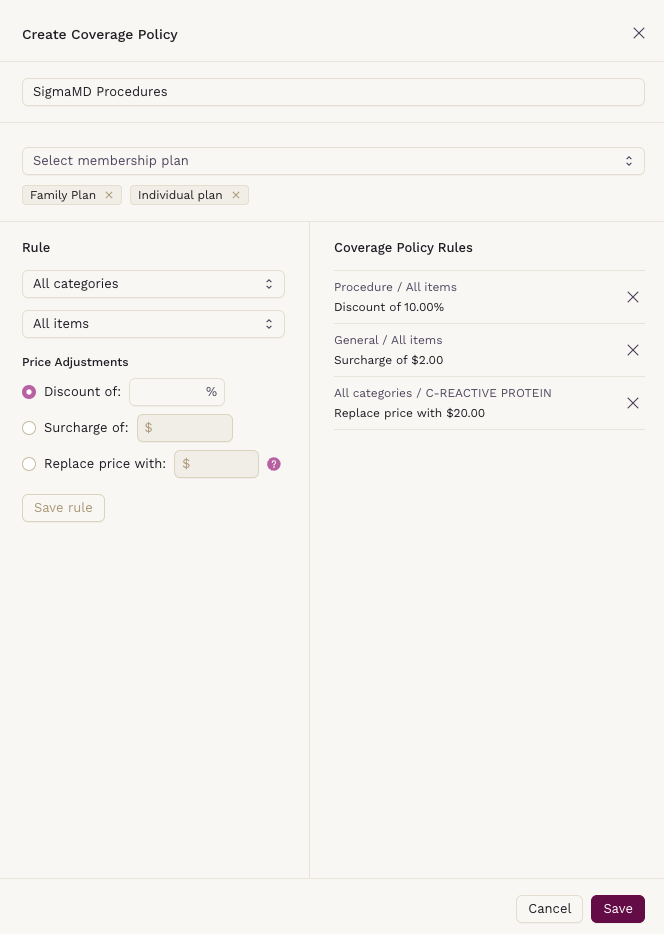
Once you have opened the coverage policies registration, proceed to create the coverage policy.
- Policy Name: Choose a name for your coverage plan.
- Select Membership Plan: Select one or more membership plans to include in this coverage policy.
- Rule Settings
- Category: Select a specific category to apply the coverage, or choose "All categories."
- Items: Select a specific item, or choose "All Items."
- Price Adjustments
- Discount of: Apply a percentage discount to selected items/categories.
- Surcharge: Add a dollar amount to selected items/categories.
- Replace: Replace the dollar amount on selected items/categories.
Once saved, rules will be displayed on the right. You can create multiple rules per coverage policy.
How Conflicting Rules Are Resolved
When more than one rule could apply to the same item, the most specific rule is the one that takes effect, in this order:
- A rule set on a specific item.
- A rule set on a category.
- A rule set on all items.
This applies no matter which direction the rule moves the price. A surcharge or a replacement price set on a specific item will override a discount set on that item's category, even though the patient pays more as a result. If you want a discount to apply to an item, make sure no narrower rule targets that same item.
When two rules are equally specific, the rule that costs the patient less is applied.
Step 3: Invoice View
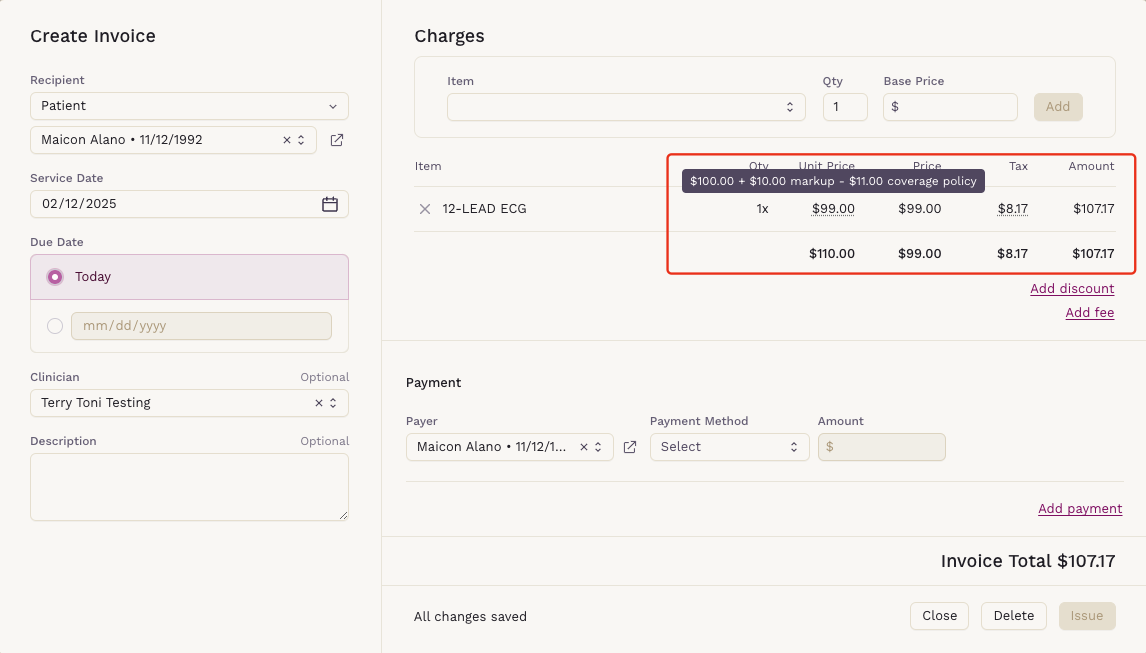
Hovering over the value will display the amount with the discount/surcharge applied from the coverage policy.
If you have further questions, contact support for assistance.