
Creating a Task from a Document or Chat
Turn any document or patient chat into a follow-up task so your team can act on referrals, lab results, refill requests and patient questions. The task stays linked to the document or chat it came from.
Create a Task from a Document
-
Open the document
Go to Inbox > Documents and select the fax or scanned file you want to act on.
-
Click Add task
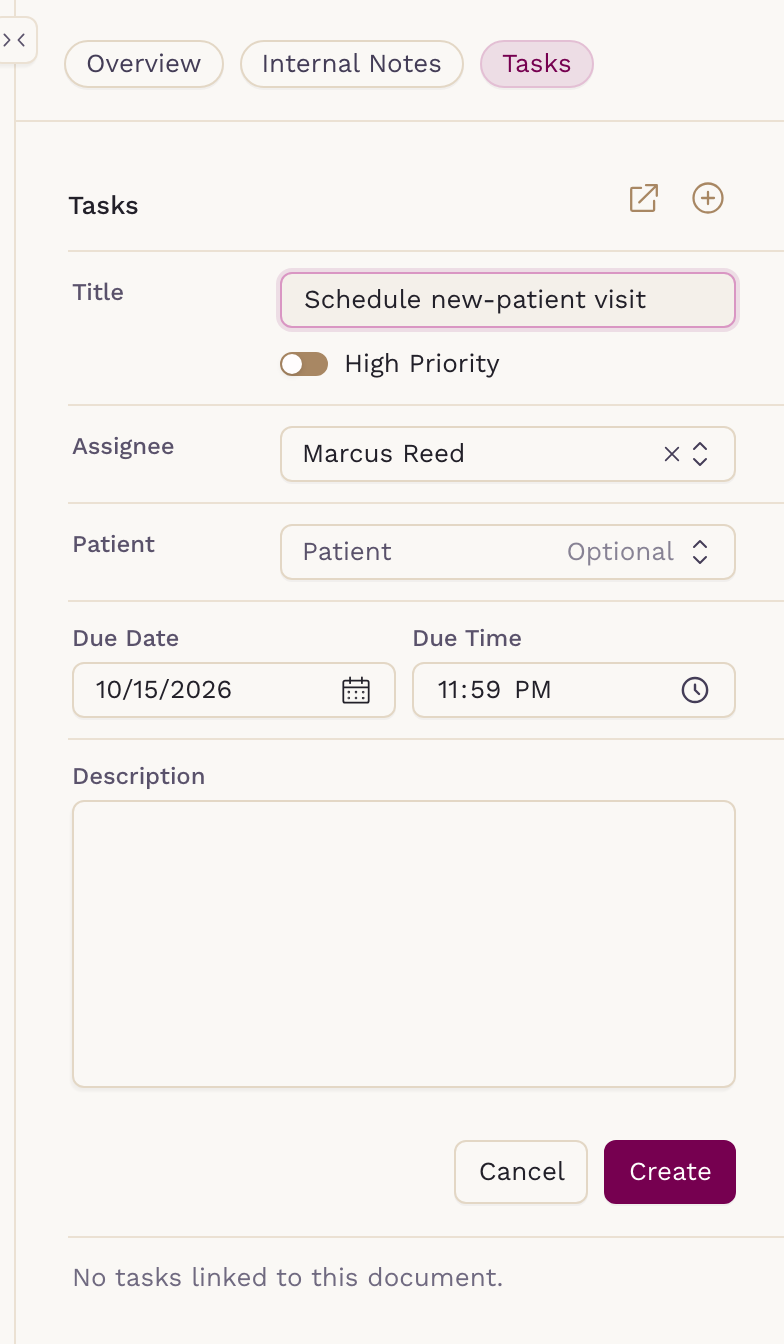
In the right-hand panel, open the Tasks tab and click the + icon. The task form opens right there in the panel.
-
Fill in the details
Title is required. The assignee and patient are pre-filled from the document when it has them, and you can change either. You can also set a due date, priority, recurrence and category, add a description or attach a file.
-
Click Create
The task appears in the document's Tasks tab.
Create a Task from a Chat
-
Open the chat
Go to Inbox > Messaging and select the patient chat.
-
Click Add task
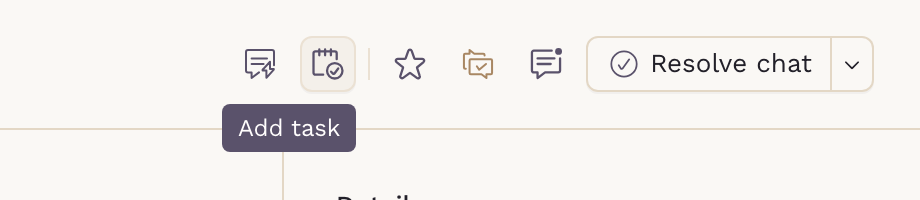
Click the Add task icon at the top right of the chat. The task form opens in a side panel.
-
Fill in the details
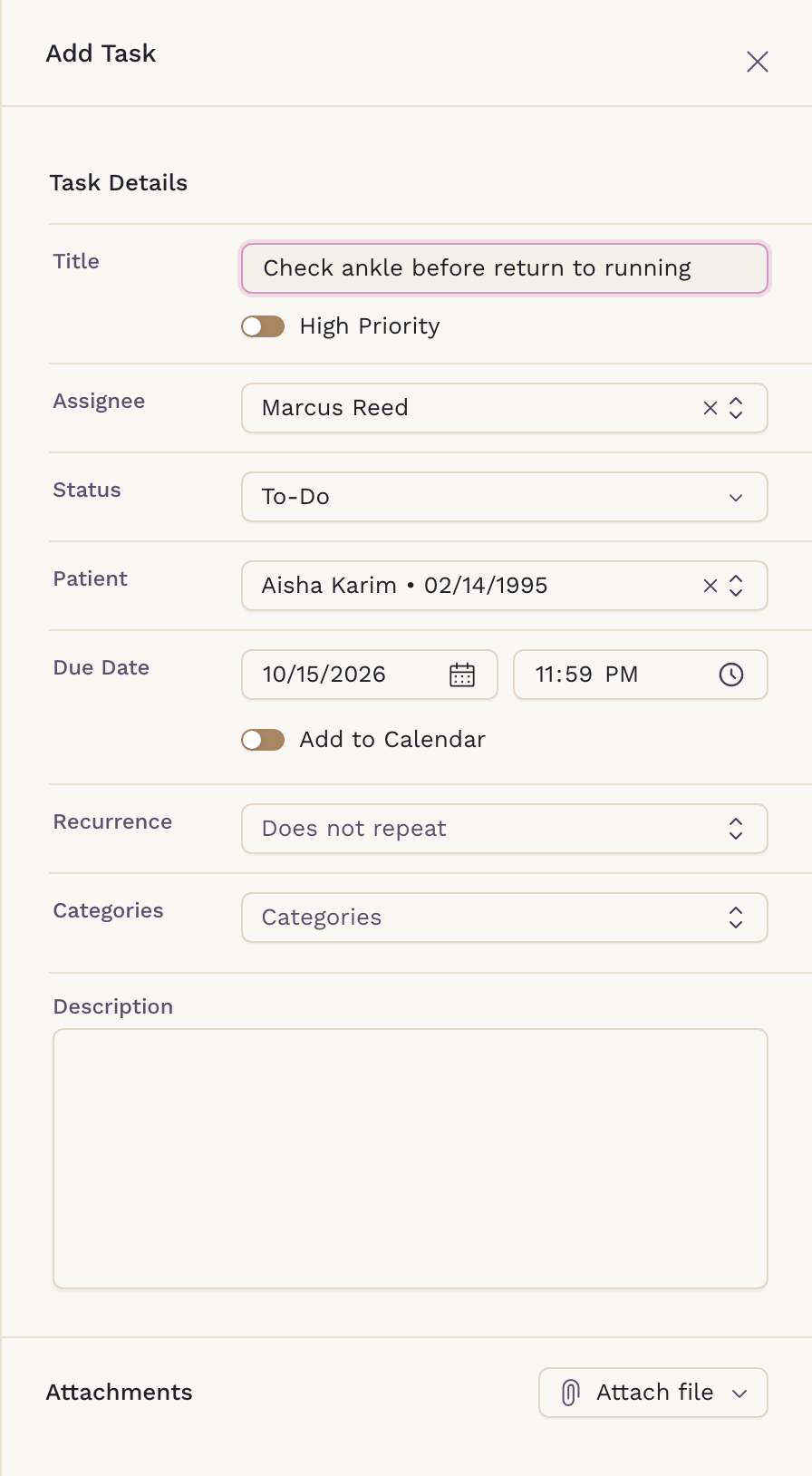
Title is required. The patient and the chat's assignee are pre-filled.
-
Click Create
The task appears in the Tasks section of the chat's right-hand panel.
Find Your Tasks
Every task linked to a document or chat is listed in that item's Tasks section. Click a task to edit or archive it, or click the arrow icon next to Tasks to open the Tasks screen.
All tasks also appear in the Tasks tab in the left-hand menu, where you can search by assignee, patient name or task title.