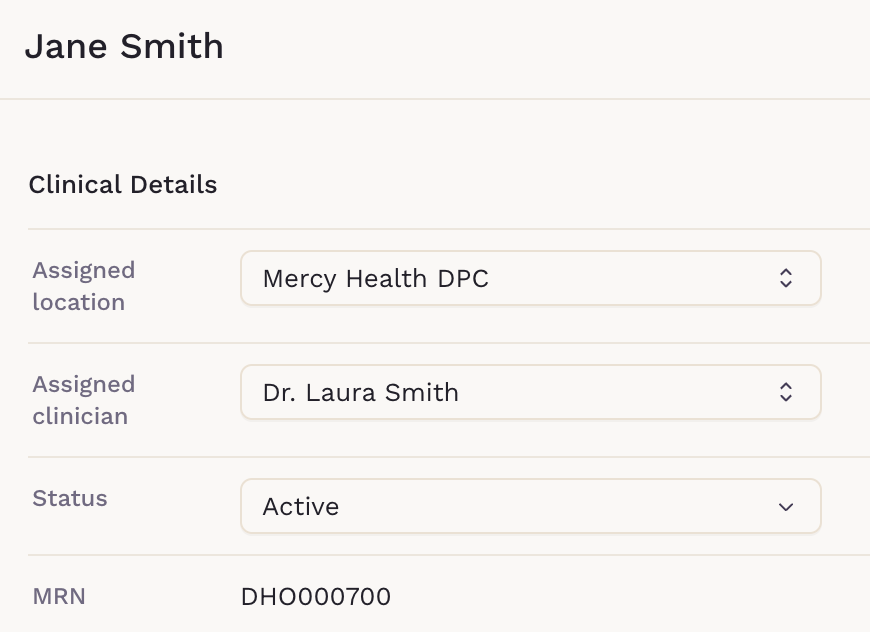
How to Change a Patient's Assigned Clinician
Each patient in SigmaMD has an Assigned Clinician responsible for managing their care. If needed, you can update the assigned clinician directly from the patient’s chart.
Step 1: View Patient Details
- In the patient’s chart, click View patient details in the header.

Step 2: Update Clinical Details
- In the Clinical Details section. Select the Assigned clinician dropdown, and select the new provider.
- Review the patient’s Status (if needed).
- Click Save to confirm the change.

Important Notes
- Every patient must have one assigned clinician.
- Changing the assigned clinician does not affect the patient’s chart or records.
- Lab and imaging results waiting for review stay with the clinician who ordered them. Only results with no ordering provider move to the newly assigned clinician.
- Patients and caregivers will continue to see the same health history, but future visits and documentation will reflect the updated clinician.
-
For practices with multiple locations, the new clinician must be assigned to the patient’s assigned location.