
Exporting a Patient Chart
You can export a patient’s chart whenever you need to share or archive their clinical records outside of SigmaMD.
How to Export
-
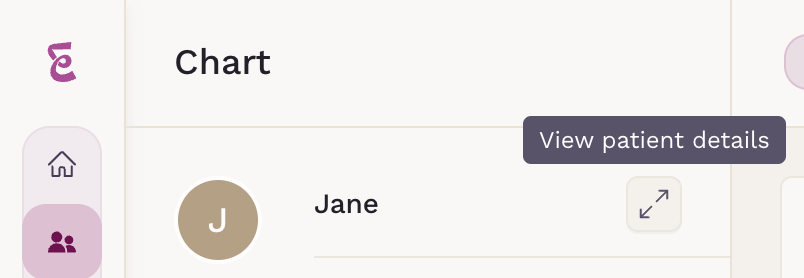
From the Chart, click View patient details.
-
In the patient details window, click the Download chart icon at the top right.
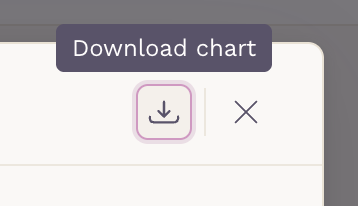
The system will begin preparing the export. Do not close the chart tab before the download starts.
What’s Included
The exported file will be a .zip folder containing:
- A PDF file with all chart records
- A folder containing all uploaded patient files
What’s Not Included
For privacy and compliance reasons, the following data are not part of the export:
- Payment information
- Chats and messages
- Appointment and scheduling information
Once the download completes, the .zip file will be saved to your device’s default downloads folder.