
Creating a Superbill
Superbills enable patients to submit claims to their insurance provider and receive reimbursement for out-of-pocket expenses related to care. In SigmaMD, superbills are built directly from the invoice you create, so you don’t need to start from scratch. Once your invoice is ready, you can enable the superbill tools, add the required clinical and billing codes, and download a clean PDF with all necessary details.
Step 1: Create the invoice
Open the patient chart and build the invoice as usual.
Ensure your invoice includes all the items you intend to bill, such as medications, services, labs, or procedures. Superbills mirror invoices, so any change to the invoice updates what appears on the superbill.
Step 2: Enable the superbill
Inside the invoice, turn on the Superbill toggle. This unlocks the additional superbill fields, including:
• Place of Service (POS) — defaults to Office, but can be changed.
• Insurance — select the patient’s insurance plan or preferred payer.
These details appear at the top of the final superbill PDF.

Step 3: Add or edit ICD-10, CPT, and modifiers
Each invoice item can include its own set of billable codes. Click on the pencil icon on the right side of each item to edit it.

Diagnosis (ICD-10)
- Add diagnoses to individual items.
-
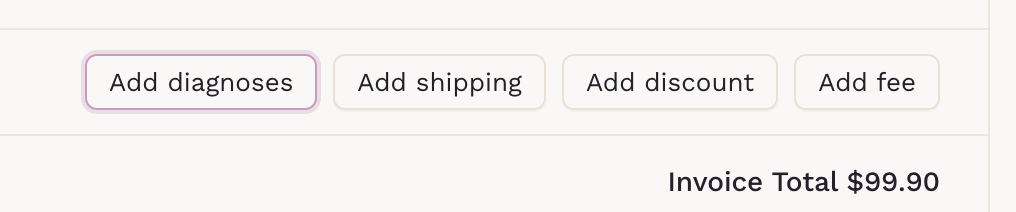
Or use the Add Diagnoses button at the bottom to apply codes in bulk.
- Search filters follow the same behavior as lab ordering, surfacing billable codes only.
CPT codes
- Add one or more CPT codes per item
Modifiers
- Modifiers are free-form and saved automatically as you create them, for future use. Examples include: 25, 50, LT, E1.

When done, save the changes made to the item. You can adjust or remove codes at any point before downloading the superbill. If you adjust the invoice afterward, re-download the superbill to capture the latest changes.
Step 4: Download the superbill
When everything looks correct, issue the invoice and select Download PDF. The system produces a clean, formatted superbill containing all required fields—ready for the patient to submit to their insurer.
A full superbill includes:
- Patient demographics
- Insurance information
- Clinician name, NPI, and practice tax ID
- Service date and POS
- Itemized ICD-10, CPT, and modifiers
- Charge amounts and totals
Everything needed for claim submission is generated based on your invoice and coding entries.
Patient Access
Patients can download Superbills directly through the patient app. Ask them to access their invoice list and download the PDF from their Profile section.