
Setting Up Your Practice Locations
If your practice already exists in SigmaMD and you’re enabling multiple locations, most of your data will remain unchanged. A few early setup decisions will help you expand without disrupting scheduling, billing, or patient care.
This guide walks through the recommended order to configure locations so everything behaves as expected.
1. Create your locations first
Start by adding all the locations your practice operates from.
Go to Practice Settings → Business Profile → Locations and add each site with its basic details.
Your first existing location is kept as the primary location. All current patients and team members remain assigned to it until you make a change.
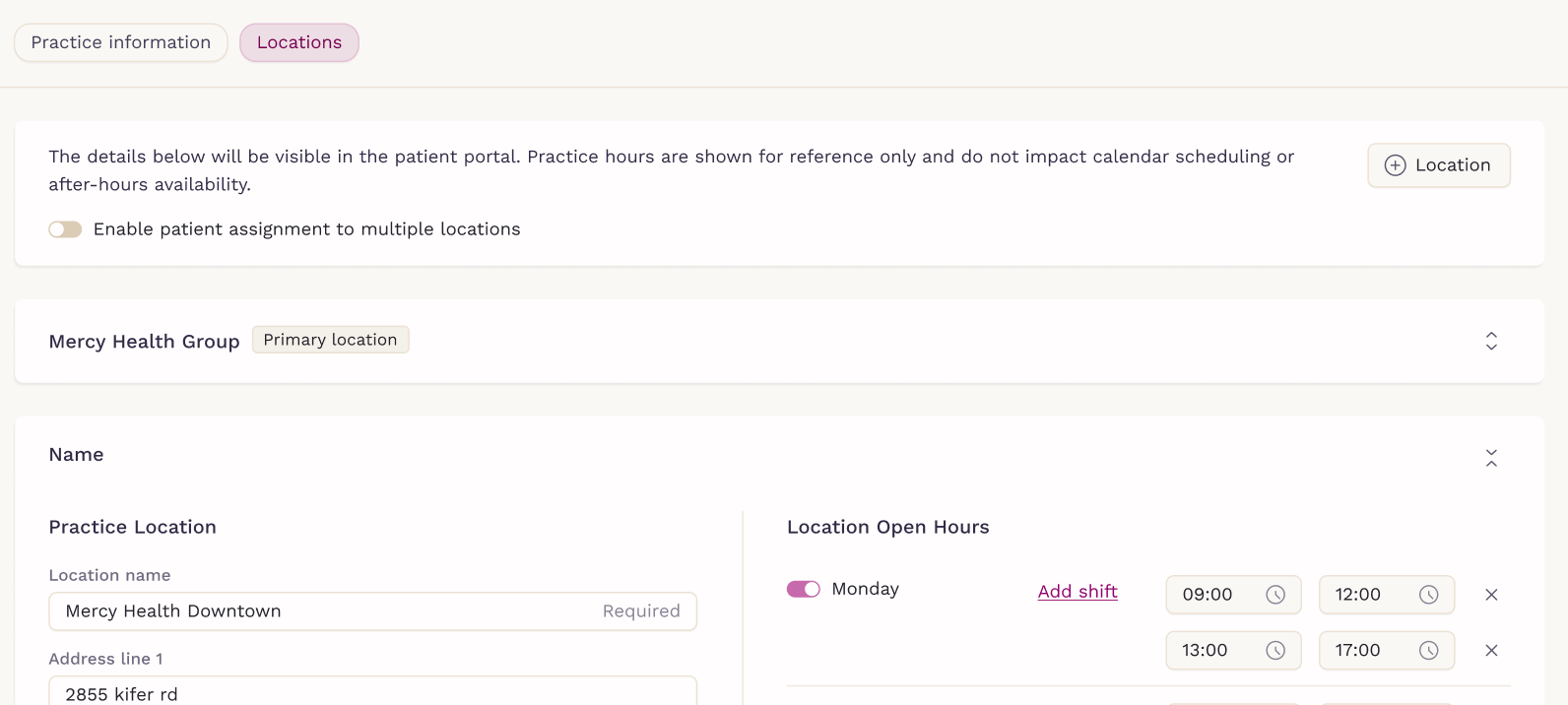
2. Decide how patients can access locations
Next, choose whether patients can interact with more than one location.
In Practice Settings, enable or disable patient assignment to multiple locations:
- Keep it off if patients should only schedule at their assigned site
- Turn it on if patients may book across locations or if your practice shares resources
This setting controls self-scheduling behavior across the entire platform.
3. Assign team members to the right locations
Once locations exist, review team access.
When inviting or editing team members, assign them to:
- All locations, or
- Only the sites where they actually work
Then remind your clinicians to adjust their working hours carefully. If a shift isn’t limited to a location, it becomes available across all locations the clinician works at, which can lead to scheduling issues for in-clinic visits.

4. Understand how patient locations work
All existing patients remain assigned to the primary location by default.
Patients are not automatically moved when you add new locations. A patient’s assigned location only changes when you update it directly or when changes to clinician assignments require it (for example, if a clinician is no longer associated with the patient’s current location).
If multi-location access is enabled, use the Clinic Access section in the patient chart to control where each patient can self-schedule:
- Only their assigned location
- All locations
- A selected list of locations

5. Set up location-specific resources
With locations, patients, and staff aligned, configure resources that vary by site:
- Charge items and inventory
- Diagnostic providers (labs and imaging)
- Fax numbers
- Appointment types that need to be location-specific
Diagnostic providers already connected to your practice remain connected across all locations by default, so you don’t need to reconnect existing lab or imaging providers when adding new locations.
Anything created while a location is selected applies only to that site, keeping operations and reporting clean.
If you need help with configuring location-specific resources, please contact our support team.
6. Do a quick check
Create a test appointment or invoice to confirm everything points to the right location.
Configuring locations early and in the right order keeps your practice organized as you grow. Once set, SigmaMD handles the complexity behind the scenes—so your team can focus on care, not coordination.