Adding Orders to a Clinical Note
SigmaMD lets you add Labs, Imaging, and Prescriptions directly to a note so everything stays clinically connected and easy to review later.
This article walks through how to add each type of order from within a note and how they appear once created.
Before you start, make sure you have a clinical note open in draft.
Lab and Imaging Orders
You can add lab and imaging orders to a clinical note in the same ways.
Add a new lab or imaging order to a note
From the patient chart, create a new lab or imaging order. You can add it to the note using one of the following options:
-
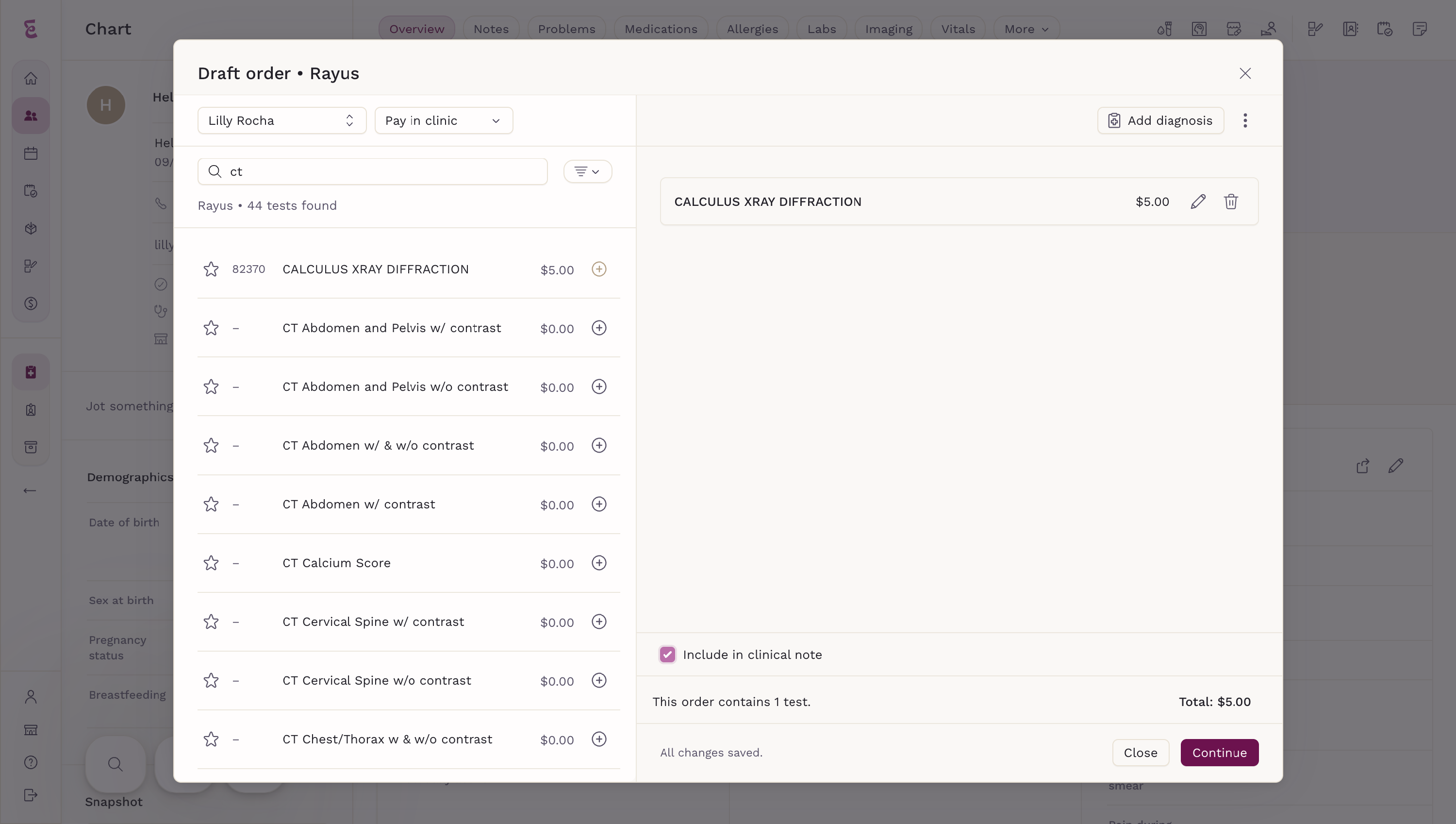
During ordering
While placing the order, select Include in clinical note.
-
After completing the order
On the final screen, click Add to note.
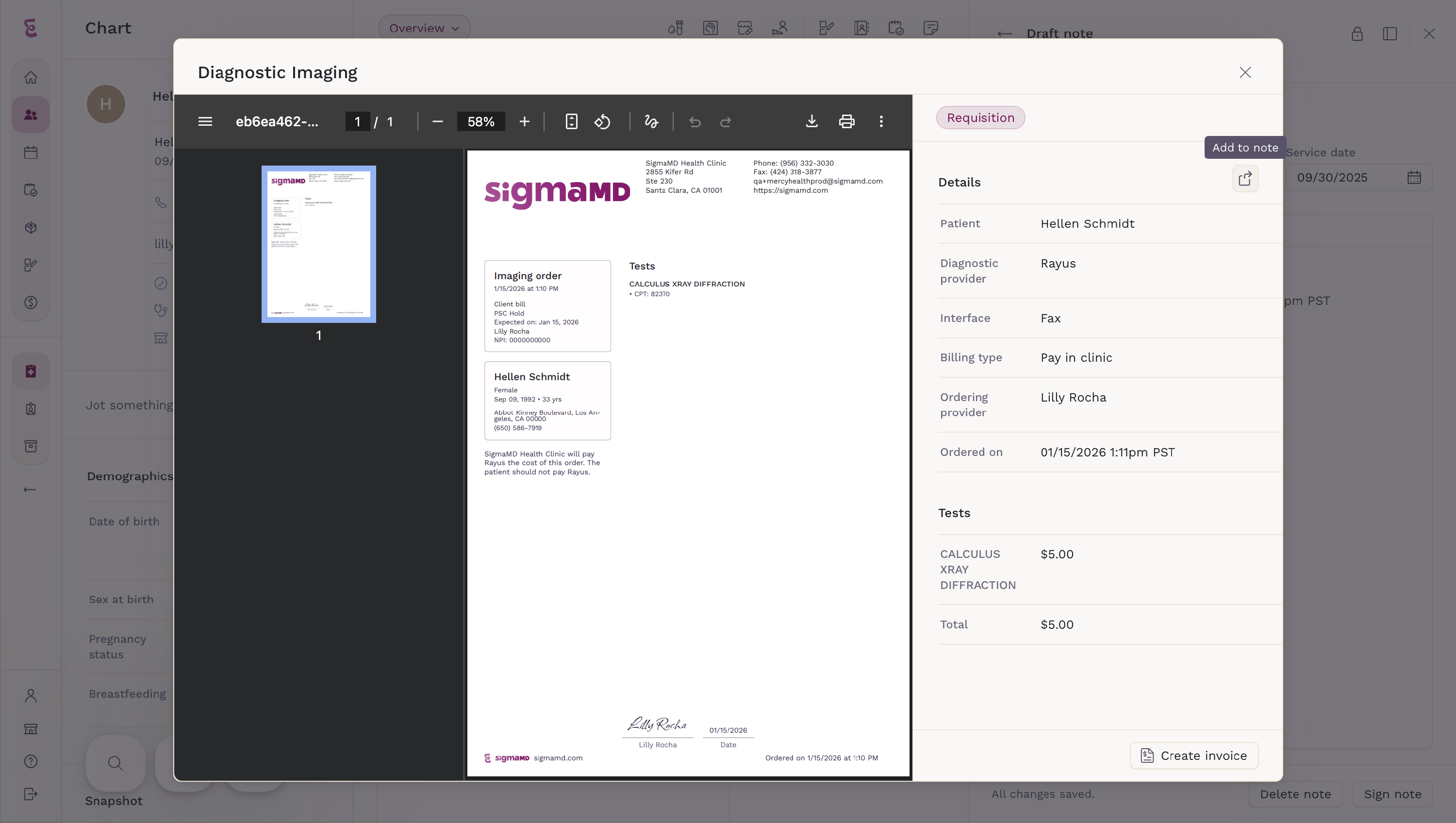
In both cases, the order is added to the open draft clinical note and will appear in the Attachments tab.

Add an existing lab or imaging order to a clinical note
You can also add an order that was already created.
-
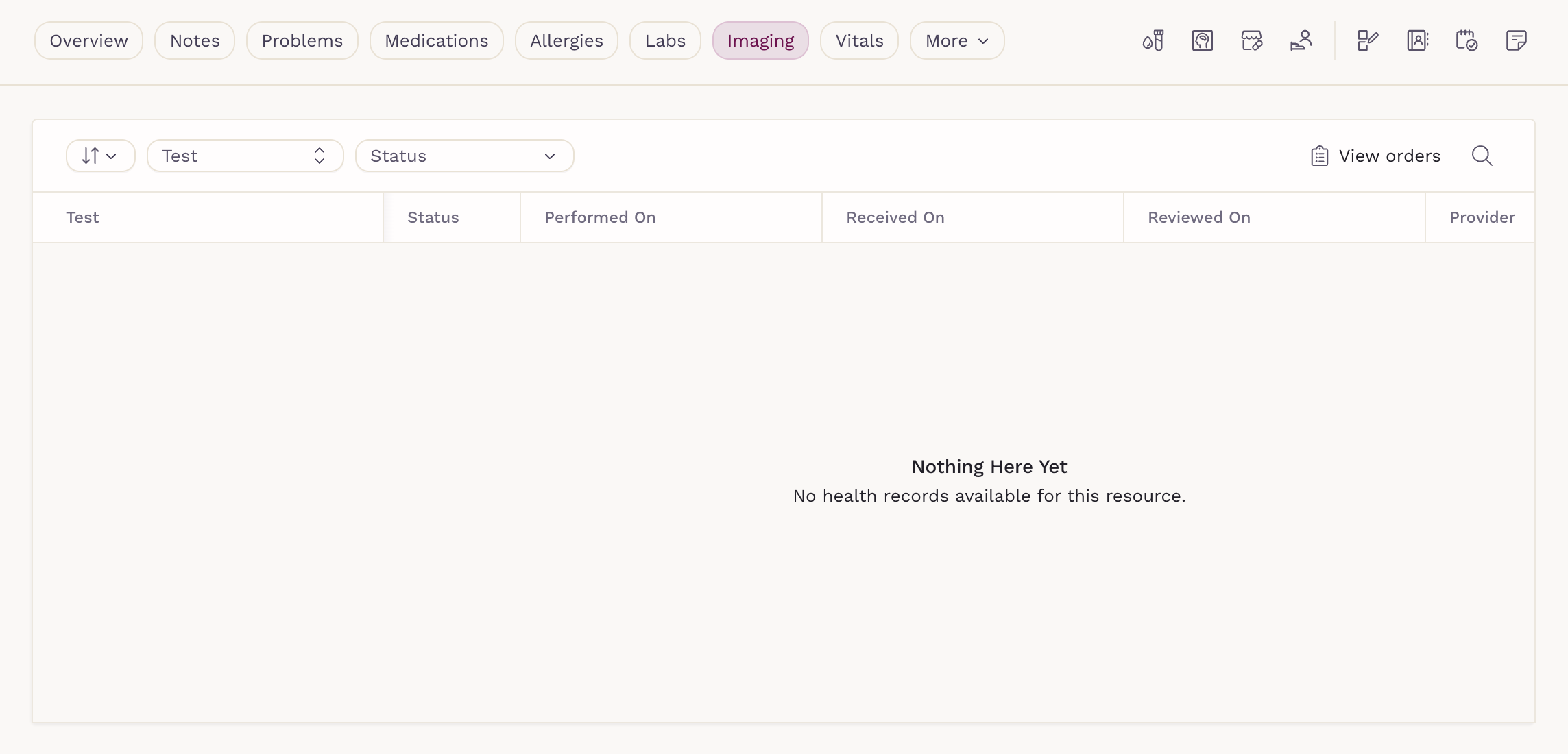
Go to the Labs or Imaging tab in the patient chart.
-
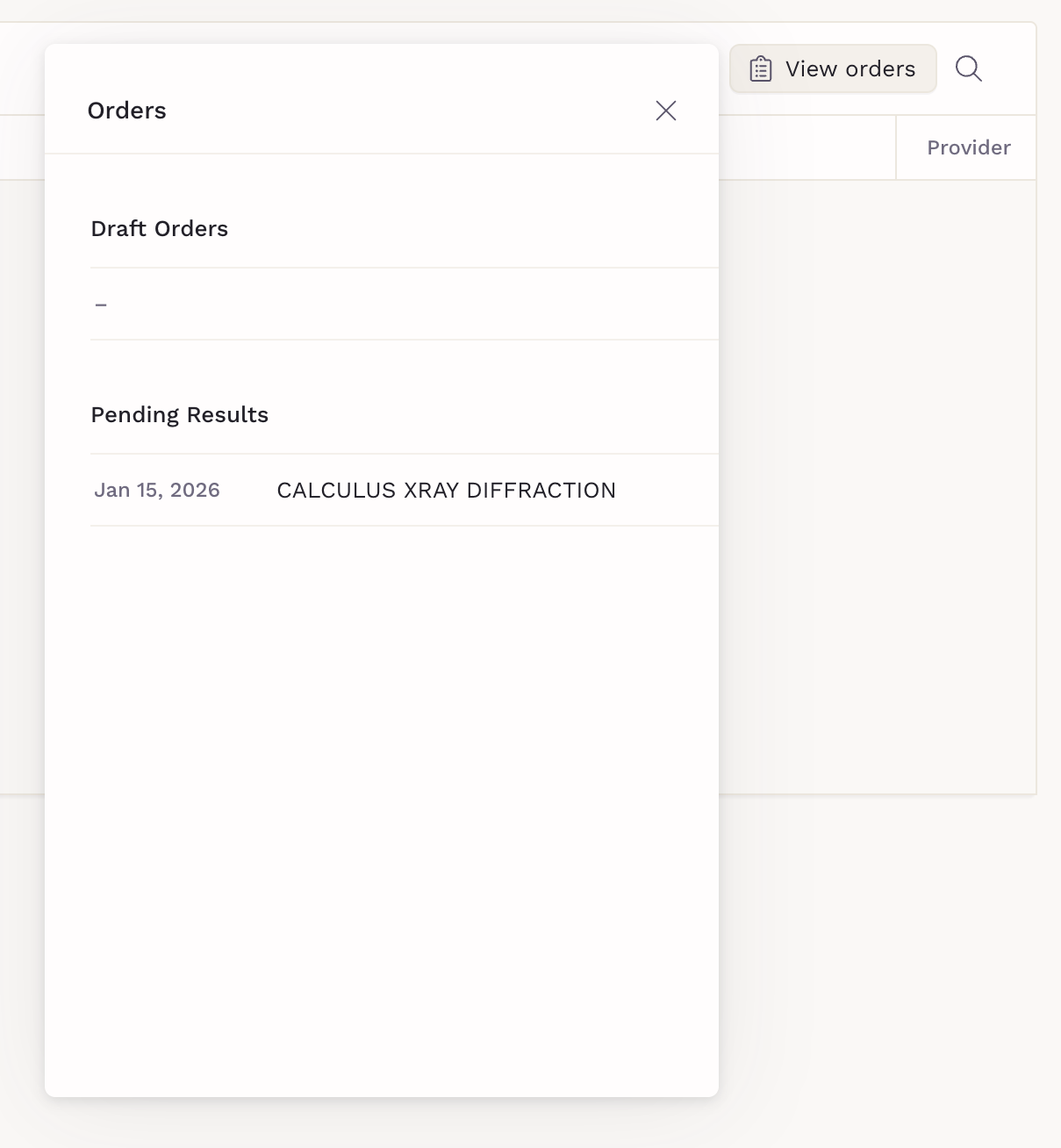
Click View orders.
-
Open the order you want to add and click Add to note.
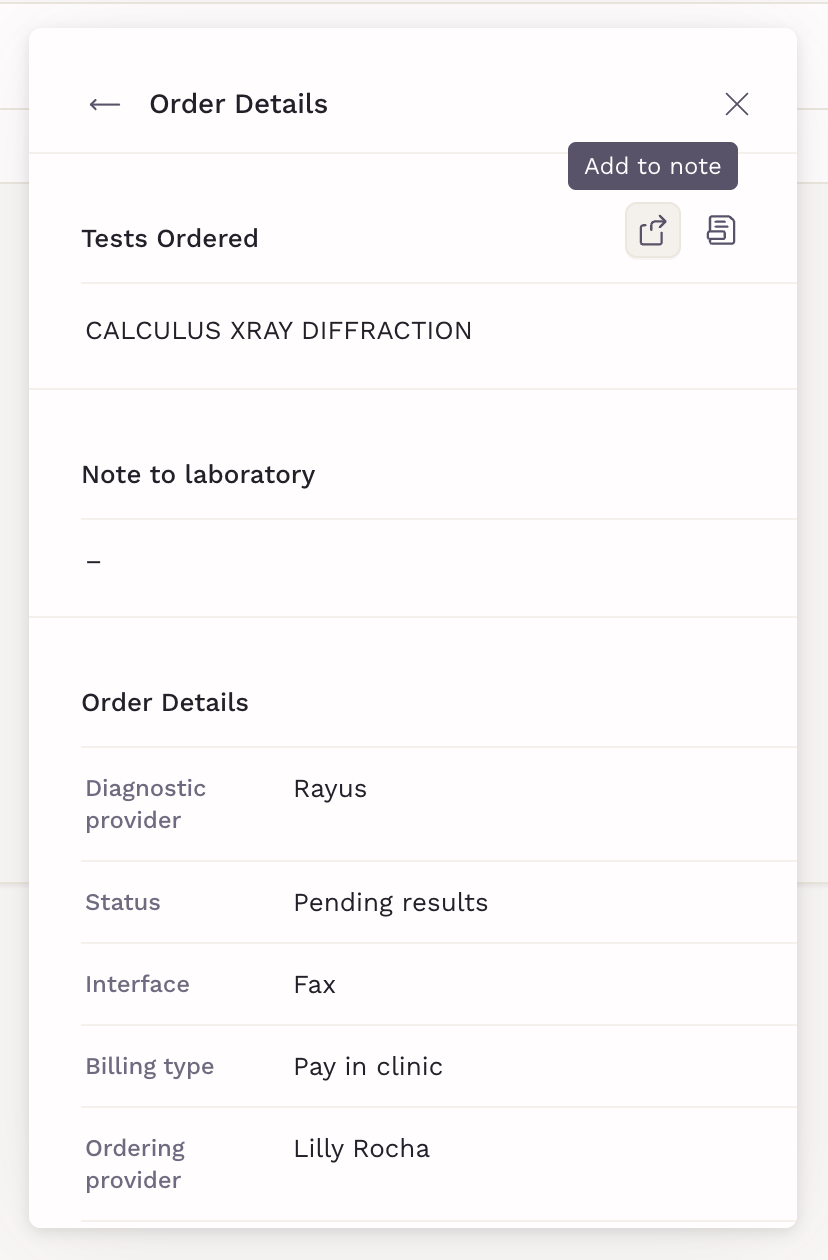
The order is added to the open draft clinical note and appears in the Attachments tab.
Prescription orders
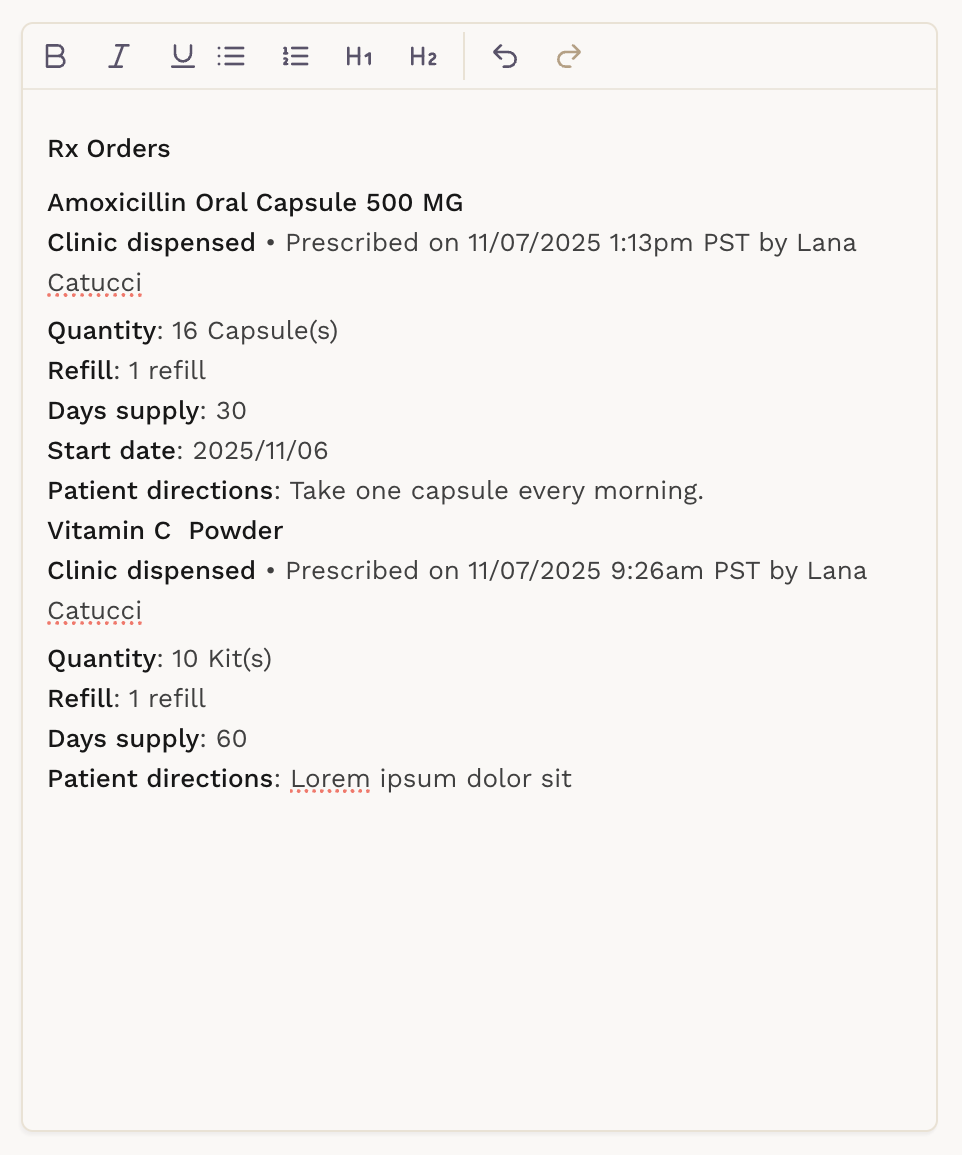
Prescription orders from both In-house dispensing or orders sent to pharmacies can be added to a clinical note.
-
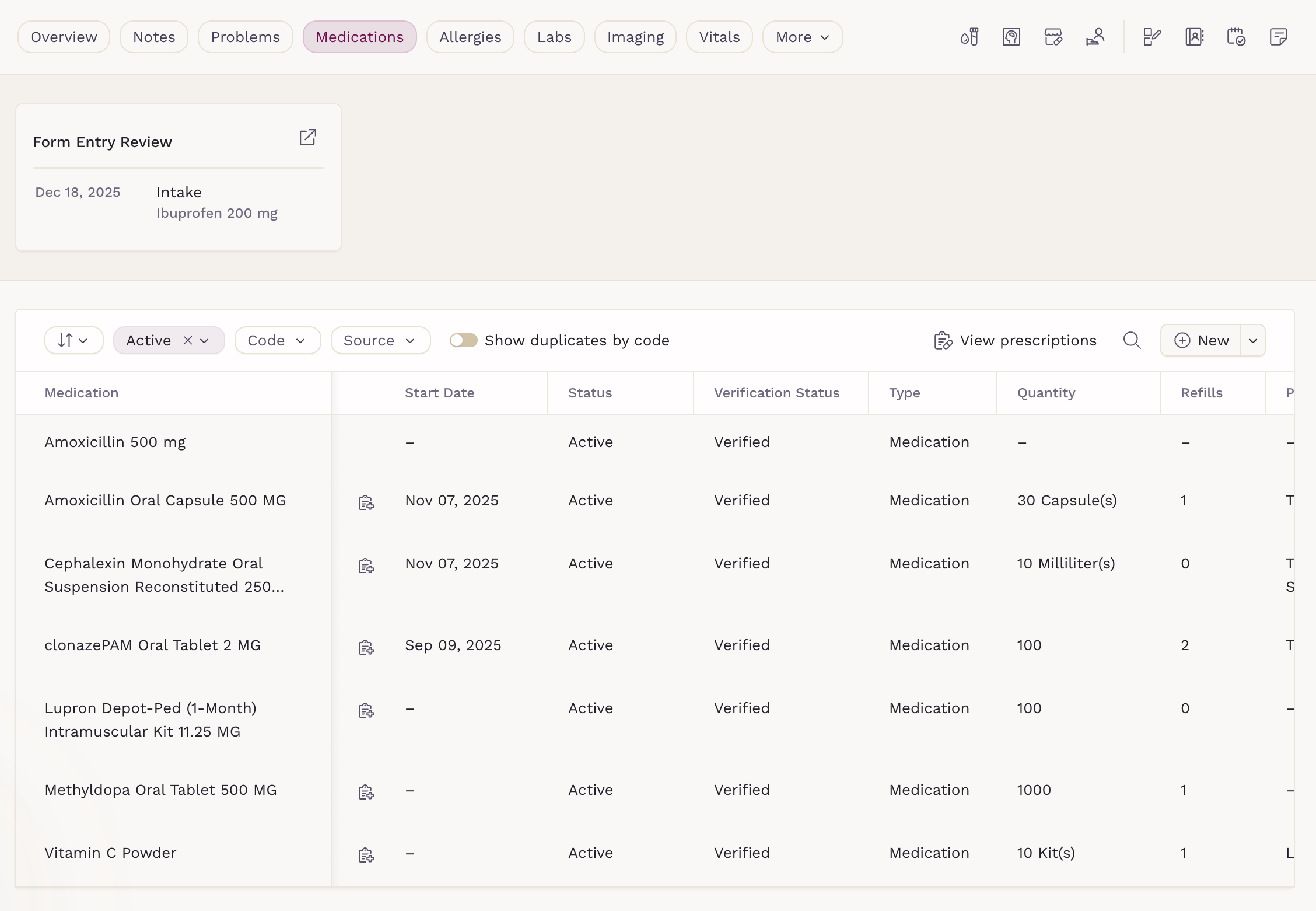
Go to the Medications tab in the patient chart.
-
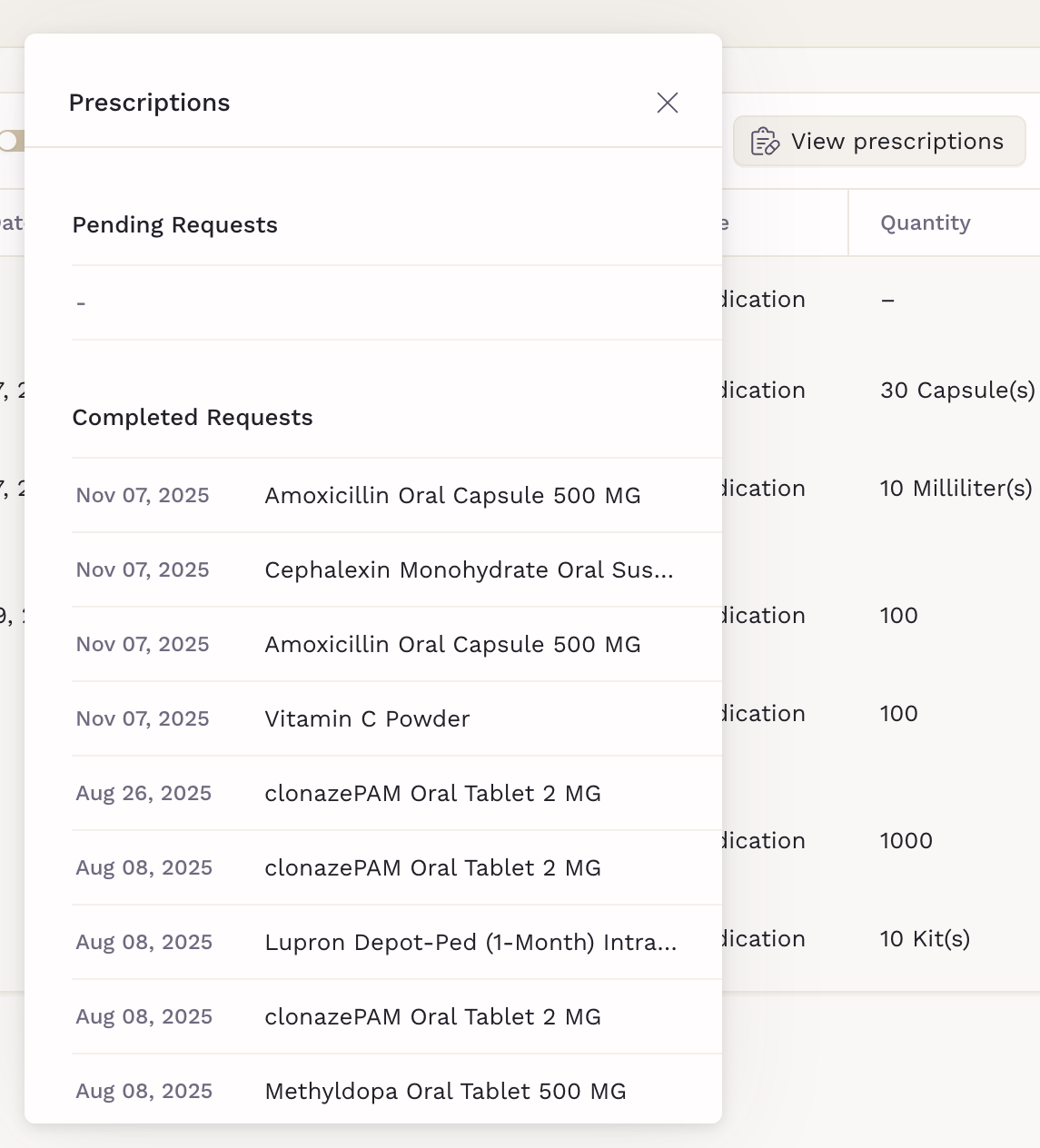
Click View prescriptions button on the table.
-
Select the prescription you want to add and click Add to note.
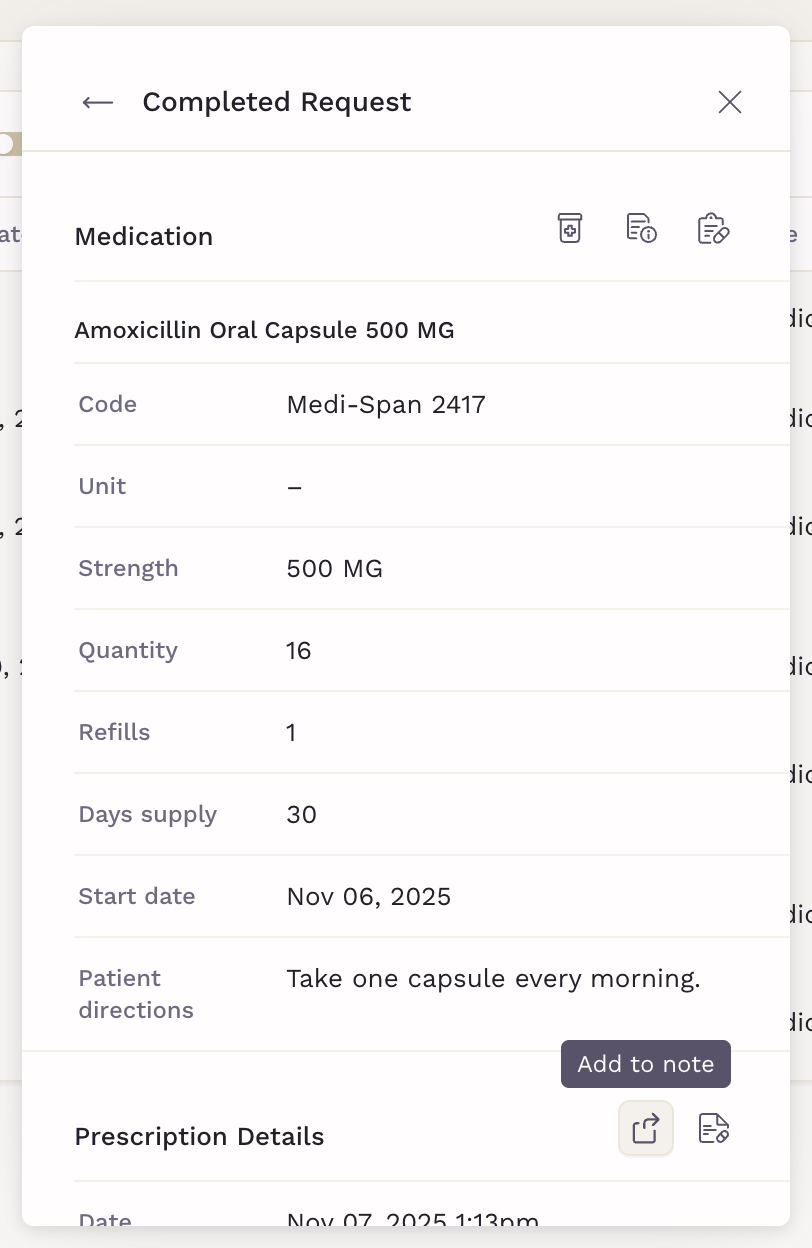
The prescription is added to the open note.

Variables
Orders can also be added to a clinical note by using variables.
- Open a note.
-
In the note editor, type
$ordersto see all available order variables.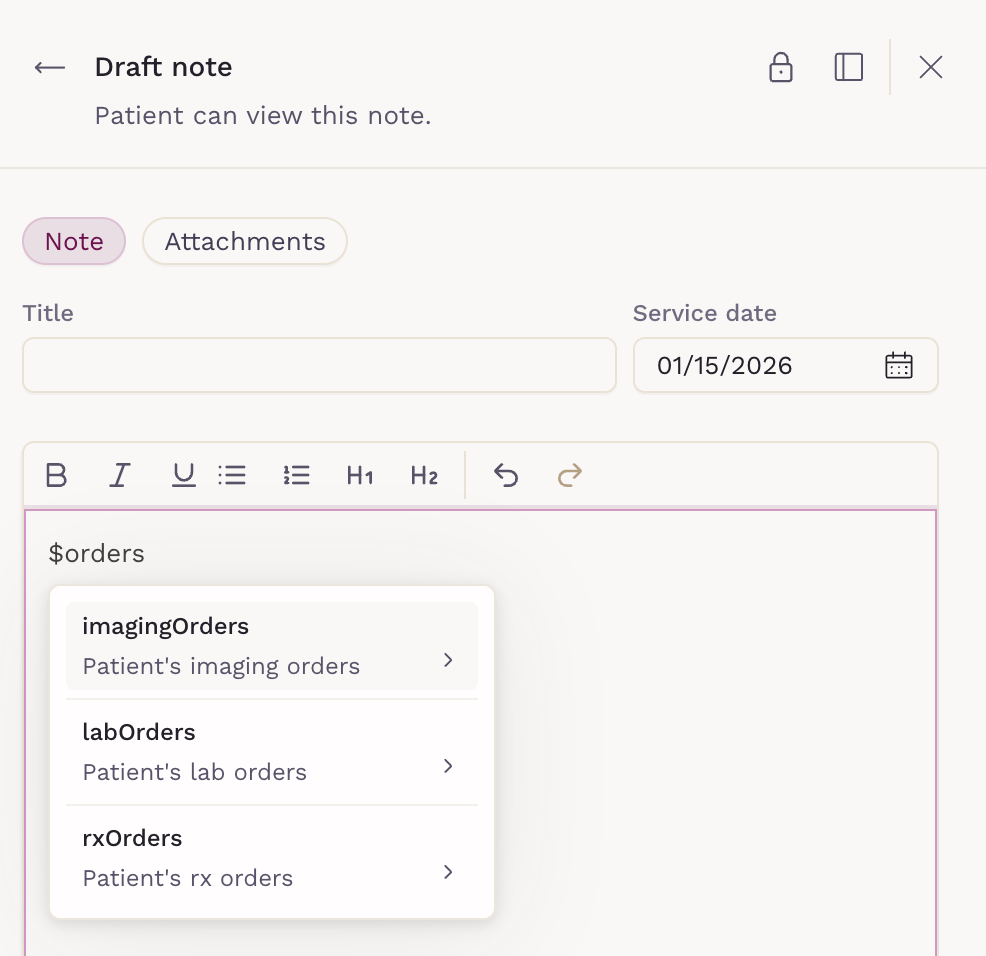
-
Select the order type you want to add (imaging, lab, or rx).
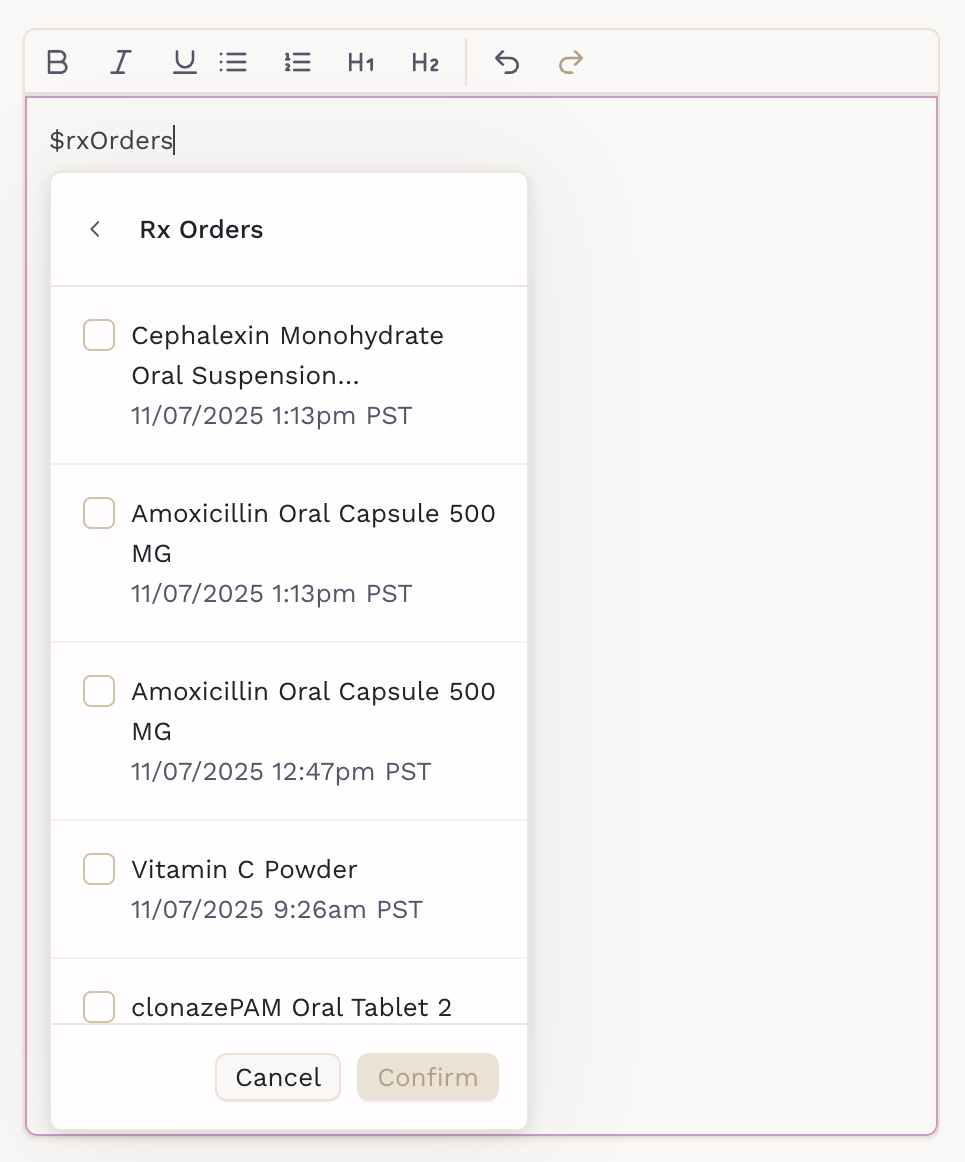
-
Choose the specific orders you want to include.
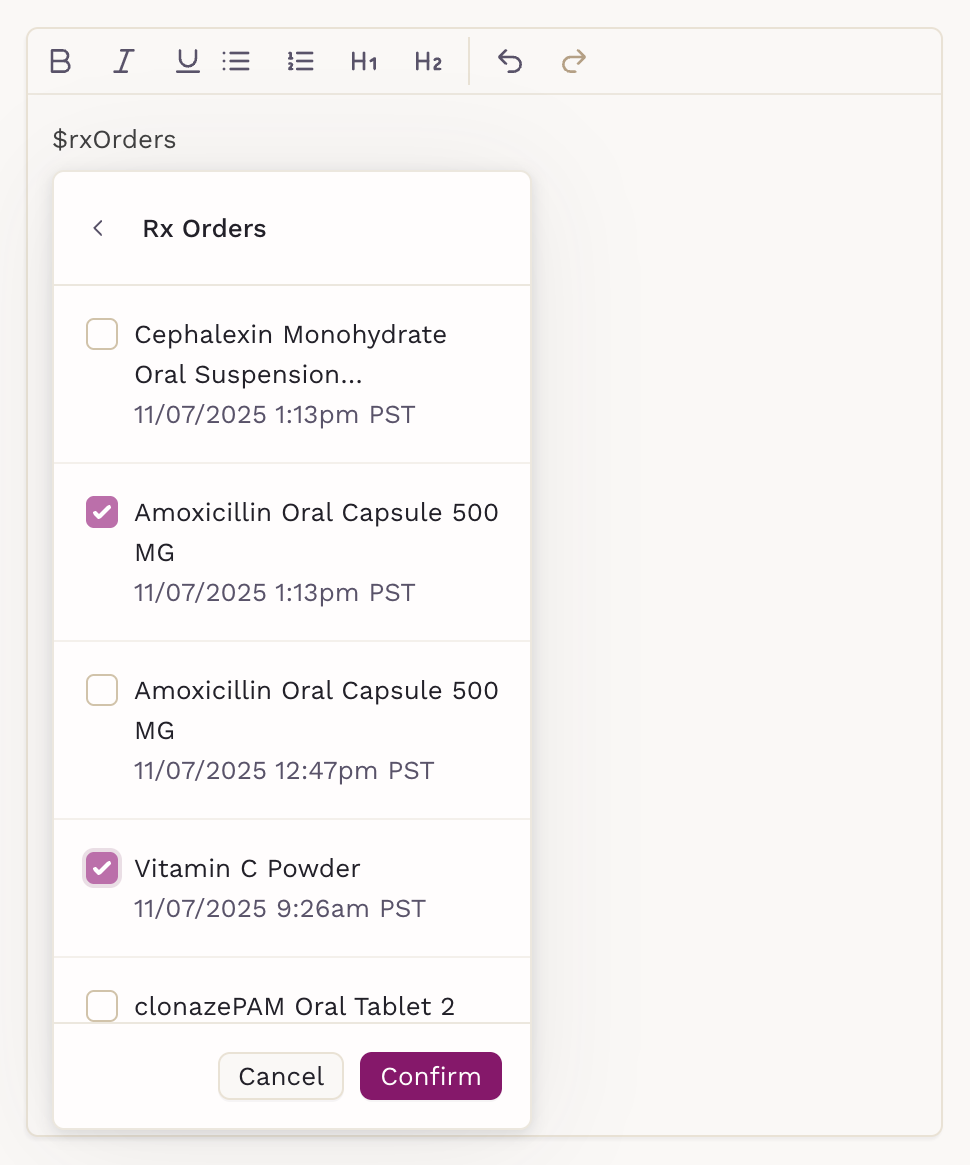
-
Click Confirm to add them to the note.