
How to copy charge items from one provider to another
In SigmaMD, pricing is copied between diagnostic providers using a CSV file. This process involves downloading pricing from one provider and uploading it into another.
Step 1: Download pricing from the source provider
- Go to Charge Items.
- Open the Category for the diagnostic provider you want to copy pricing from.
-
Click Download CSV in the top-right corner of the table.

Step 2: Upload pricing to the destination provider
- Open the Category for the diagnostic provider you want to copy pricing to.
- Click Add → Upload pricing.
-
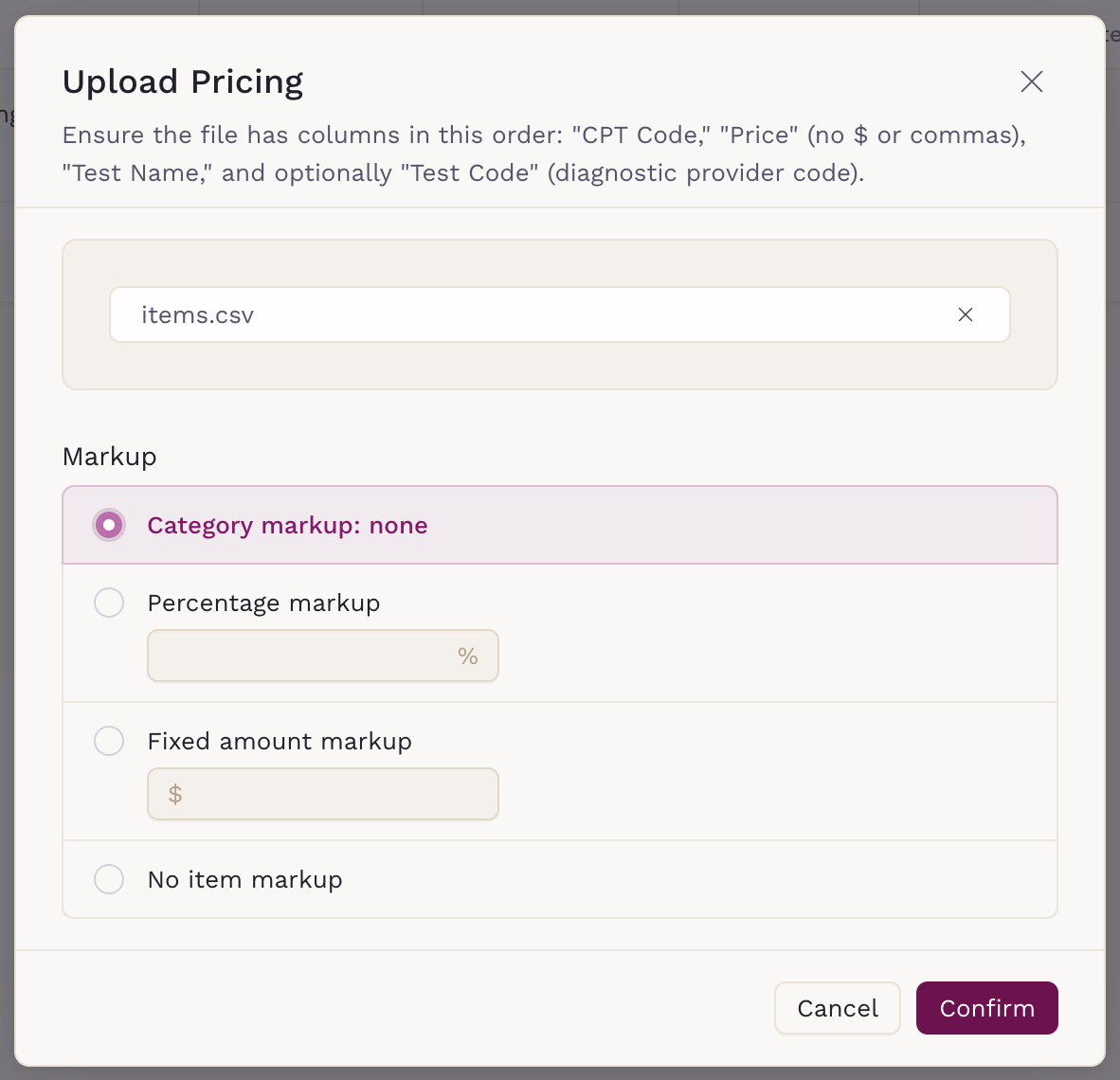
Upload the CSV file you downloaded.

- Select how markup should be applied during the upload: category, percentage, fixed amount or no item mark up.
-
Click Confirm.
After you upload
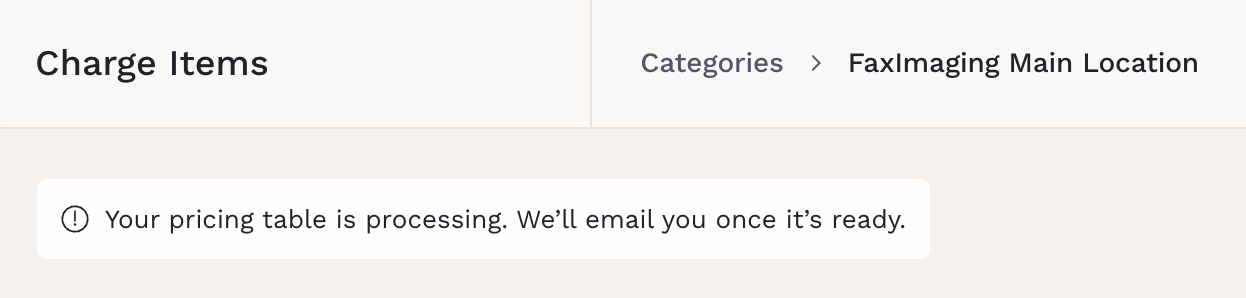
- Pricing is processed in the background.
- A confirmation message will appear while processing.
-
You’ll receive an email once the pricing table is ready.
This method allows you to reuse diagnostic pricing across providers while keeping each category independent.