
How Patients Complete Forms
This article explains what happens after you send a form and what your patients experience when filling it out. Understanding this flow helps you set the right expectations and avoid incomplete submissions.
How patients receive and access a form
Patients can receive forms in three ways: from the chart, Forms table, or through chat.
Forms sent from the chart or Forms table
Once you send a form, the patient receives a link at their registered email address. Patients can also access assigned forms directly from the Patient Portal home screen or through the patient mobile app.
Tapping the link opens the form in a browser, no download needed. Forms can be completed on a phone, tablet, or computer, and the layout adjusts automatically to the screen size.
Forms shared through chat
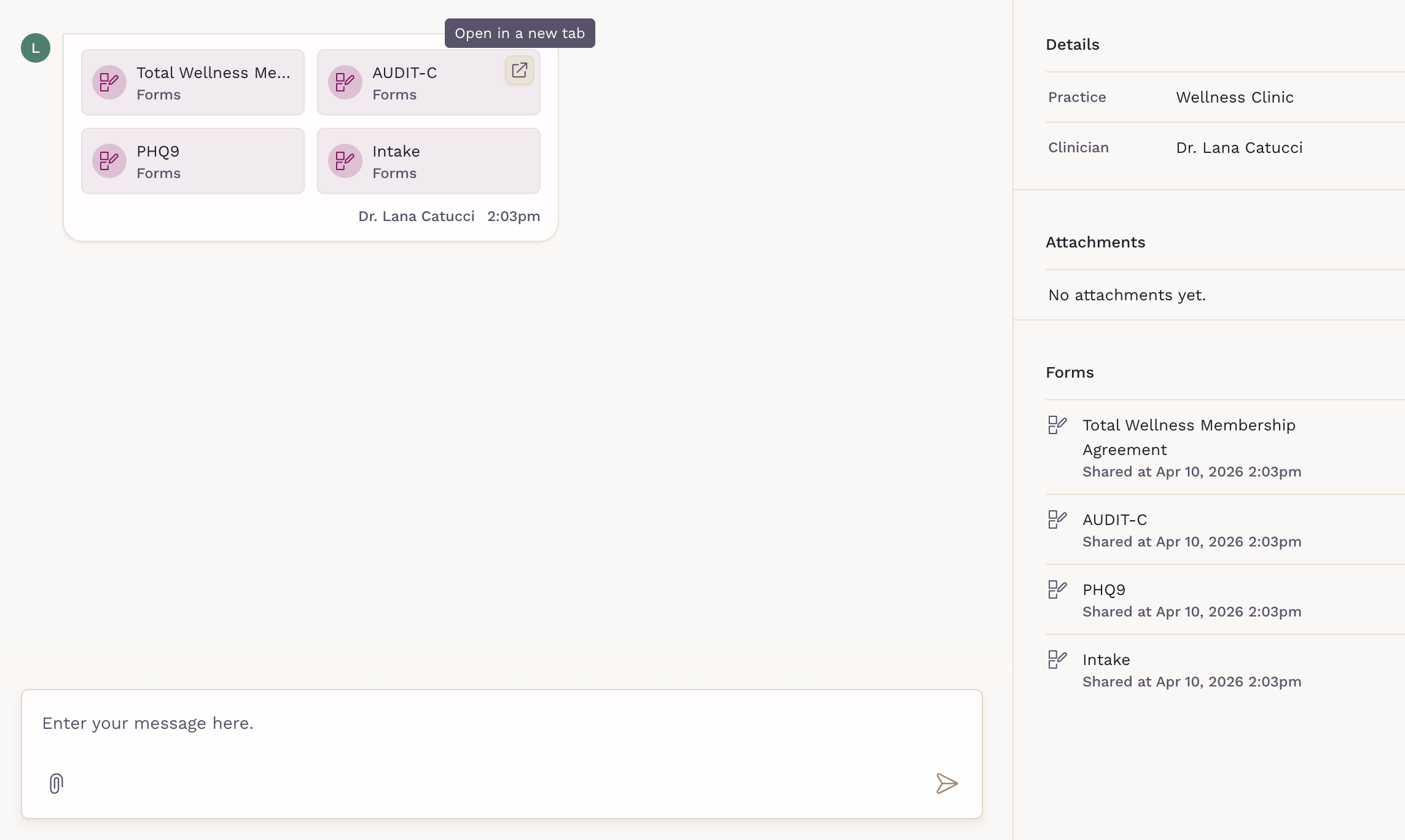
When a form is shared in chat, it appears in the conversation as a form card, and patients will also receive an email with the form link.
Tapping the form (from chat or email) opens it in an external browser where it can be completed on any device.

Pre-filling forms from chart data
By default, forms do not pre-fill with the patient’s chart data. Since a form is accessed through a link, and anyone with that link can open it, personal information (name, DOB, address, etc.) will appear blank unless pre-fill has been turned on for that form.
You can enable this per element on a form: turn on the Prefill from chart data toggle for the Personal Info, Contact Info, or Address elements, and those fields will populate from the chart for patients who are signed in. See Pre-Filling Form Fields from Chart Data for how to set this up.

Saving and submitting
If patients are signed in, form progress is automatically saved when they click the Continue button to move to the next section. Information completed in previous sections will remain saved if they leave and return later.
If patients open the form as a guest without signing in, progress is not saved. Closing the tab, refreshing the page, or leaving the form before submitting will cause all entered information to be lost, and the form must be completed again from the beginning.
Once the form is submitted, they will see a confirmation screen letting them know it was sent successfully:

After submission, patients cannot edit their responses unless you send a new form.
Where patients can find their forms
Patients can access forms from multiple entry points, depending on how they’re using the platform.
-
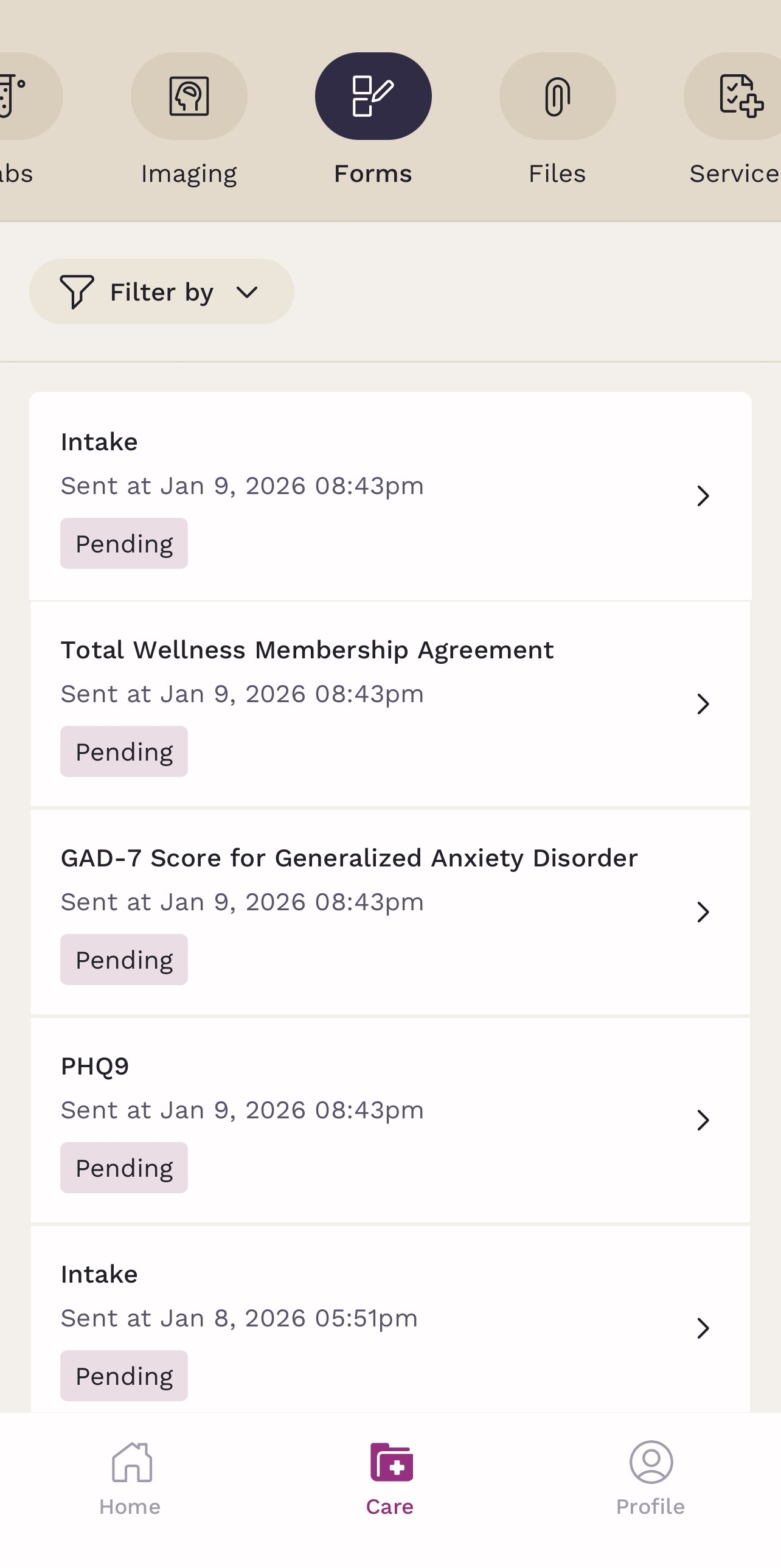
On the mobile app: All forms, whether sent from the chart, Forms table, or chat, are automatically added to the Forms tab. Patients will see both pending and completed forms in one place, with pending items also highlighted on the home screen.
-
On the web (Patient Portal): Forms shared through chat are available in the right-side panel of the conversation under Forms. Patients can also access assigned forms directly from the Home screen Forms section.
Where you see completed forms
Once submitted, completed forms are available in the patient’s chart under Forms. You can open the submission to review all responses and any attached files.

Tips for smoother completion
To improve completion rates:
- Keep forms focused and concise
- Only mark fields as required when truly necessary
- Add clear descriptions when extra context helps
- Test the form yourself before assigning it
If a patient reports they can’t find their form, confirm that:
- The form was sent to the correct email address
- They are using the most recent link
- The form hasn’t expired (if expiration rules are enabled)
- They completed and submitted it fully
By understanding the patient experience, you can design forms that are easier to complete and faster to review — saving time for both your team and your patients.