
How to use Scribe Actions
Scribe Actions help streamline your workflow during patient visits. After generating a note with Scribe, the system automatically identifies suggested resources based on the content of the visit.
These suggestions allow you to quickly update the patient chart without re-entering information manually.
Using Scribe Actions
-
Initiate Scribe
Start by creating a new visit note using Scribe from the bottom-left corner of the patient chart.
-
Generate the note
After finishing the visit, generate your note.
In the note view, you’ll see a new tab called Actions. The tab displays the number of suggestions found and automatically organizes them into categories such as:
- Problems
- Medications
- Allergies
- Vitals
- Vaccines
- Procedures
- Tasks
- Appointments
- Referrals
- Labs
- Imaging
- Family History
Reviewing Actions
Once Actions finish generating, you can review all suggested resources under Pending Review.
For each suggestion, you can:
- Add the resource to the patient's chart
- Create a task
- Discard the suggestion
For Problems and Procedures suggestions, the matching ICD-10 or CPT code is shown next to the item, when Scribe can identify one.

Adding a Resource from Actions
- Click the (+) Plus icon next to the suggested resource.

2. The corresponding modal will open. So you can review the details, select the appropriate resource, and edit any fields as needed.

For a Referral suggestion, the Patient Chart › Create Referral page opens in a new tab instead, with the title and reason filled in. Once the referral is created, the suggestion is marked as completed.
Managing a Resource from Actions
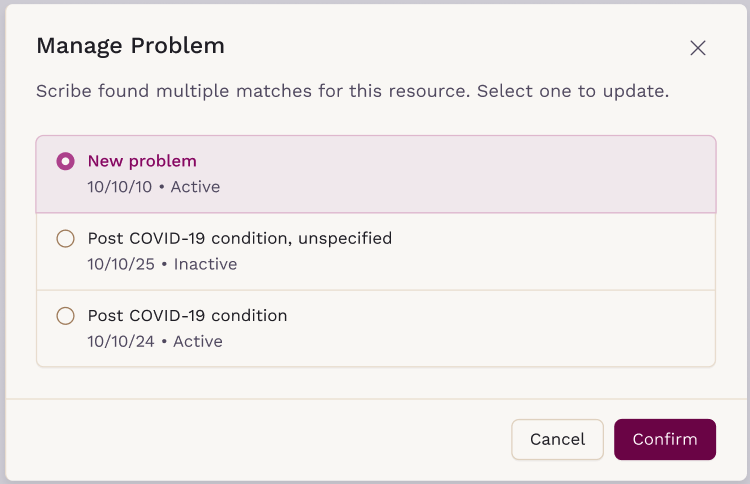
Scribe actions can detect when a Problem or Family History suggestion matches records already in the patient’s chart.
- Clicking on the (+) icon in a "Problem" resource that already matches records will open the Manage Problem screen where you can select to Add new problem or select an existing record to update it, then click Confirm.
Pre-filled fields
Some fields are pre-filled for you:
- For a Vitals suggestion, the Recorded At field defaults to the date of the visit rather than the current date and time.
- For Problems, Procedures, Medications, and Allergies, a date field (such as diagnosis date, date performed, start date, or date reported) can be filled in automatically from a relative or age-based phrase in the dictation — for example, “five years ago” or “since age 12” — whenever Scribe can confidently resolve it.
- For a Problem suggestion with a status of Active, Recurrence, or Relapse, Associated Appointments is filled in with the patient's appointment on the day the Scribe note was recorded, when there is exactly one. Canceled, No show, and Archived appointments are not counted, and you can remove the appointment before saving. Review these pre-filled fields before saving.
3. Click Save. Once saved, the action moves to the Review Completed section for reference.

Creating a Task from an Action
If you prefer to address the suggestion later or assign it to someone on your team:
- Click the Add task icon.

- The Task modal will open with suggested information prefilled. For a Task suggestion, Due Date follows the deadline stated during the visit: a date, or an interval such as “in two weeks” or “in about a month” counted from the visit date. With no deadline, or a vague one such as “in a few weeks”, it defaults to today.
- Add or adjust the Title, assignee, due date, or details as needed.
- Click Create.

Discarding an Action
If a suggestion is inaccurate or not relevant:
- Click the Ignore icon to discard it. Discarded actions move to Review Completed and cannot be restored.

Sending Feedback
To share feedback, type it in the Share Feedback box above Pending Review and click the send icon. Your feedback is sent directly to our team for review and improvement.
This helps us refine the feature and improve the accuracy of future suggestions.

Important Notes
- Scribe Actions is only available for notes generated using Scribe.
- Actions do not modify your clinical note. You can edit, discard, or complete them without affecting the note content.
- Updating your note will not regenerate or modify existing Actions.