
Sharing Forms with Patients
Forms can be shared with patients in multiple ways, depending on your workflow. Whether you’re sending forms in advance or during a conversation, the process is simple and flexible.
From the Patient's Chart
Use this option when you’re working within a specific patient’s record.
- Go to the patient's chart
- Click the Send forms button in the top right corner
- Select the forms you want to send
-
Click Send to patient
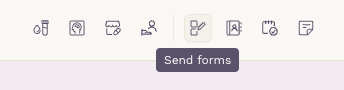
The patient will receive a secure link by email. They can also access the form from the patient app.
When opened, the form loads in a browser, no download required, and can be completed on any device.
From the Forms Screen
Use this option when managing and sending forms at scale.
- Open the Forms table
- Select the form you want to send
-
Click Send form and choose one or more patients
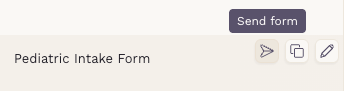
Each selected patient will receive a secure link by email and can also access the form from the patient app.
When opened, the form loads in a browser and can be completed on any device.
Through Chat
Use this option when you’re already communicating with a patient and want to send forms in context.
- Open a chat from the patient chart or the Inbox
- Click the Forms icon next to Attachments
-
Select one or more forms to share
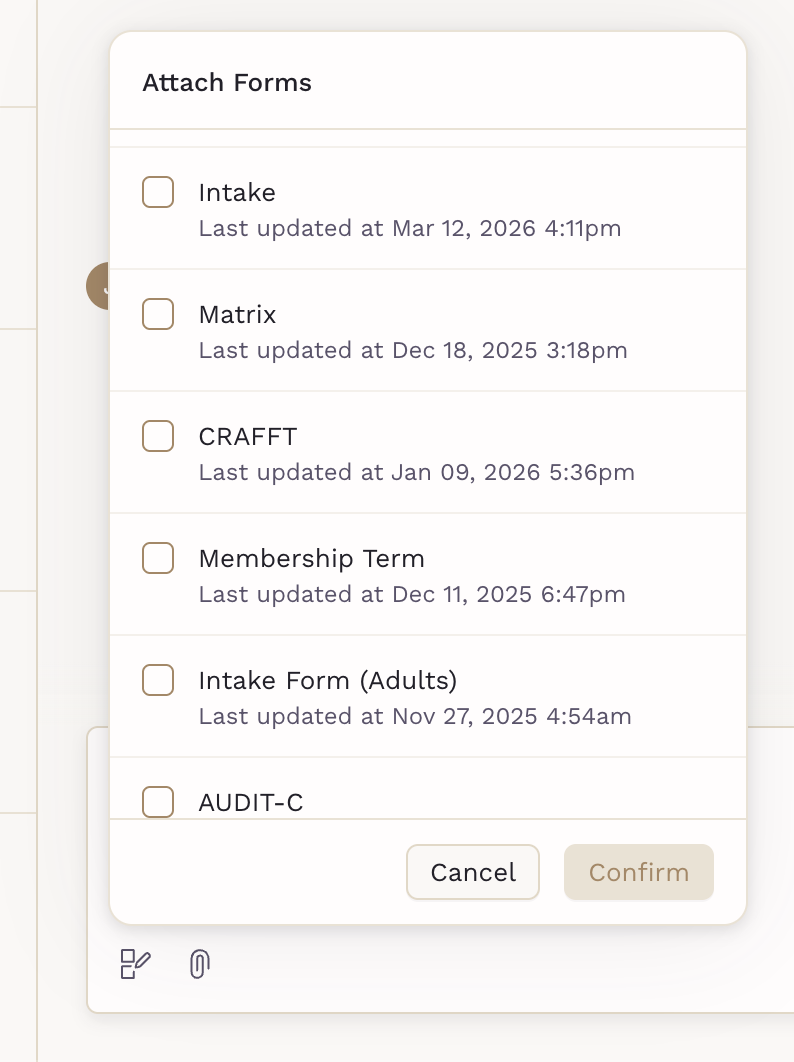
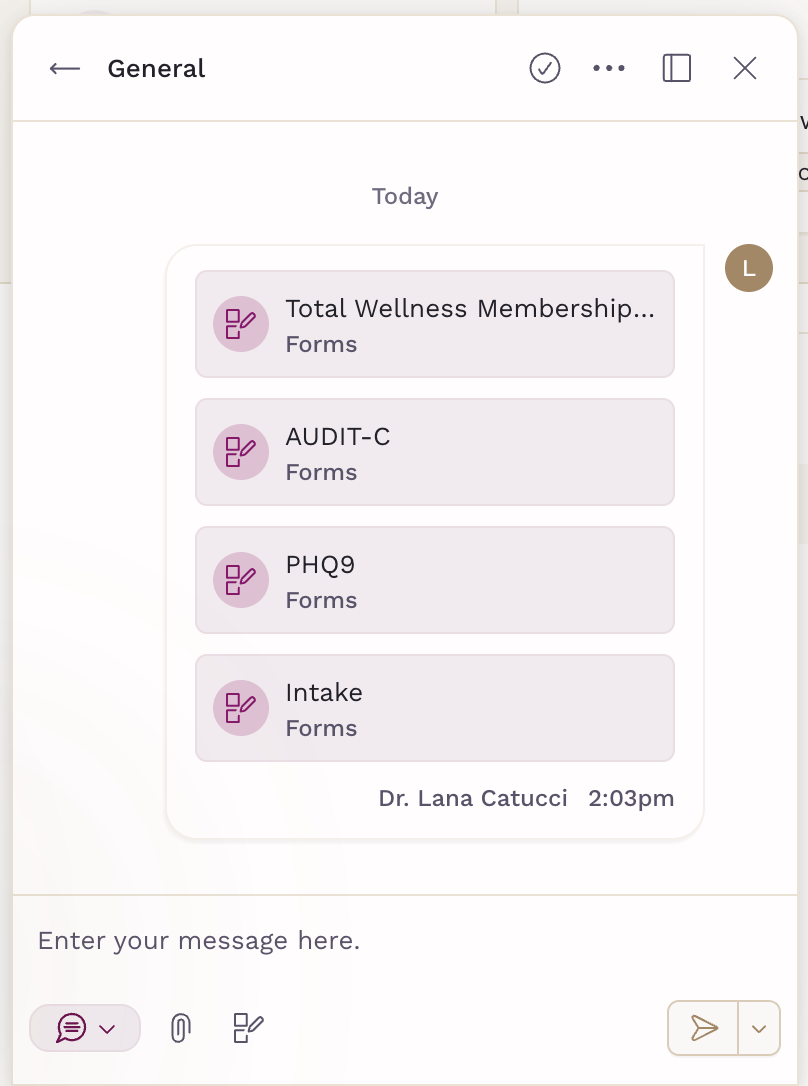
The form will appear as a message in the conversation. Patients can tap it to open the form in a browser. They’ll also receive an email with the same link.
Reminders for Pending Forms
Each form can send patients email reminders while it’s still incomplete. Reminders are set per form, in the form’s Settings tab under Notifications:
- Toggle on Patient reminders. It starts with one reminder at 2 days.
- Under Time after form is sent, enter 1 to 30 days.
- Click Add another to set up to 3 reminders.
Reminders go out once a day, around 9 AM in your practice’s time zone. A patient with several forms due that day gets one email that lists them all, with a link to complete them.
Reminders are sent by email only and stop once the patient submits the form. Each form keeps the reminder settings it had when it was sent, so changes apply to forms you send afterward.

Where Patients Access Their Forms
No matter how the form is shared, patients can always find it later:
- Mobile app: All forms (sent from chart, Forms table, or chat) appear under the Forms tab. Pending forms are also highlighted on the home screen.
- Patient Portal (Web): Forms shared through chat are available in the right-side panel under Forms within the conversation.
This ensures patients always have a single place to access and complete their forms.