
How to Request UPP-1 Orders from Quest
The UPP-1 (Uninsured Patient Program) allows eligible patients without insurance to receive certain Quest Diagnostics tests.
To submit these orders from SigmaMD, the program must be entered as an insurance on the patient’s chart. Quest expects UPP-1 to be transmitted as third-party insurance, not as self-pay.
Step 1: Add UPP-1 as an Insurance on the Patient Chart
Before placing the order, add the Uninsured Patient Program as the patient’s insurance.
- Open the patient's chart.
-
Go to the Payments section. Click Add Insurance.
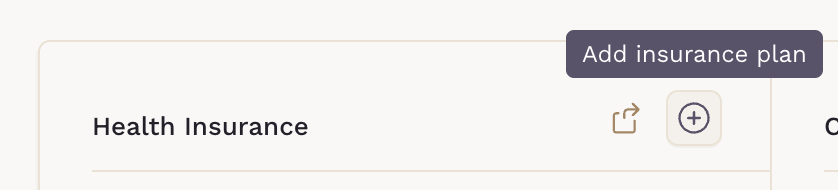
- Enter the following information:
- Plan name: Uninsured Patient Program
- Policy number: –
- Group number: –
- Insurance address: Use the address provided by Quest for the Uninsured Patient Program (UPP-1) in your state. The correct address may vary by location. Search for the UPP-1 address responsible for your state or confirm it with your Quest representative before saving the insurance entry.
- Once completed, click Save.

Step 2: Create the Lab Order Using UPP-1
When placing a Quest order:
- Create a new lab order.
- Select Use Insurance as the billing type.

- Select the lab tests and click Continue.
- Choose the Uninsured Patient Program from the patient’s insurance list.

- Complete and send the order to Quest.
The order will now be transmitted with the UPP-1 insurance configuration.
Important Notes
UPP-1 must be submitted as insurance
Do not select Self-Pay when sending the order. Quest requires UPP-1 to be transmitted as a third-party
The address may vary by state
Always confirm the correct UPP-1 address for your location with Quest before creating the insurance entry.
Troubleshooting
UPP-1 does not appear when placing the order
Make sure the Uninsured Patient Program insurance was added to the patient's chart before creating the lab order.
Quest rejects the order
Verify that Use Insurance was selected as the billing method. Orders sent as Self-Pay will not be processed as UPP-1.