
How to change a membership cycle length and billing date
Membership cycle length and billing dates are set at the time of enrollment. If you need to update either of these, the change cannot be applied to an active membership.
To make adjustments, you’ll need to cancel the current membership and enroll the patient again with the correct settings.
Before you start
- The billing cycle length (e.g., monthly, quarterly) is defined by the membership plan
- The billing date is determined when the patient is enrolled
- These values cannot be edited after enrollment
- Send a message to the patient prior to these changes, as they'll be notified about them and may have questions.
How billing dates are determined
When a patient enrolls in a membership:
- If the plan uses Same as Start Date, the billing date is tied to the enrollment date
- If the plan uses Fixed Days, the billing date follows the selected calendar day(s)
Once the enrollment is completed, this billing schedule is locked in.
How to update the cycle length or billing date
To make changes, follow these steps:
Step 1: Confirm or create the correct plan
Before re-enrolling, make sure the membership plan has the desired:
- Charging cycle (e.g., monthly, quarterly)
-
Billing configuration (
Same as Start Date or Fixed Days)
If needed, update the plan or create a new one.

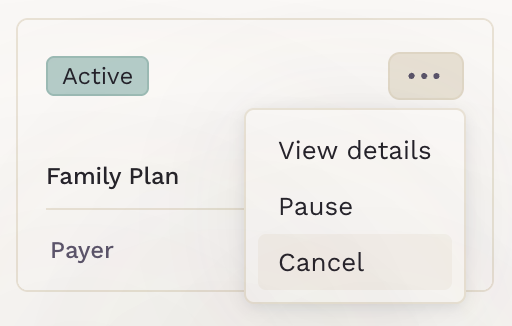
Step 2: Cancel the current membership
- Go to the patient's chart
- Open the Payments section
- Locate the active membership
-
Cancel the membership. Select the end date as the date before the re-enrollment (step 3).
For example, if the patient will now pay every 15th, schedule the cancellation for the next 14th, and set the re-enrollment start date to the next 15th.
Step 3: Re-enroll the patient
- Click Add Membership
- Select the correct plan
- Choose the appropriate start date (this will determine the new billing date)
- Complete enrollment
