
Getting Started with the SigmaMD API
The SigmaMD API allows you to connect external applications to your practice data. Follow the steps below to enable access and generate your first credentials.
For the complete API technical documentation, refer to: api.sigmamd.com/api/public/v1/docs.
Enable API Access
Before generating API keys, you must request API access for your practice.
- Go to Practice Settings and select Integrations from the left menu.
-
Locate the API Access section and click Request Access.
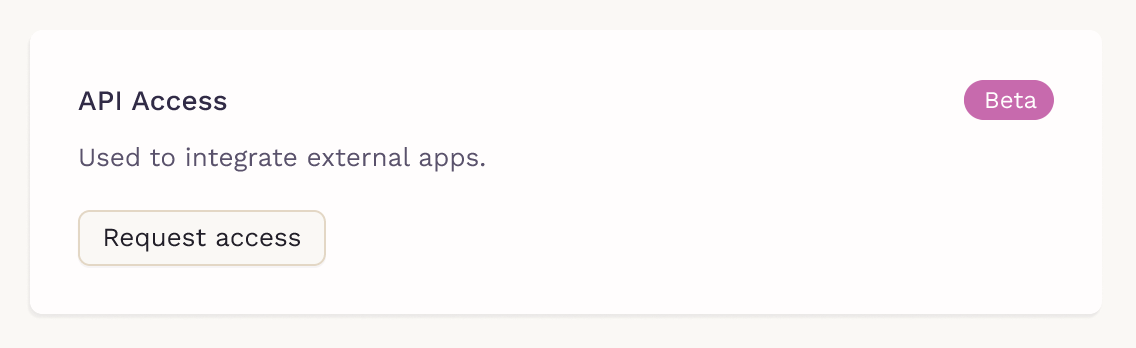
After submitting the request, a confirmation email will be sent to practice admins.
Once you receive it, your practice will have immediate access to the API, and you can proceed to generate credentials.
Generate Practice API Keys
With API access active, you can create credentials for external apps at the practice level.
- In Practice Settings, go to Integrations.
-
On the API Access card, click View all apps.
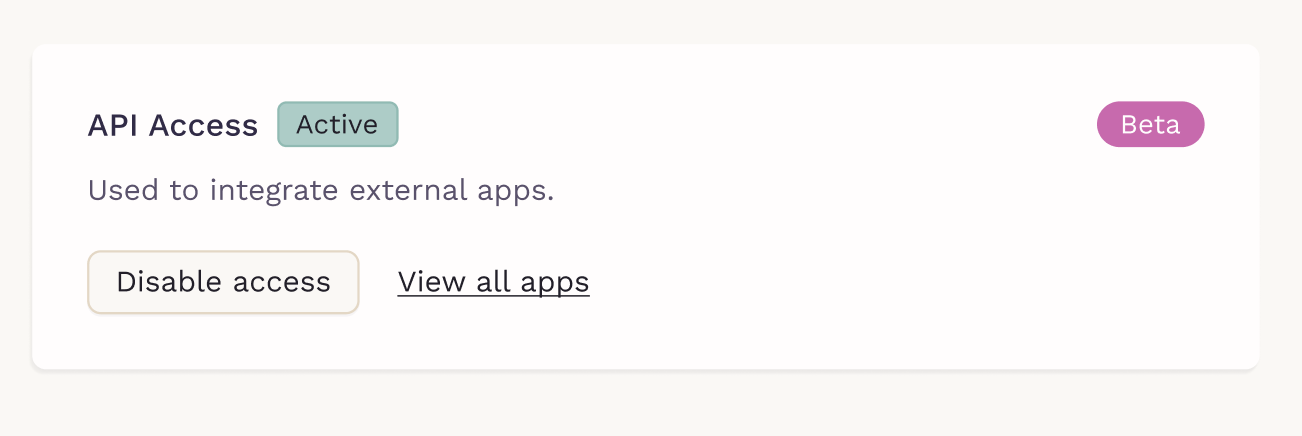
- In the table, click '+ App' in the top-right corner.

-
Enter a name for the integration and select the Data Scopes it should have access to.
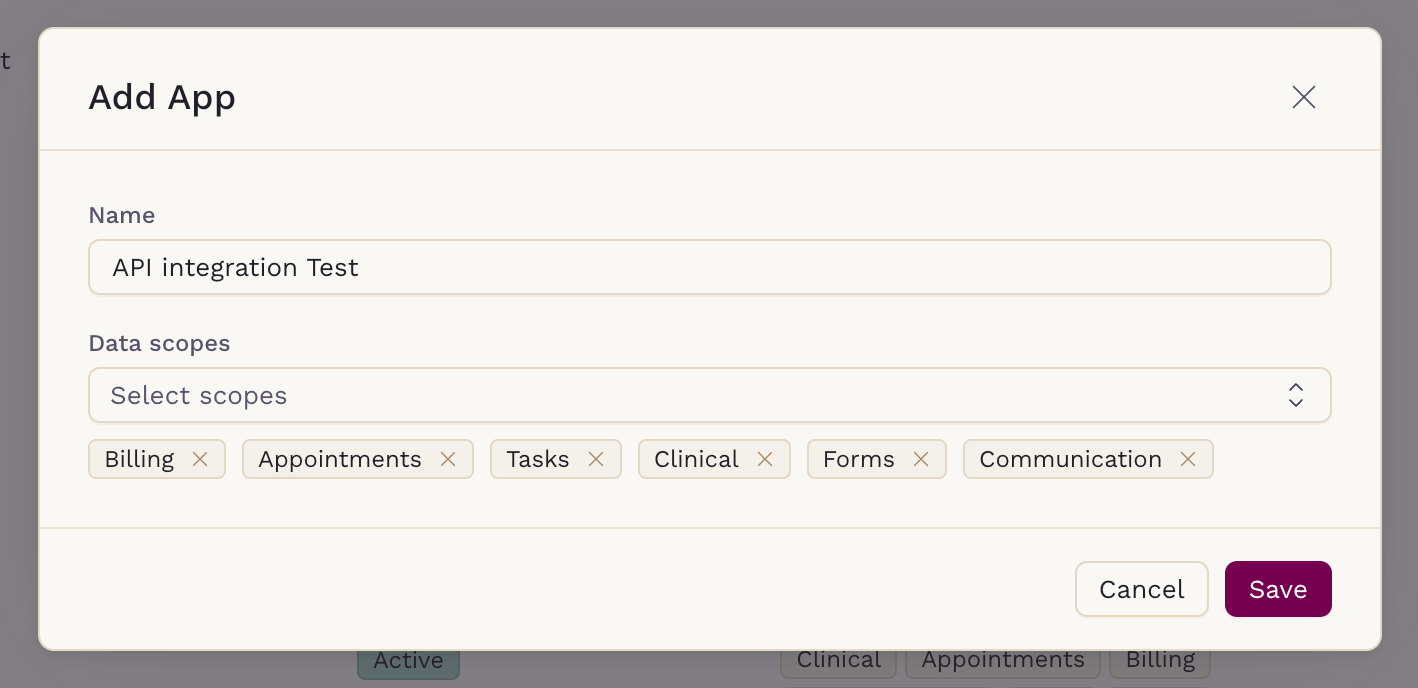
-
Click Save. Your Client ID and Client secret will appear — copy and store both values in a secure location.
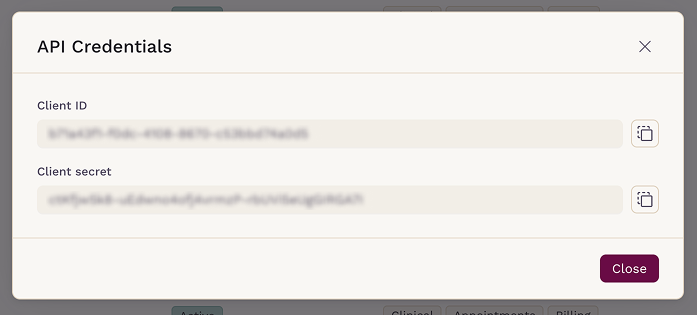
Note: The client secret is shown only once. If you lose it, you can generate a new one by clicking Regenerate Secret on the credentials table:

Generate Personal API Keys
Individual team members can also generate their own API keys from their personal settings. These keys are private — only the user who created them can view or manage them.
- Go to Personal Settings and select API Credentials from the left menu.
- In the table, click "+ App" in the top-right corner.
-
Enter a name for the integration and select the Data Scopes it should have access to.
-
Click Save. Your Client ID and Client secret will appear — copy and store both values in a secure location.
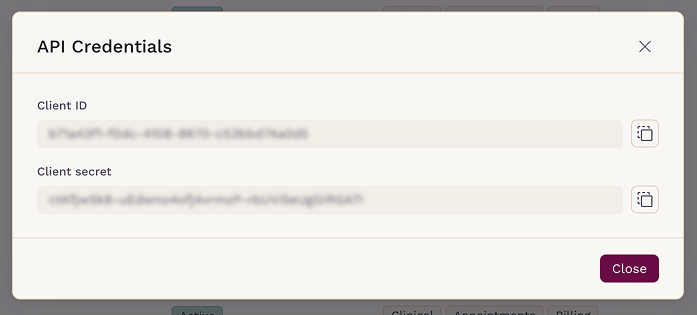
Note: The client secret is shown only once. If you lose it, you can generate a new one by clicking Regenerate Secret on the credentials table.
Data Scopes
When creating a key, select only the scopes required for that integration: billing, appointments, tasks, clinical, forms, communication, or all.
Managing Your Keys
All keys are listed in the API Credentials table with their status, data scopes, and creation date. To revoke a key, hover over the row and click the remove icon.
Revoked keys remain in the table for audit purposes but immediately lose access.
Managing User Access
Practice admins can control whether each team member can create API credentials.
To manage a user's access, go to Practice Settings → Team, select the user, and toggle their API access on or off.
Non-admin users can see their current access state but cannot change it.

Important Notes
- Check our pricing page for the API access fee.
- Each key should only be granted the scopes required for its specific integration.
- Revoking a key takes effect immediately, any app using it will lose access right away.
- A practice admin can disable API access for the entire practice at any time from Practice Settings → Integrations.