Attaching PDF Forms to Membership Terms
When a form is linked to a membership term, it becomes part of the enrollment flow — patients are prompted to complete it before finishing enrollment, and their signed responses are saved automatically to their chart.
Before you start: the form you attach here must first be built and published in the Forms builder. If you want the agreement to capture a signature, add a signature field to the form when you build it — see Building Interactive PDF Forms for a step-by-step.
Linking PDF Forms To a Membership Plan
Navigate to Billing > Settings and scroll to the Enrollment Terms section. Click + Terms, give the term a title, and select PDF Forms as the type.

Click + Forms and browse your published PDF forms. To preview or edit a form before attaching it, click Go to form — this opens the form builder in a new tab. Add one or more forms to the enrollment terms, then click Save.

Only published PDF forms appear in the picker. If a form isn't showing up, open it in Forms, publish it, and return to Billing Settings.
Migrating From a Legacy Agreement
Older enrollment terms that use an uploaded file cannot be edited. On a legacy term, you will only see an Archive button; there is no edit (pencil) option.

To move an existing agreement over to the new PDF Forms setup:
- Build your agreement as an interactive PDF form with a signature field and publish it — see Building Interactive PDF Forms.
- Create a new enrollment term of type PDF Forms and attach the published form (see Linking PDF Forms To a Membership Plan above).
- Archive each legacy term that is not using interactive PDF Forms by clicking the archive icon on that term.
Archiving a term does not affect patients who already enrolled or signed under it — it only stops the term from being applied to new enrollments. Going forward, new enrollments will use your new PDF Forms term.
Manual Enrollment
When enrolling a patient from within SigmaMD, the Enroll Patient dialog automatically lists any forms linked to the selected plan under Enrollment Terms. You can click Add forms to attach additional forms specific to that patient's enrollment without changing the plan's default terms.
Once the patient is enrolled, they will receive an email with all the forms they need to review and complete.

Self-Enrollment
If the patient is self-enrolling in a membership, they will complete the required forms during the Add Payment Details step, where all enrollment forms are listed. Each form must be opened and completed before the patient can finalize enrollment — the button to proceed stays disabled until all forms are submitted.

Patients complete each form directly in their browser. Depending on how the practice built the PDF form, it may or may not require a signature. To make the agreement legally binding, include a signature field when building the form — see Building Interactive PDF Forms.

After completing all forms and submitting payment, patients receive a confirmation email.
Where Submitted Forms Are Saved
Once a patient submits a form, it is saved to their Patient Files under a dedicated Membership Forms folder. The signed PDF is also attached to the enrollment confirmation email sent to the practice.
Status
The status of each enrollment form is visible from the Manage Membership side sheet.
- Submitted — The patient completed and submitted the form.
- In progress — The patient started the form but hasn't submitted it yet.
- Not started — The form hasn't been started.
Resending and Managing Forms After Enrollment
From the Manage Membership side sheet you can:
-
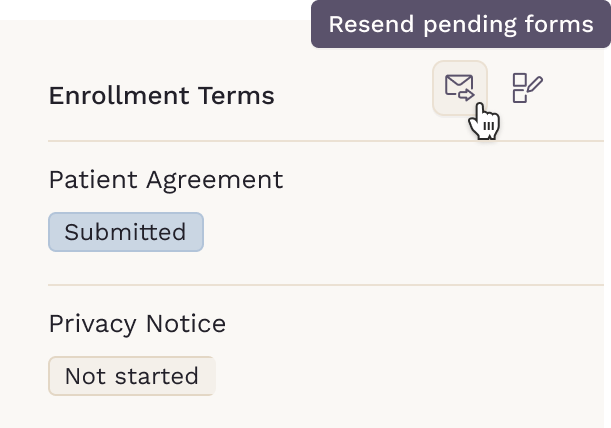
Click Resend Pending Forms to send a reminder for any forms that have not yet been submitted. This button is only available when the patient is already enrolled in the membership. Only pending forms will be resent.
-
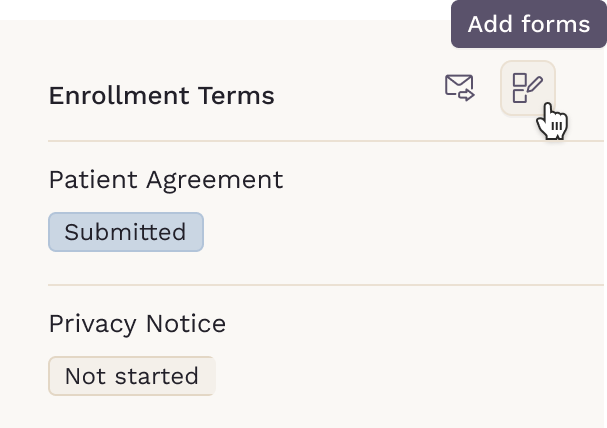
Click Add forms to attach additional PDF forms to the patient's enrollment at any time.
-
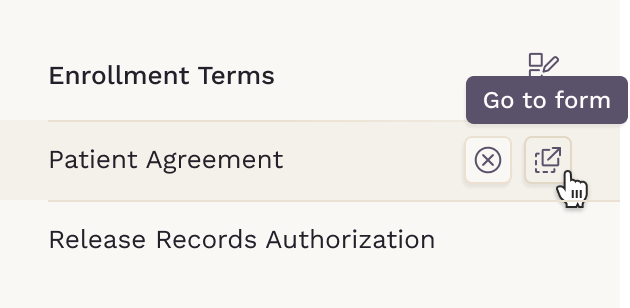
Click Go to form to open and review a specific form.
-
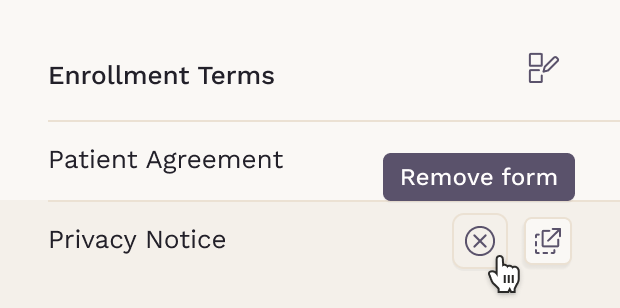
Click Remove form to remove a form from the patient's enrollment terms. Submitted forms cannot be removed.