
One-Click Scribe
One-Click Scribe lets clinicians start recording and generate notes with a single click using their selected default template — whether on the patient chart, in Telehealth, or in the app.
Starting One-Click Scribe
Before you click, tell the patient and anyone else in the visit, and get any consent your state requires. If someone declines, don't record.
- In the patient chart, click the Start scribe icon.
- Scribe begins recording immediately using the default template.
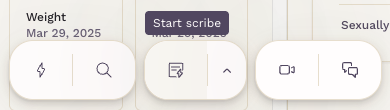
If no default has been selected, Scribe automatically uses the Default template provided by SigmaMD. To use another template, click the arrow beside the Start scribe button and select a different one.
Selecting a default template
- Click the arrow beside the Start scribe button to open the Note templates modal.

- Locate the template you want to set as default.
- Select it and mark it as Set default.
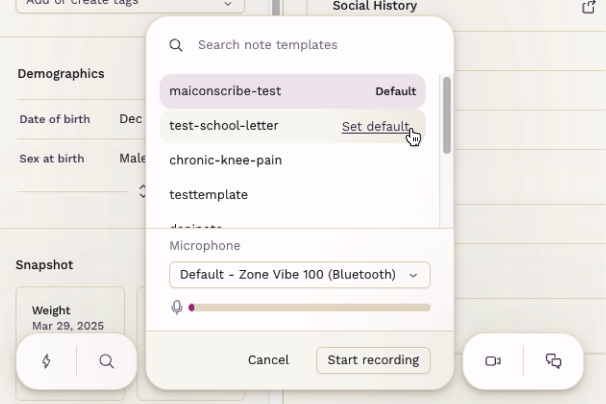
Once selected, your default template always appears first in the template list and is automatically selected when starting a recording.
One-Click Scribe on Telehealth
- Start the Telehealth visit with the patient.
- Click the Start scribe icon.


Scribe begins recording using your default template, just like in the patient chart. To change the default during a session, click the arrow beside Start scribe, open Note templates, and mark a template as Set default.
One-Click Scribe on the clinician app
- Tap the + icon to open the floating action menu.
- Tap Start scribe.

Scribe begins recording using your default template, similar to the desktop chart view. To set a default on the app, tap + > Start scribe, tap Change template, choose your preferred template, mark it as Set default, and tap Start.


Tip
- You can update or change your templates anytime under Settings > Note templates.
- To learn more, see Best Practices for Creating Scribe-Enabled Templates.