
Editing a Patient's Form Responses
Patients sometimes make a typo, skip a field, or share updated information after they have already submitted a form. Rather than asking them to complete the form again, you can edit their answers directly from the chart.
Which Forms Can Be Edited
Two separate statuses determine whether a form's responses can be edited: its submission status and its review status. A form must be submitted or locked, and still awaiting review, before you can edit it.
Submission status
Submission status reflects how far the patient has progressed through the form.
-
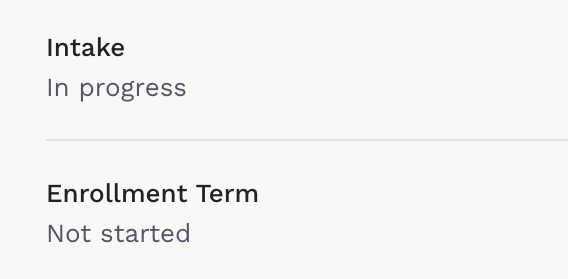
Not started or In progress: The patient has not submitted the form, so it can't be edited. Lock the form to close it to the patient and edit what they entered.
-
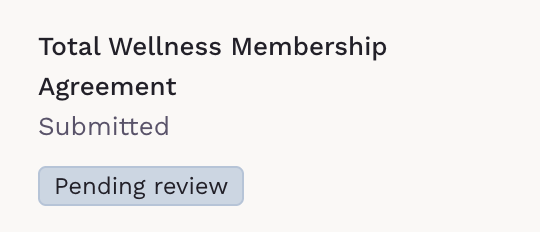
Submitted: The patient completed and submitted the form. Its responses can be edited.
-
Locked: You closed the form to the patient before they submitted it. Its responses can be edited.

Review status
Review status determines whether a submitted or locked form is still open to edits.
- Pending review: The responses can be edited.
- Reviewed: The responses are read-only. Set the form back to Pending review to edit them.
Editing a Form That Hasn't Been Submitted
Forms with the status Not started or In progress can't be edited directly. Lock the form first.
Open the form, select Lock form from the actions menu, and click Confirm. The status changes to Locked, and you can then edit it the same way you edit a submitted form — select the Edit responses (pencil) icon and update the answers.

Before locking, keep in mind:
- Anything the patient already entered is saved.
- The patient loses access to the form. If they try to open it, they see a Form Locked screen directing them to contact their care team.
- You can select Unlock form to restore the patient's access and let them continue where they left off — but not after the form has been marked as reviewed.
Editing Reviewed Forms
If you need to edit a form that has already been marked as Reviewed, you can change its status back to Pending review.
- Open the patient's chart and locate the form.
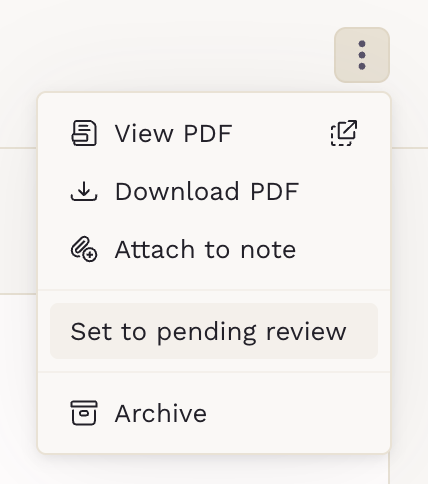
- Click the three-dot menu in the form header.
- Select Set to pending Review.
- Make the necessary changes to the form responses.
-
When you're finished, mark the form as Reviewed again.
Editing a Submitted Form
- Open the patient's Chart and go to the Forms tab.
- In the forms list, select the submitted form you want to edit.
-
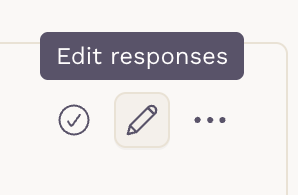
Select the Edit responses (pencil) icon in the top-right corner of the form.
-
The form switches to edit mode. The fields become editable, and the Cancel and Save buttons appear at the top.
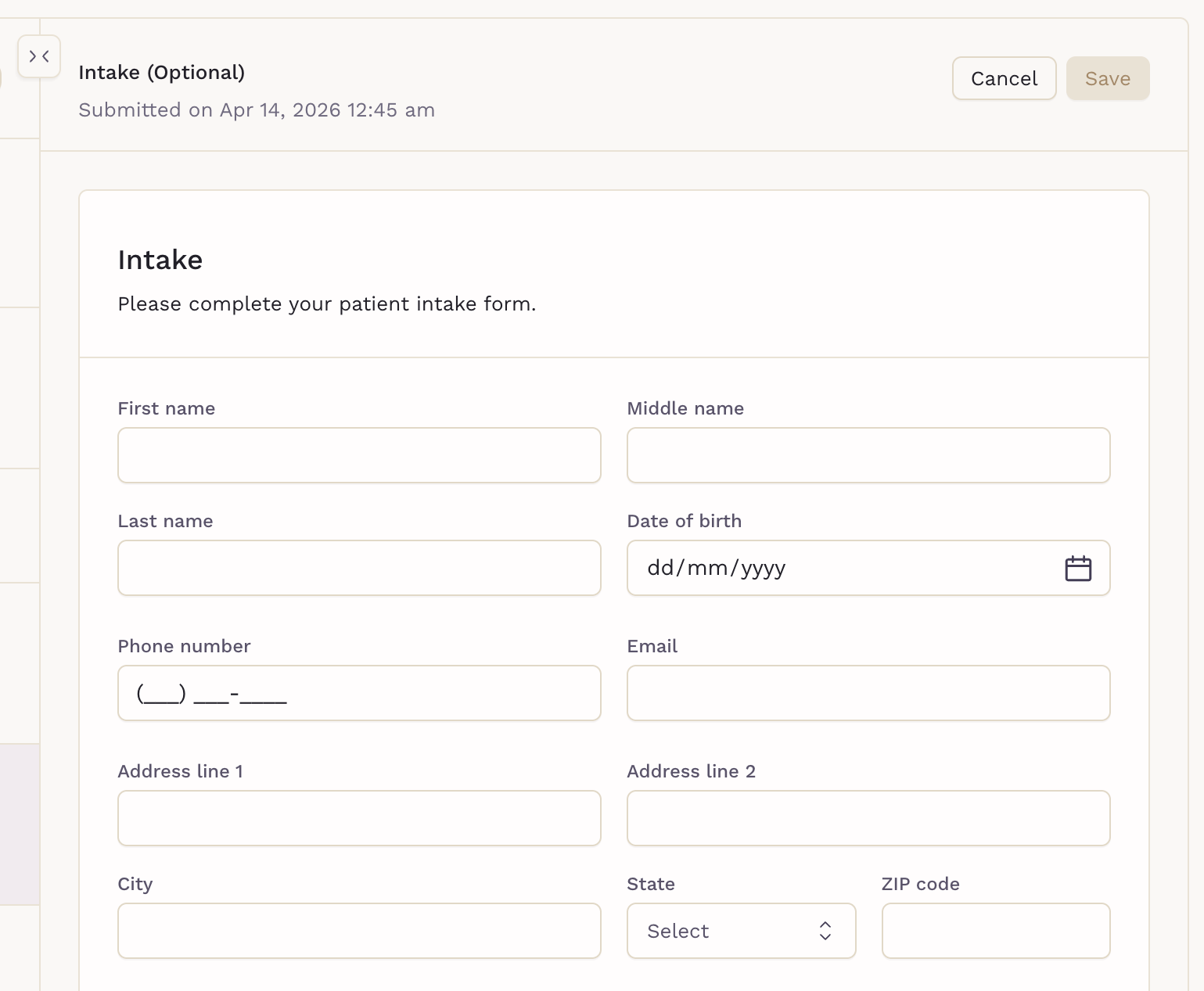
- Update the answers you need to change.
- Select Save.
Please note that the Save button remains disabled until you change at least one value. If nothing has been edited, there is nothing to save.
Standard Forms
In a standard form, the answer fields — text, dates, phone numbers, addresses, and similar — become editable inputs, exactly as a patient sees them when completing the form.
Legal components, such as acknowledgement checkboxes for policies and consents, cannot be edited. Hovering over one displays a Response locked message. This preserves the integrity of what the patient originally agreed to.

PDF Forms
For interactive PDF forms, the document opens in the PDF viewer and its fillable elements become active. You interact with them the same way a patient would, editing or entering new information field by field.

To move between fields:
- Click any editable field on the document to jump straight to it.
- Use Next and Back to step through the editable fields in order.
- The Next button doesn’t appear on the last editable field.
- If you jump away from an invalid answer, Save stays disabled until you fix it.
Checkboxes and signatures cannot be edited or re-selected. As with the legal components on standard forms, this keeps the patient's original acknowledgements and signatures intact.
Required Fields and Validation
Required fields keep the same validation rules the patient saw when they completed the form. If you clear a field that is marked as required, the form displays the same validation message a patient would receive, for example "First name is required."
While a required field is empty or invalid, the Save button is disabled. Complete the field, or restore a value, to enable saving again.
Activity Log
Edits are recorded. Any changes a clinician makes appear in the form's Activity log tab, so you can review what changed and when.
