
Archiving a Patient's Forms
Archiving lets you remove a form from a patient's chart without deleting it. An archived form is hidden from the patient and from the chart's forms list, but it is never lost — you can unarchive it at any time to restore it.
What Archiving Does
- Archiving is available for any form type, and it can be archived whether it is Not started, In progress, Submitted, or Reviewed.
- When a form is archived, it is removed from the patient's view and hidden from the chart's forms list by default.
- Archiving is reversible. Unarchiving returns the form to the list and makes it available to the patient again.
Archiving a Form
- Open the patient's Chart and go to the Forms tab.
- Select the form you want to archive.
- Select the More (⋯) menu in the top-right corner of the form.
- Select Archive, the last item in the menu.
-
In the Archive Form dialog, review the message — "The form will no longer be accessible to the patient" — and select Confirm.
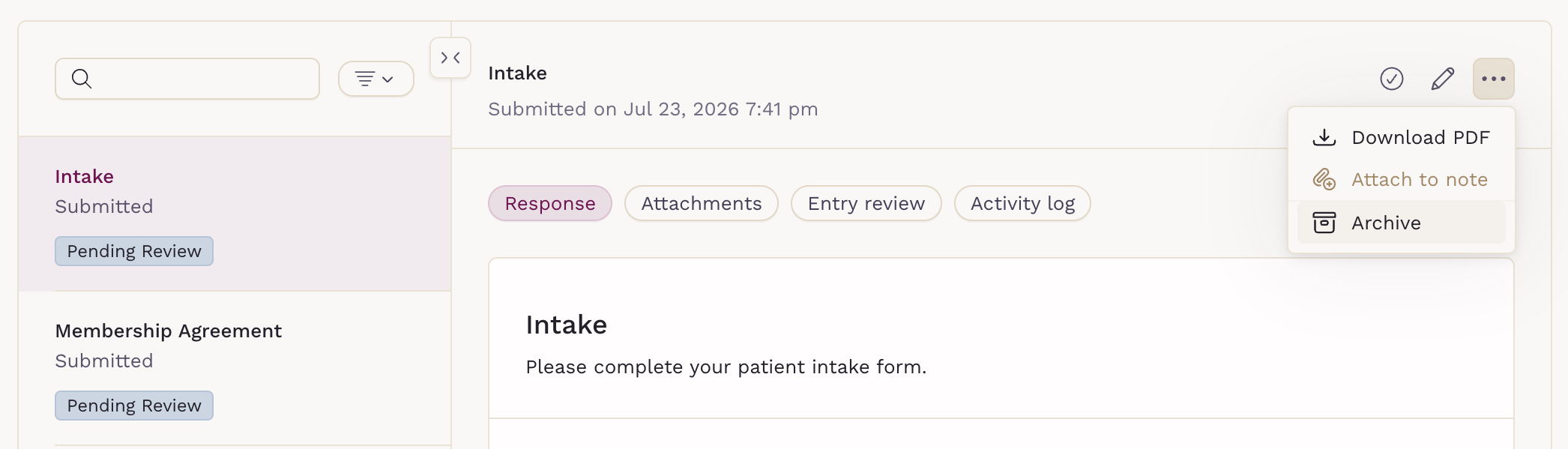
A "Form archived successfully" confirmation appears, and the form is removed from the forms list.
Viewing Archived Forms
Archived forms are hidden from the forms list by default. To see them:
- Select the Filter icon above the forms list.
-
Choose Archived.
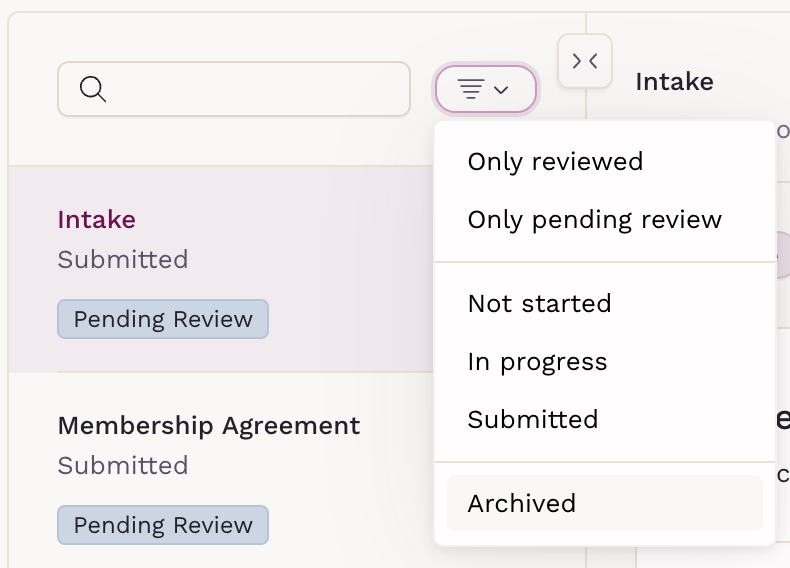
Archived forms appear in the list with an Archived badge next to their status.

Please note that filters do not persist. When you navigate away from the forms list, the filter resets and archived forms are hidden again.
Unarchiving a Form
- Filter the forms list to show Archived forms, then select the archived form.
- Select the More (⋯) menu in the top-right corner of the form.
- Select Unarchive, the last item in the menu.
-
In the Unarchive Form dialog, review the message — "The form will be accessible to the patient again" — and select Confirm.
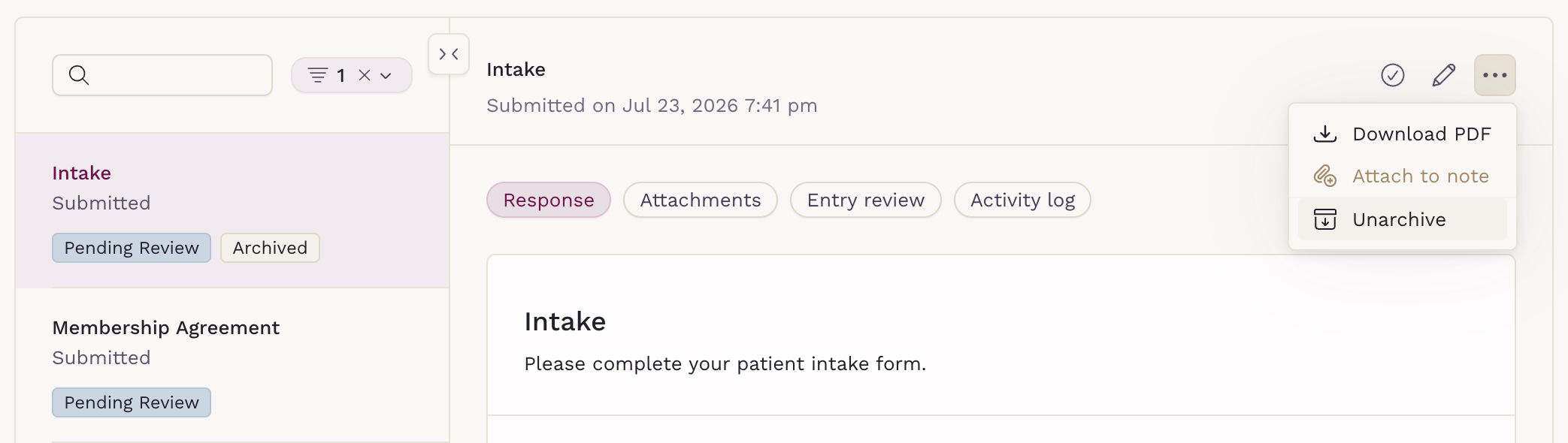
A "Form unarchived successfully" confirmation appears, and the form returns to the forms list.
What The Patient Sees
What the patient experiences depends on whether they had already submitted the form before it was archived:
- The patient has not submitted the form. If the patient tries to open an archived form, they see a Form Not Available screen: "This form is not available. Please contact your care team if you need assistance."
- The patient has already submitted the form. The form continues to appear as submitted, and the patient sees a Form Completed screen: "This form was completed. If you think this is an error, contact your care team." This prevents confusion when a form is archived after it has been completed.