
Adding Practice Annotations to a PDF Form
Practice annotations are elements you fill in yourself while building an interactive PDF form — such as a checkbox, standard text, or the clinician's signature. Unlike patient-fillable fields, annotations are completed by your practice and appear as read-only to patients.
When to Use an Annotation
Use an annotation whenever part of a form should be filled in by the practice rather than the patient — for example, adding your signature to a privacy notice, pre-checking a required consent box, or dropping in standard boilerplate text that patients only need to read.
Adding an Annotation
-
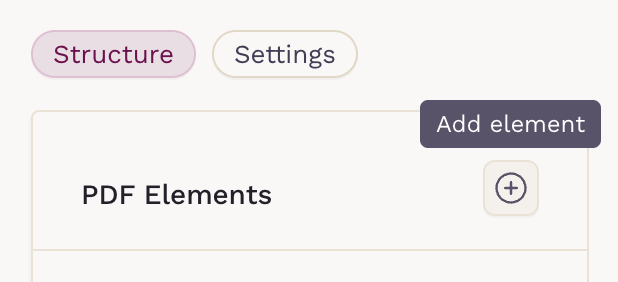
Open your interactive PDF form in the builder and click the Add Element button.
-
Under Practice Notes, add an Annotation element.

-
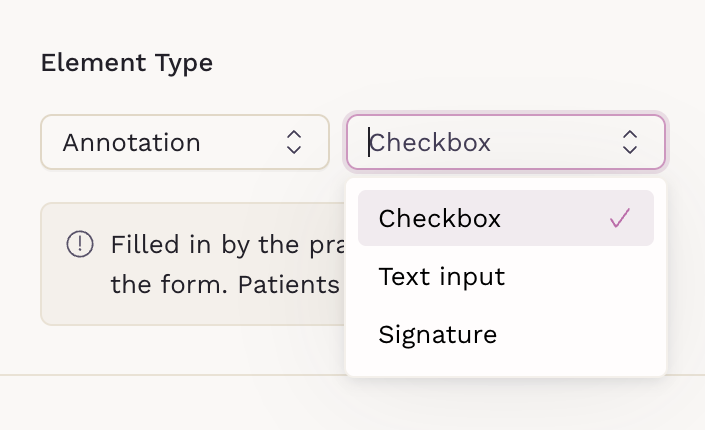
In the right column, choose the annotation format: Checkbox, Text input, or Signature.
-
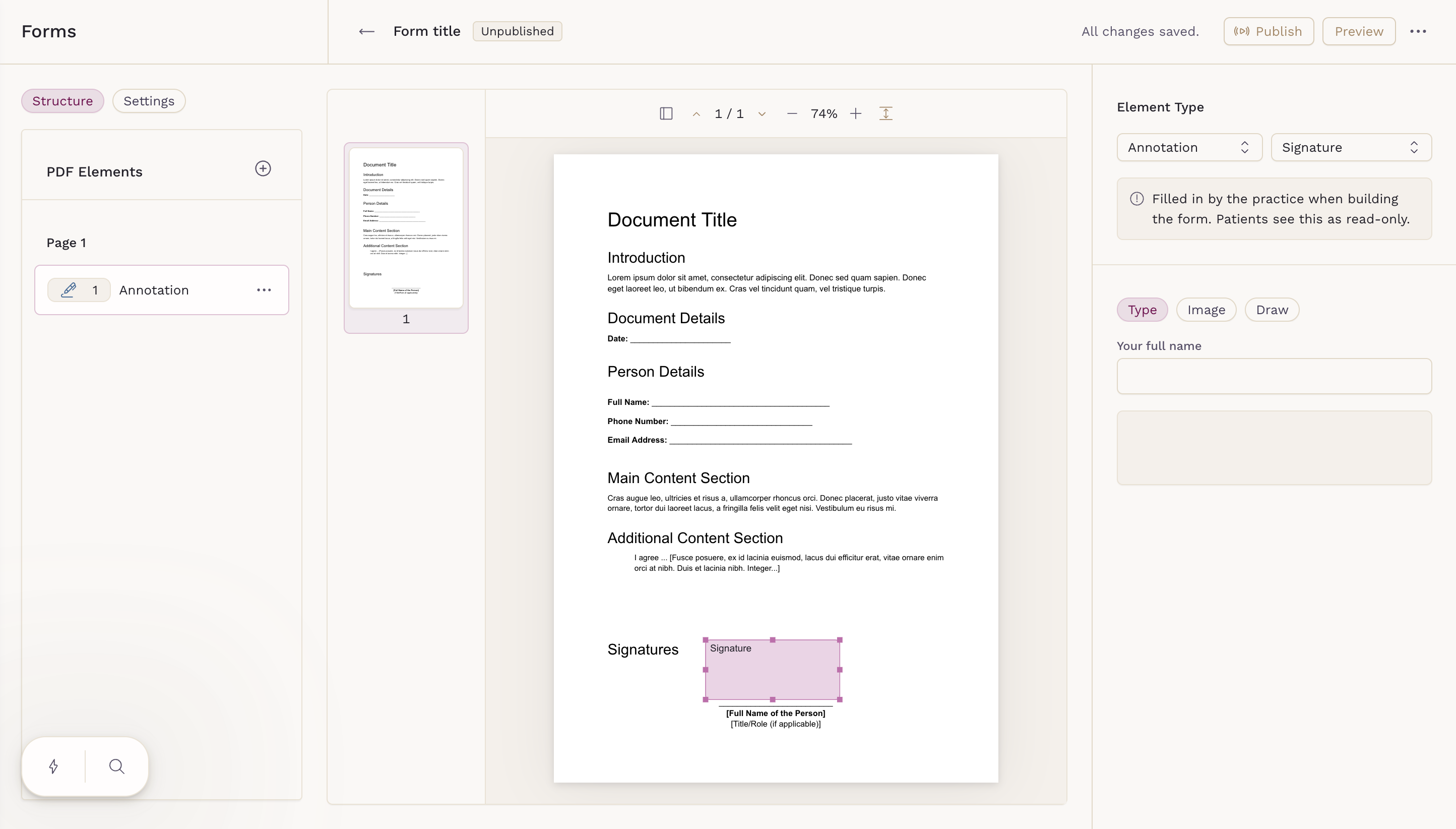
Drag and drop the annotation onto the PDF where it should appear.
Filling In the Annotation
Once the annotation is placed, complete its content:
-
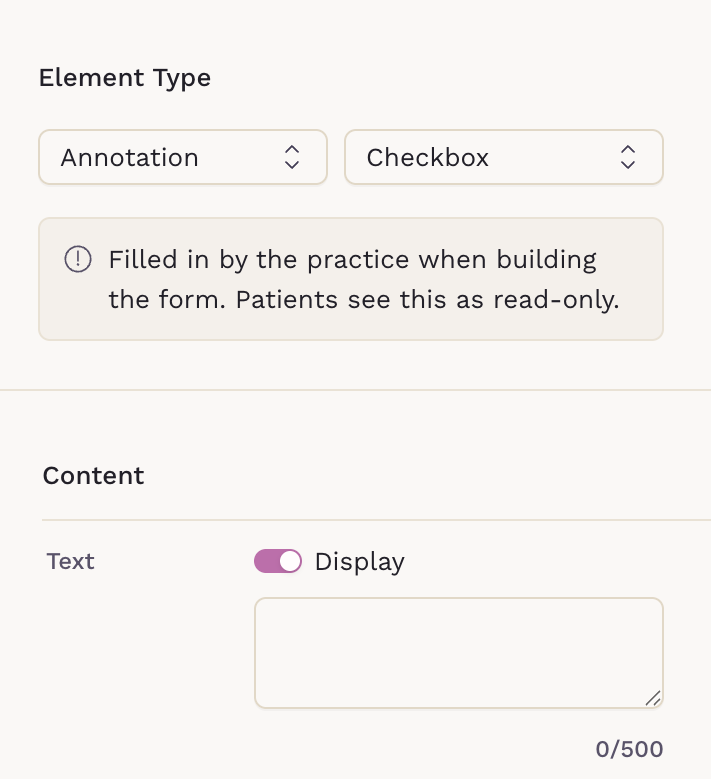
Checkbox — you can choose whether the text is needed. The checkbox cannot be unselected.
-
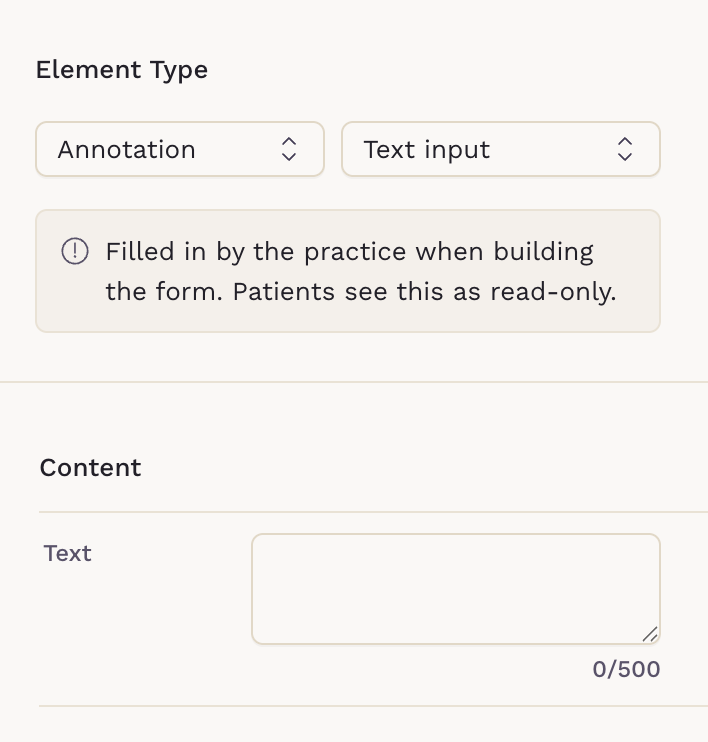
Text input — type your text in the Content → Text field (up to 500 characters).
-
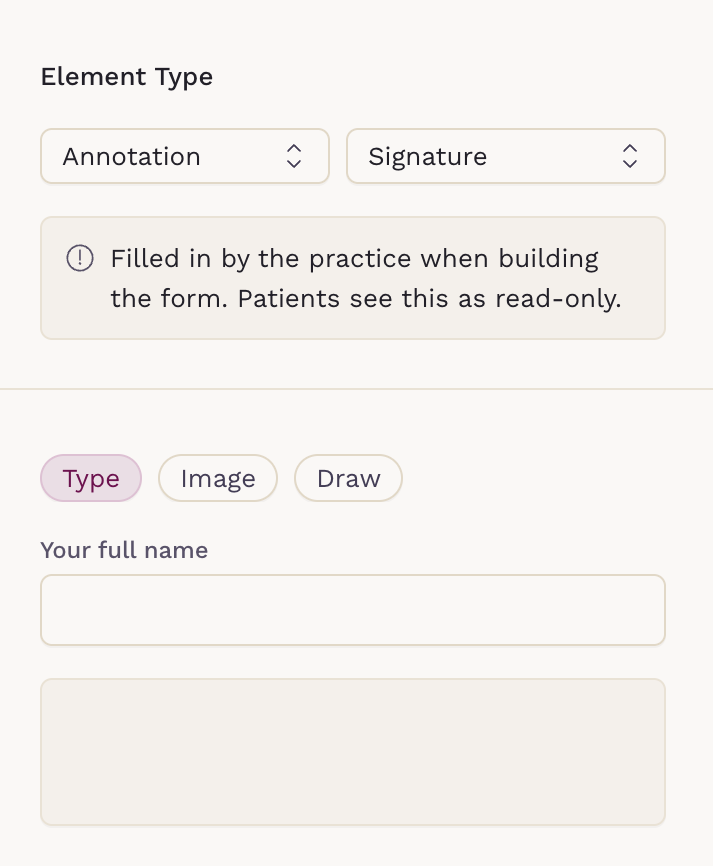
Signature — choose how to add the signature: Type it, upload it as an Image, or Draw it, and enter the signer's full name.
Publishing
When you're done, use Preview to confirm the annotation displays correctly, then click Publish. Patients will see your annotations as read-only when they complete the form.