Entry Review: Adding Patient Info to the Chart
Chart-connected elements let patients enter structured clinical information through a form. Their entries are routed to you for review, and nothing enters the patient chart until a clinician confirms it.
Which Elements Are Chart-Connected
In the standard form builder's Add Element panel, chart-connected elements are grouped under Contact Info and Health Resource:
-
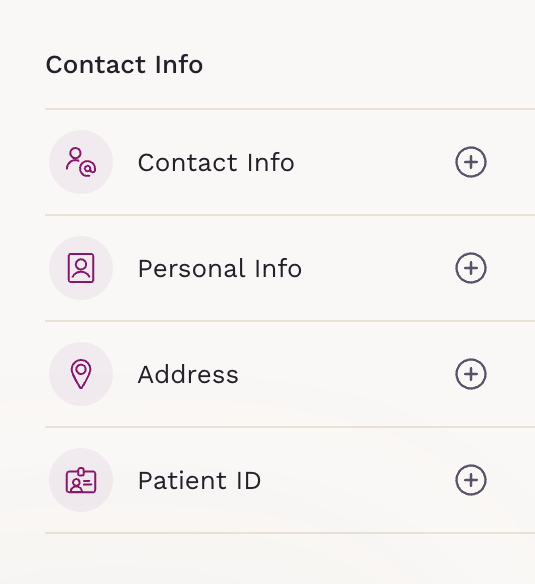
Contact Info: Contact Info, Personal Info, Address, and Patient ID.
-
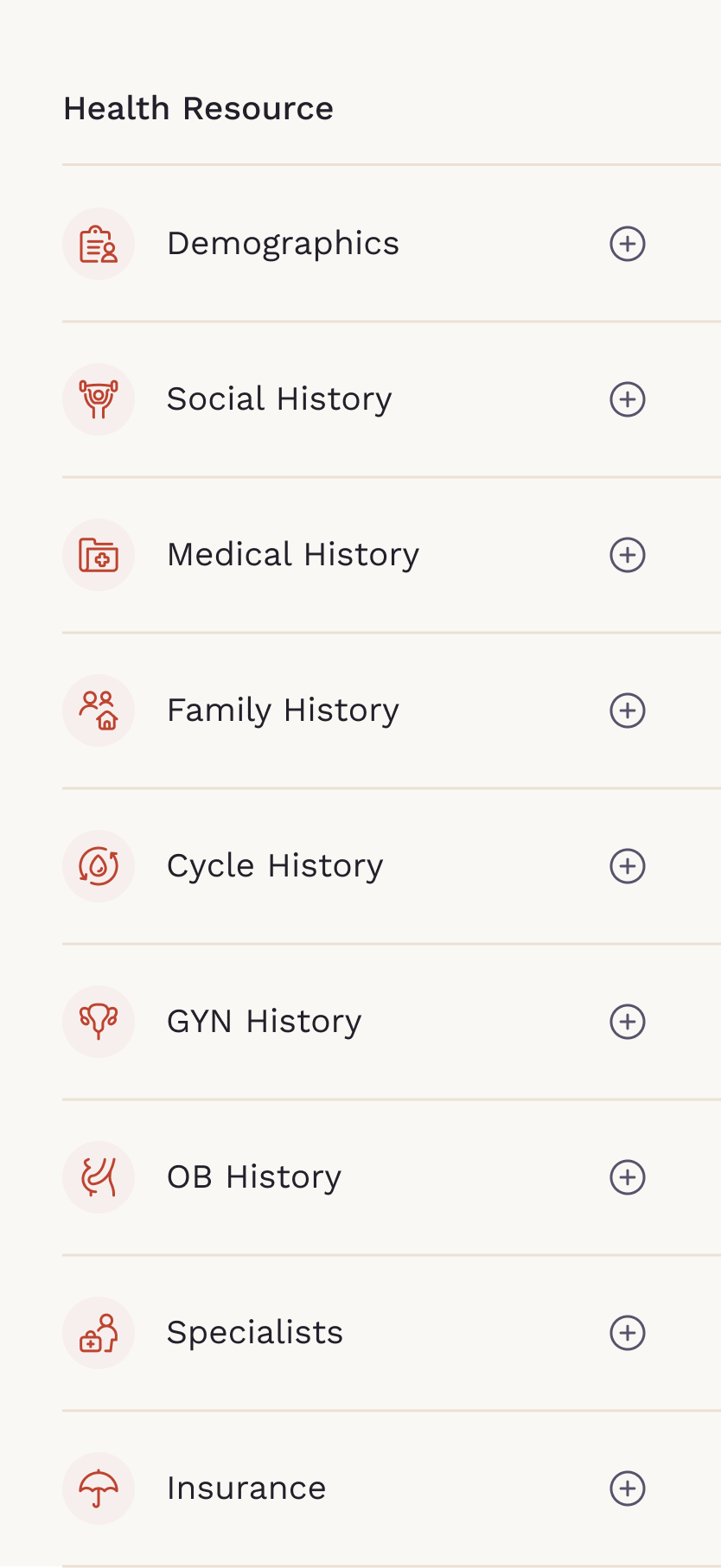
Health Resource: Demographics, Social History, Medical History, Family History, Cycle History, GYN History, OB History, Specialists, and Insurance.
Layout elements (Content Text, Divider), Input elements (Short Text, Long Text, Number, Date & Time), Choice elements (Legal, Yes/No, Multiple Choice, Dropdown), and Other elements (Matrix, Scored Matrix, File Upload) are not chart-connected — any responses they collect stay within the form.
Turning the Chart Connection On or Off
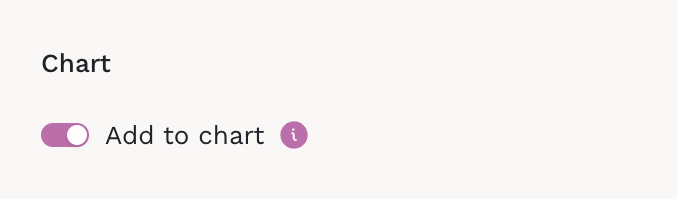
Each chart-connected element has an Add to chart toggle in the right column. Leave it on to send submissions to Entry Review, or turn it off to collect the information as a plain form answer only.
Reviewing and Adding Entries
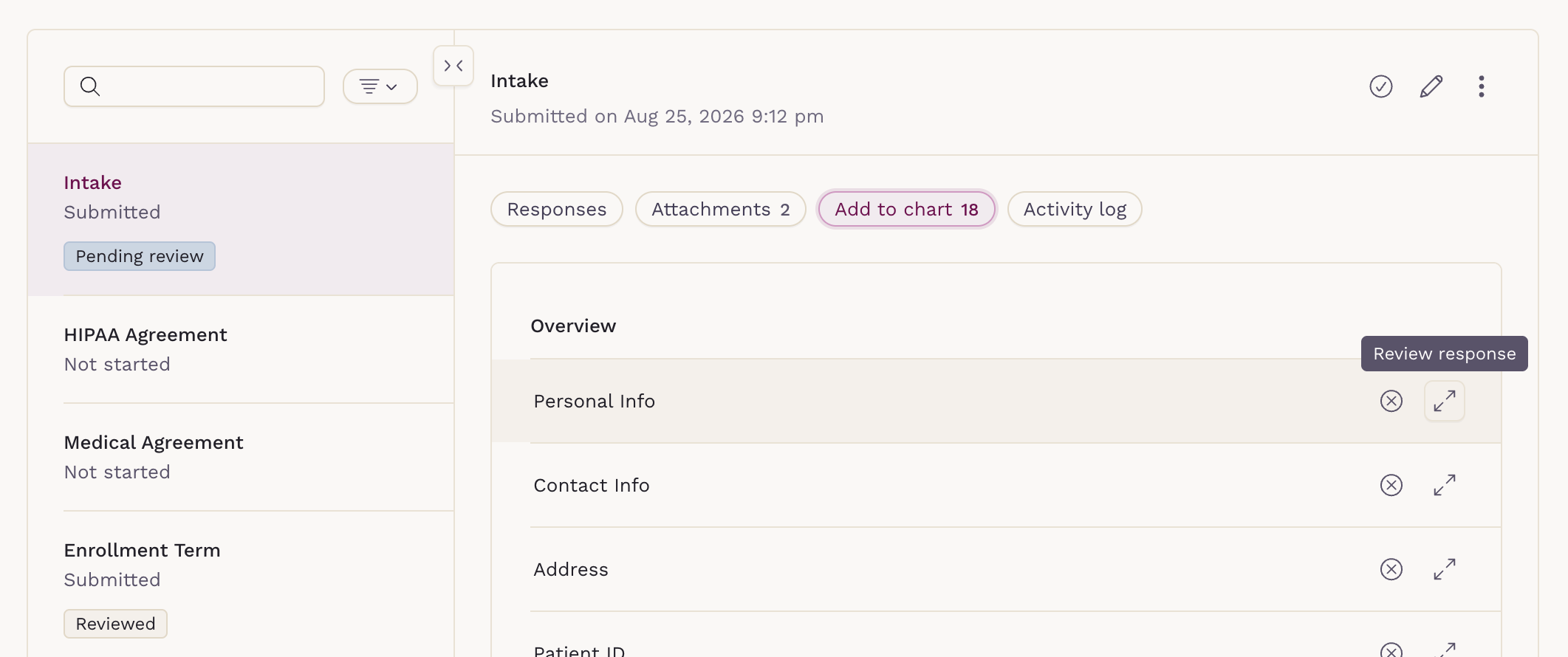
When a patient submits a form with chart-connected elements, their entries are held as pending — not added to the chart automatically. You'll find them in two places:
-
In the Forms screen under the Add to chart tab — your queue of everything awaiting review.
-
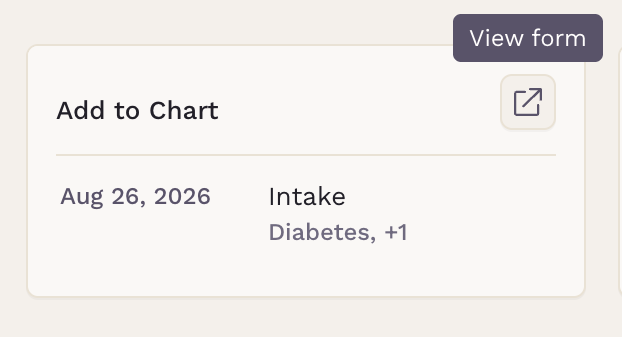
As a card in other areas of the patient chart, such as Problems, Medications, Allergies, Vaccines, and Procedures — shown whenever those categories contain information pending review.
To act on an entry, you can:
-
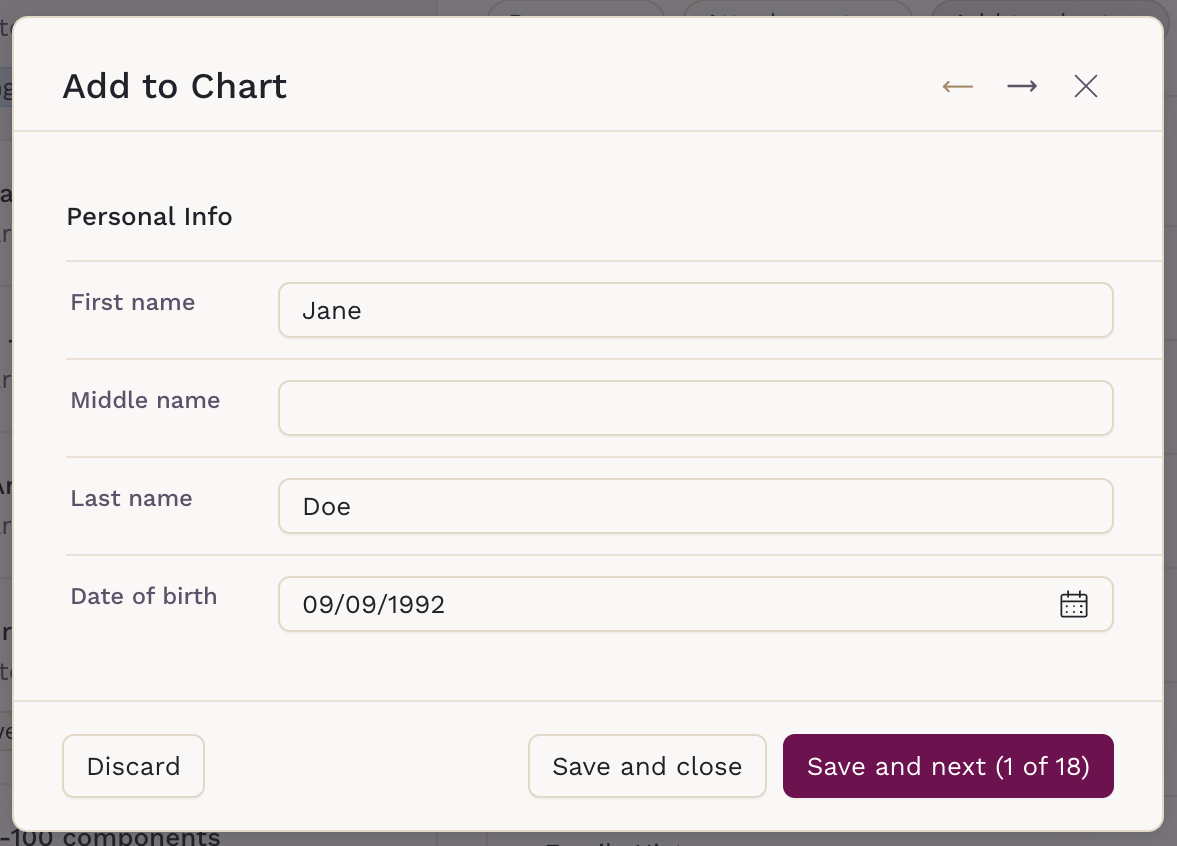
Review and edit the submitted values, then Save to add it to the chart.
-
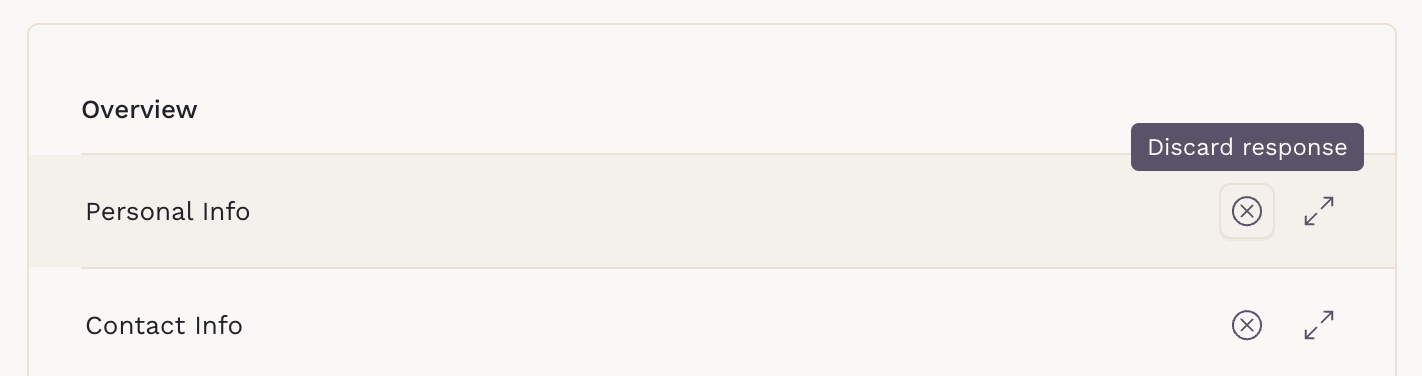
Click Discard to permanently remove the response. This action cannot be undone.