
Archiving a Patient's Notes
Archiving lets you remove a note from a patient's chart without deleting it. An archived note is hidden from the patient and from the chart's note list, but it is never lost — you can unarchive it at any time to restore it.
What Archiving Does
- Archiving is available for any note type, and it can be archived whether it is Draft or Signed.
- The entire note is hidden from view and becomes read-only. It can no longer be edited or shared with the patient.
- If the note has a Recap attached, the Recap is archived along with it. Signed notes and shared Recaps are both hidden from the patient once the note is archived.
Note: This is the only way to hide a shared Recap from the patient — the Lock/Unlock option doesn't apply once a Recap has been shared; archiving the note is required, and it archives the clinical note and the Recap together.
Who Can Archive a Note
Who can archive a note depends on whether it has been signed.
Draft notes. Anyone in your practice can archive or unarchive an unsigned draft, whatever their role. This makes it easy to clear out empty or abandoned drafts — including ones started by someone who has since left the practice.
Signed notes. Archiving a signed note also hides it from the patient, so it is more restricted. A signed note can be archived by:
- The creator of the note.
- An ordering clinician, when the note was created by a non-ordering role (nurse, allied health professional, medical assistant, or non-clinical staff), or by someone who is no longer part of the practice.
A signed note created by one ordering clinician cannot be archived by a different ordering clinician. When you do not have permission, the Archive Note button is disabled and a tooltip explains why.
The same rules apply to unarchiving.
Archiving a Note
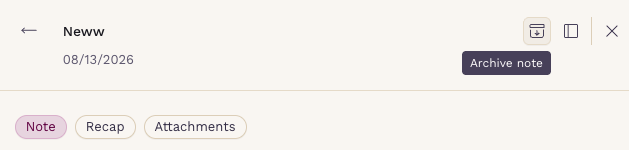
- Go to the patient's Chart and open the Notes tab.
- Select the note you want to archive.
- With the note open, click 'Archive Note' in the top-right corner.
- Confirm the action in the dialog that appears.
Viewing archived notes
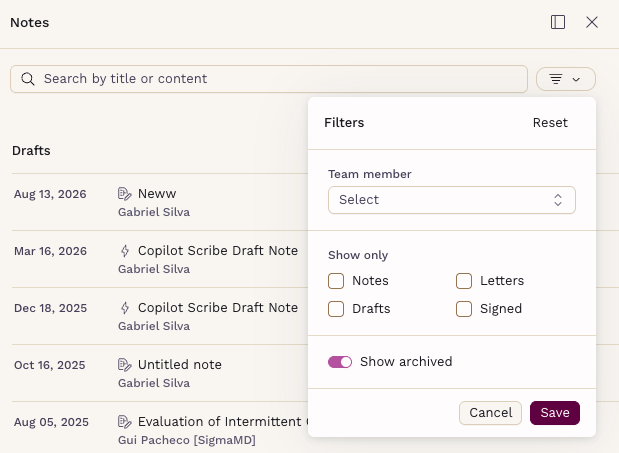
- Click the filter button in the 'Note Screen' or 'Note Sidebar'.
- Enable the 'Show archived' toggle.
- Then click Save.
They will be displayed again with the other notes, with an 'Archived' tag next to them.
Unarchiving a note
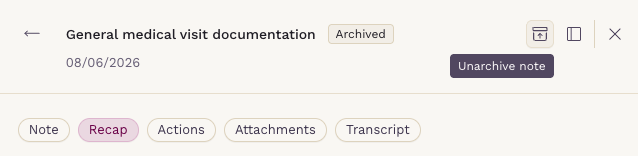
- Select Show Archived to display archived notes.
- Select the note you want to restore.
- With the note open, click 'Unarchive Note' in the top-right corner.
- Confirm the action in the dialog that appears.
Unarchiving retrieves the note for editing and makes it accessible to the patient again; Signed notes and shared Recaps become visible to the patient once more.