
Dispensing Injectables
An injection needs a different record than a prescription — the dose that actually went in, the route and site, when it was given, and by whom. In SigmaMD, the Injectable toggle on the Dispense Medication screen replaces the standard prescribing fields with those administration details, so injectables move through the same dispensing workflow as any other medication. You can add injectables and oral medications to a single order, and both are tracked against your inventory.
Creating a Prescription
-
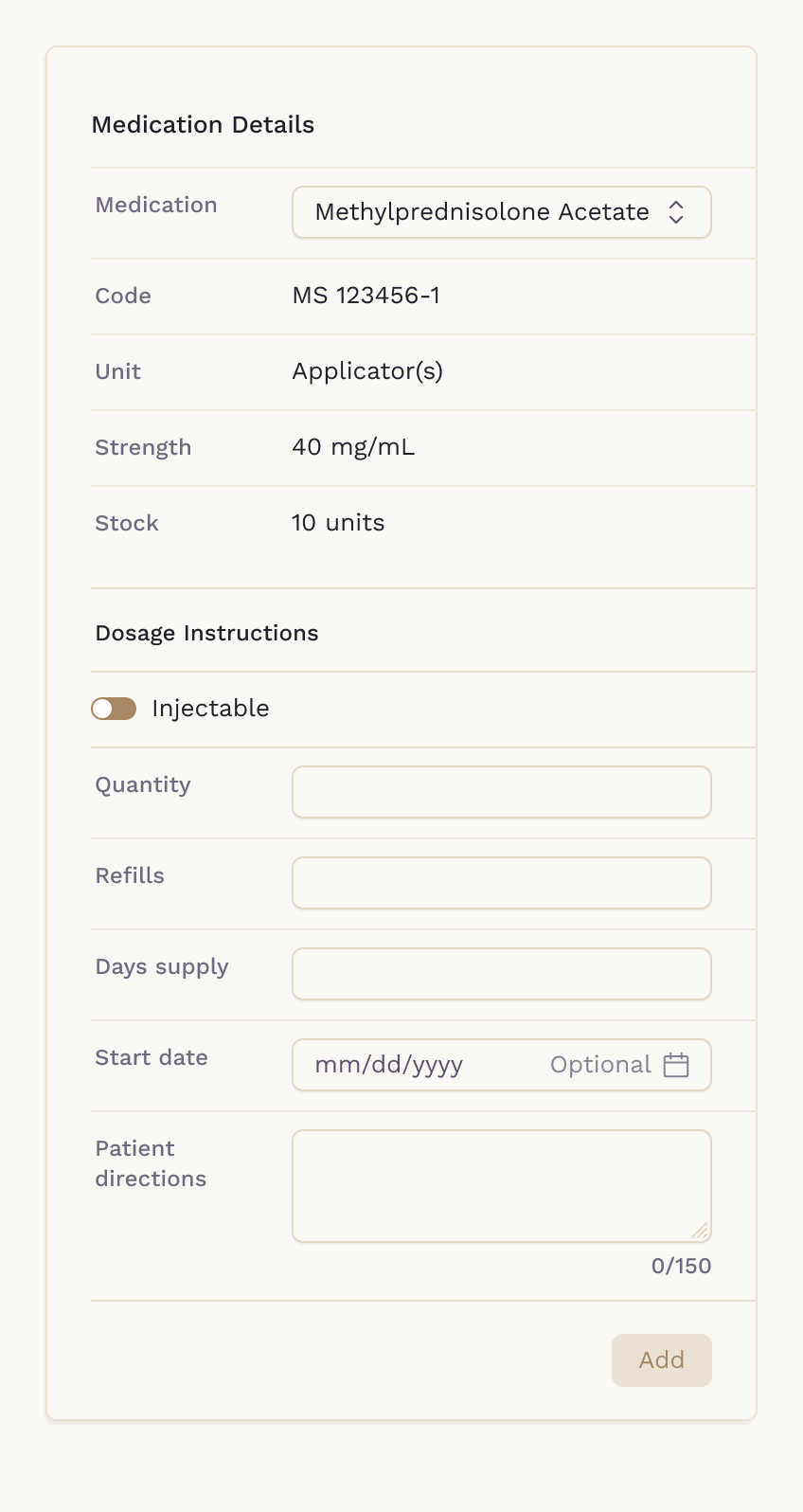
Open the patient's chart and click Dispense medication. Search for the medication from your Charge Items list and select it.
-
Under Dosage Instructions, turn on the Injectable toggle.
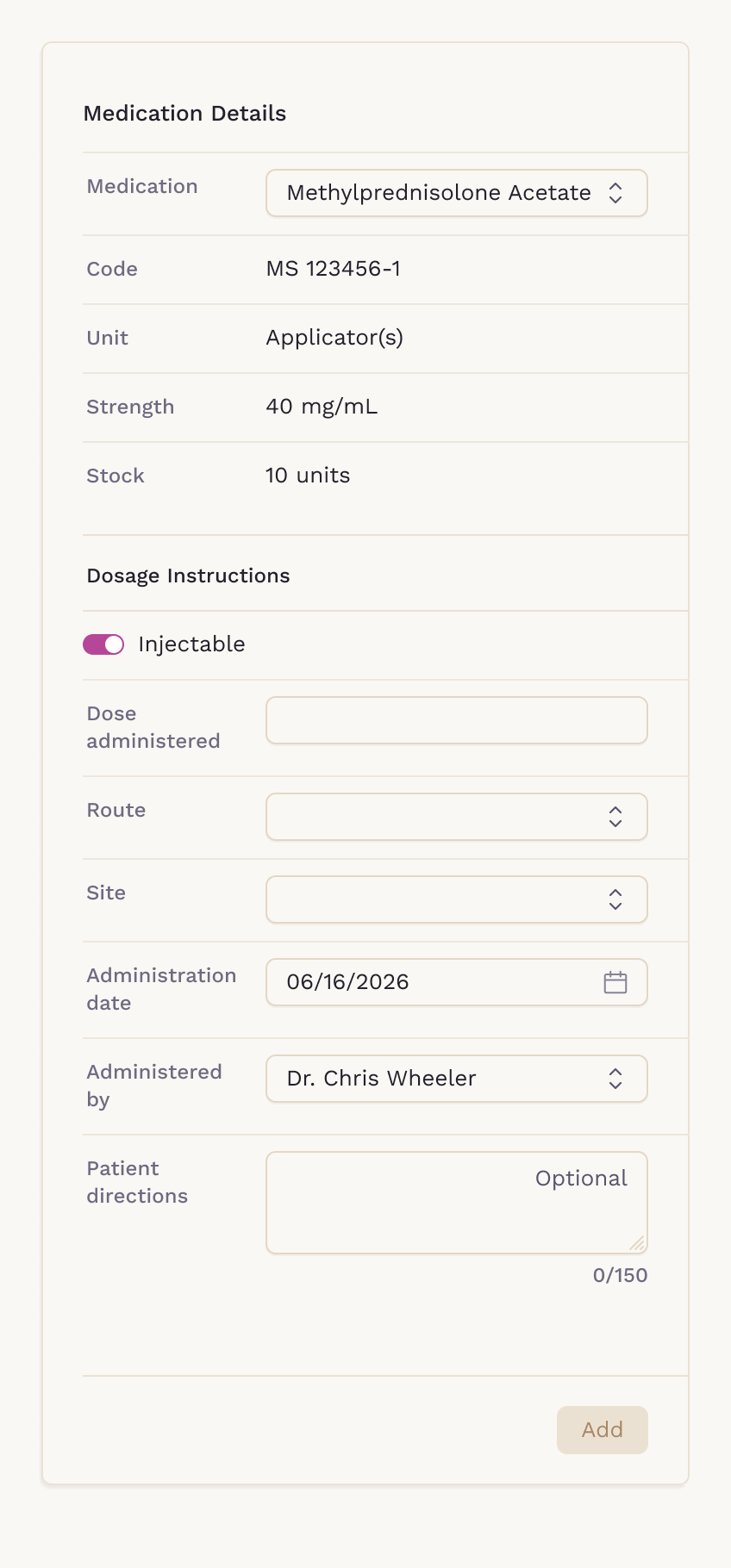
Turning the toggle on swaps the prescribing fields for administration fields. Instead of quantity, refills, days supply, and start date, you'll fill in Dose administered, Route, Site, Administration date, and Administered by. Patient directions stay where they are and are still optional — whatever you enter there appears on the prescription.
Adding It To The Order
-
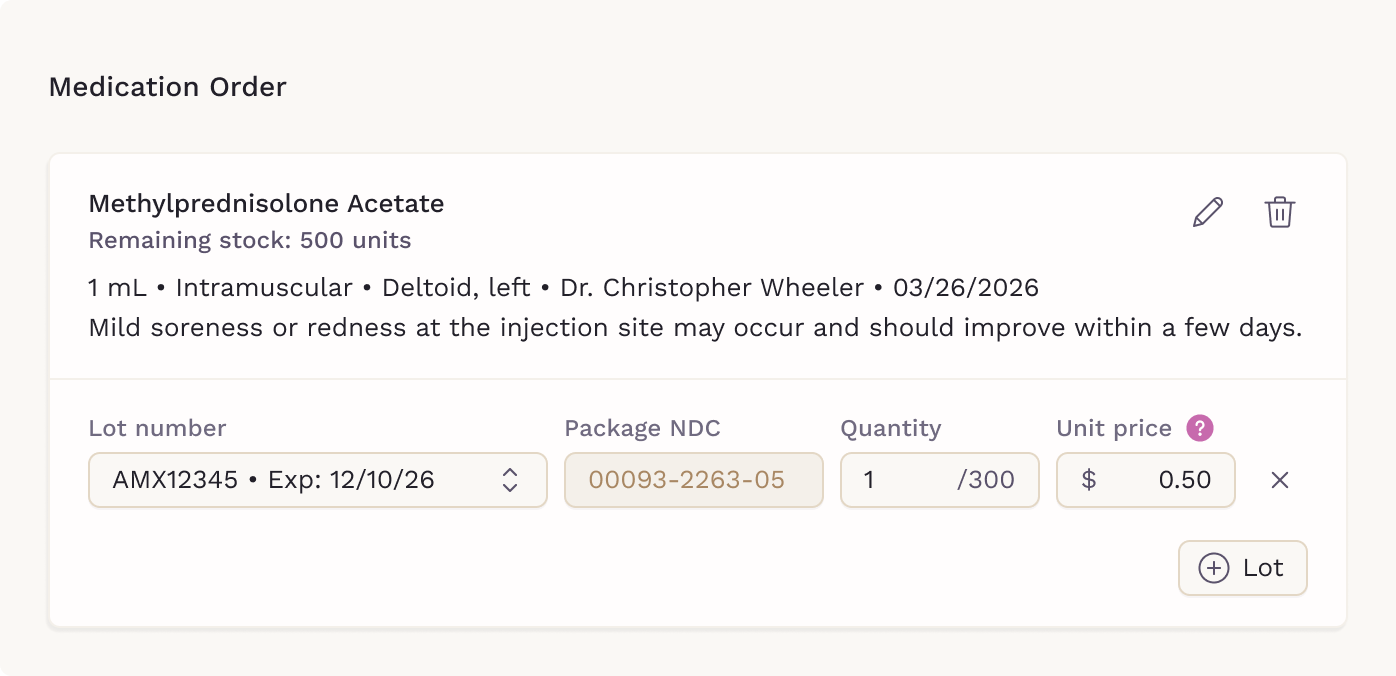
Click Add. The injectable moves to the Medication Order panel on the right, showing the dose, route, site, administering clinician, and administration date.
-
Check the lot line beneath it — lot number and expiration date, package NDC, quantity against remaining stock, and unit price, which comes from your charge items settings. If you need more than one batch, click Lot to add another line and split the quantity across them.
-
Add any other medications you're dispensing to the same order. Each one shows only the details that apply to it, so an injectable shows route and site while a tablet shows refills and days supply.
-
Click Order to finalize.
Patient Chart
Injectables land in the patient's chart under the Medications tab. Click the request icon on an injectable's row to open Completed Request, which shows the whole administration record — dose, route, site, date, the administering clinician, and patient directions — next to the prescription details.

Recording an Injection You Didn't Dispense
If the injection didn't come out of your inventory — a sample, or something administered elsewhere — the Injectable toggle is also in the Add Medication and Manage Medication windows. Fill in the same administration fields, and check Include in clinical note if you want the record to carry into the encounter note.
