
Managing Your Practice's Team in SigmaMD
Team management is where you invite people to your practice, keep their details current, and close their access when they leave. Everything below lives in Practice Settings > Team.

Inviting and editing team members
The team list shows everyone attached to the practice, with a status beside each name:
- Active — using SigmaMD normally
- Invite sent — invited, not yet signed in
- Inactive — access has ended
- Blocked — access suspended
Use Invite to add someone, and Edit to change their name, role, or work locations as things move around.


Deactivating a team member
When someone leaves, deactivating them ends access immediately, so their open work has to go somewhere first. Selecting Deactivate user opens a dialog that asks you to hand each kind of work to another team member:
- Patients they are responsible for
- Tasks still assigned to them
- Appointments on their calendar
- Conversations they were handling
- Faxes routed to them
Each line shows how many items it covers, so you can see the size of the handover before confirming.

Removing or Adding a Work Location
For practices with multiple locations, you can manage each team member’s work sites directly from their profile.
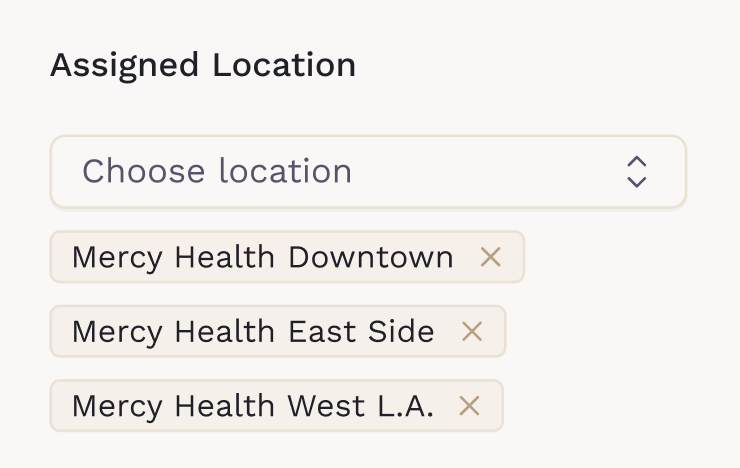
Open ‘View details’, then edit the ‘Assigned Location’ section to add or remove locations.
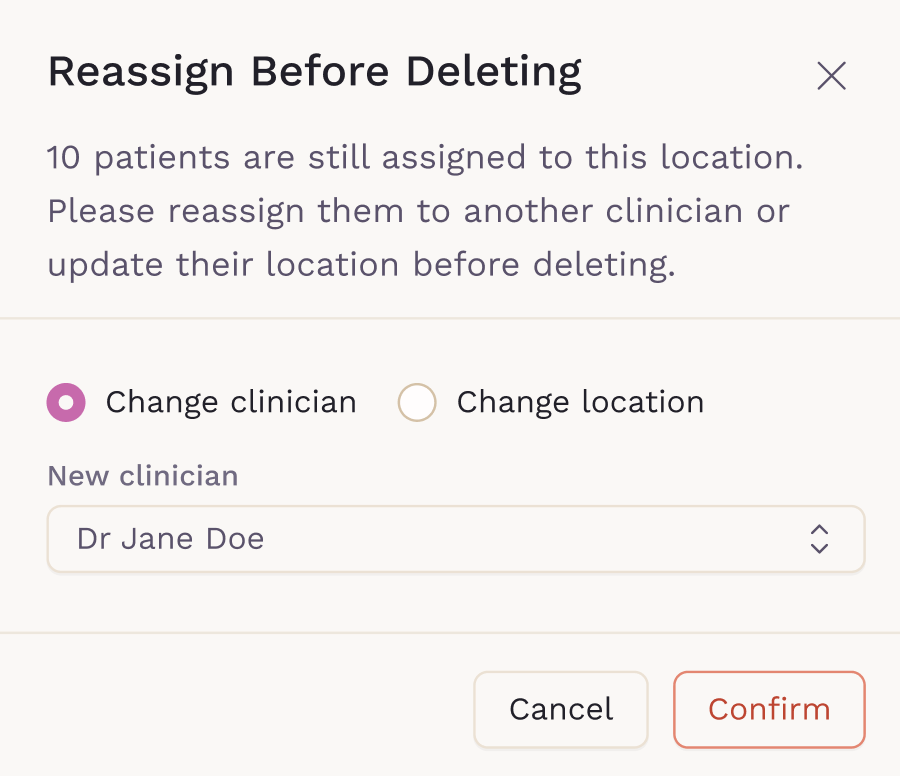
If you remove a location and the clinician has patients assigned at that site, you’ll be prompted to either reassign the patients to another location or reassign their clinician. This keeps patient records consistent across the practice.
Changing someone's role
A role change can also leave work in the wrong hands. If the new role no longer covers something the person was responsible for, you will be asked to reassign it the same way, rather than having it silently stay with them.
Important considerations
- Deactivation takes effect immediately, there is no grace period.
- Reassignment moves ownership, it does not duplicate the work.
- Reassigned tasks show who moved them and to whom.
Completing the reassignment in the dialog is what keeps patients and open items from being orphaned.
Keeping team information up to date ensures secure access, accurate scheduling, and smooth coordination. You can adjust these settings anytime as your practice evolves.