
Managing Charge Items and Categories
SigmaMD gives billing a structure: categories carry the financial rules, and the charge items inside them inherit those rules unless you override them. Setting the categories up well means pricing, tax and markup stay consistent without touching each item.
Creating and managing categories
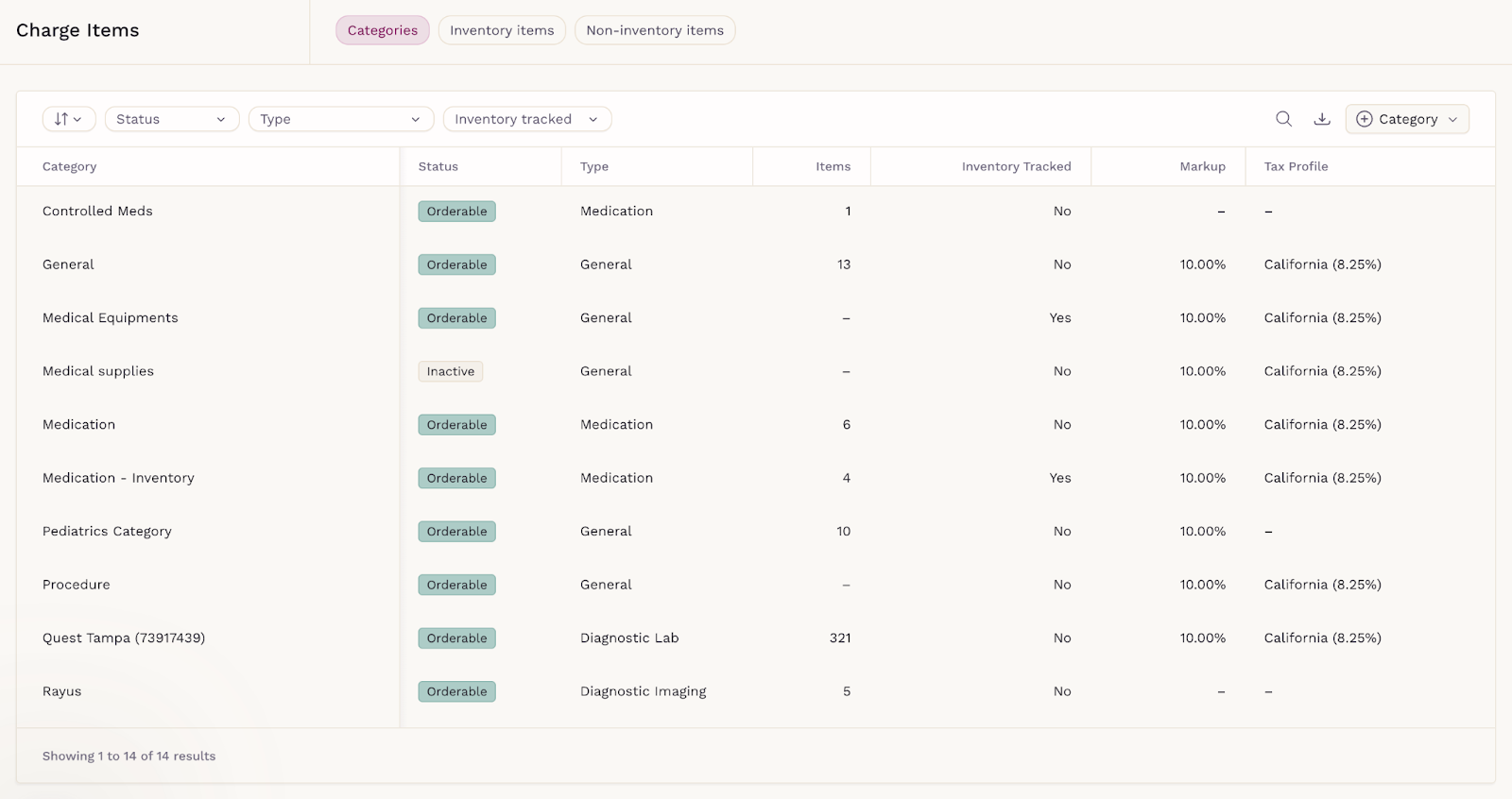
Categories group similar charge items under shared financial and inventory rules. They come in four kinds: Medication, General, Diagnostic Lab and Diagnostic Imaging.
To create one, open Billing from the main menu, select Charge Items, click + Category and pick Medication or General, or connect to a diagnostic service. Then fill in:
- Name — what the category is called
- Enable Inventory Tracking — whether items in it are tracked in stock. This cannot be changed later
- Markup — the practice's global markup, a percentage, a fixed amount, or none
- Sales Tax Profile — the practice default, another predefined profile, or none
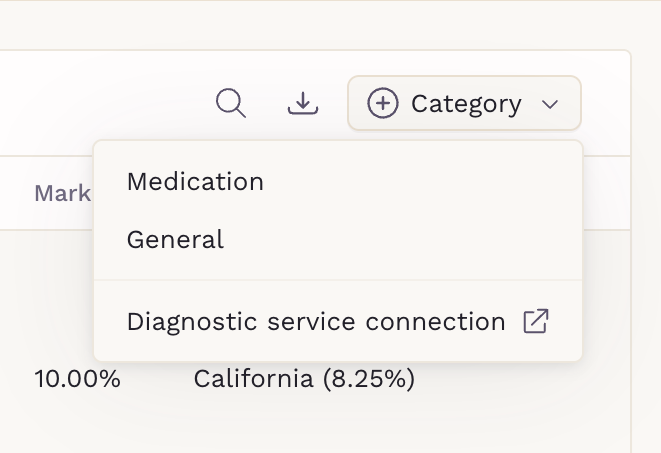
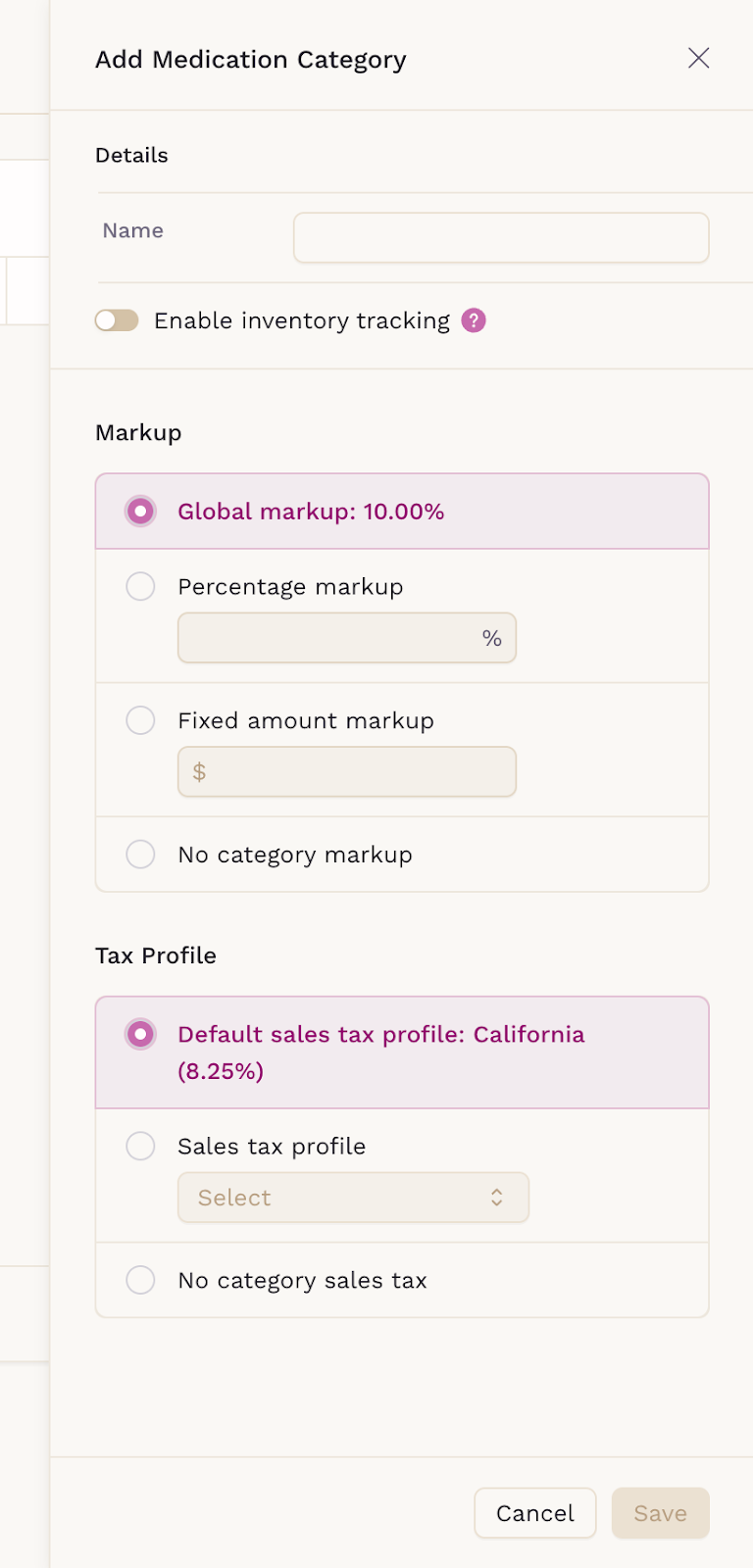
Save the category to start adding items to it. Every category you create is listed with its status, type, item count, inventory tracking, markup and tax profile, and you can edit the name, markup or tax profile at any time, or open the category to see its items.
How markup is calculated
Markup is what turns a wholesale or base price into a retail price. Two kinds are available, and they behave differently:
- A fixed amount markup adds the same amount to every unit
- A percentage markup is worked out from the unit price, then rounded once across the whole line rather than on each unit
Rounding on the line total is what keeps low-priced items accurate. A 10% markup on a $0.04 tablet is $0.004 per unit — too small to express in cents on its own, but a 90-tablet fill carries $0.36 of markup and bills $3.96.
Because the per-unit figure is a calculation reference rather than an amount anyone pays, a unit price on an invoice can display more than two decimal places, up to six. The line total and everything derived from it — tax, coverage, the invoice total — are always to the cent.
Charge items in multi-location practices
In a practice with several locations, charge items are managed per location. A selector at the top of the Charge Items page controls which one you are editing, and categories, inventory items and non-inventory items you create apply only to the selected location. Pricing, tax profiles and inventory rules stay accurate for each site.
Diagnostic providers follow the same logic. A provider configured for one location appears as a category only there; one set up for all locations is available everywhere with the same pricing.

Inventory items
Inventory items are products you track in stock — medications, vaccines and other billable supplies. They come in two kinds.
Medication inventory
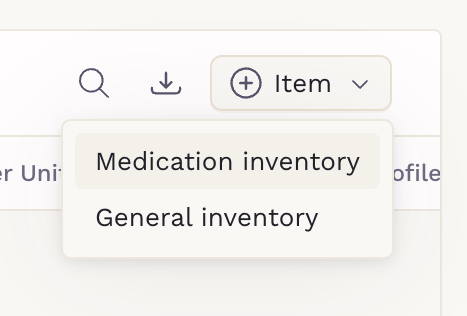
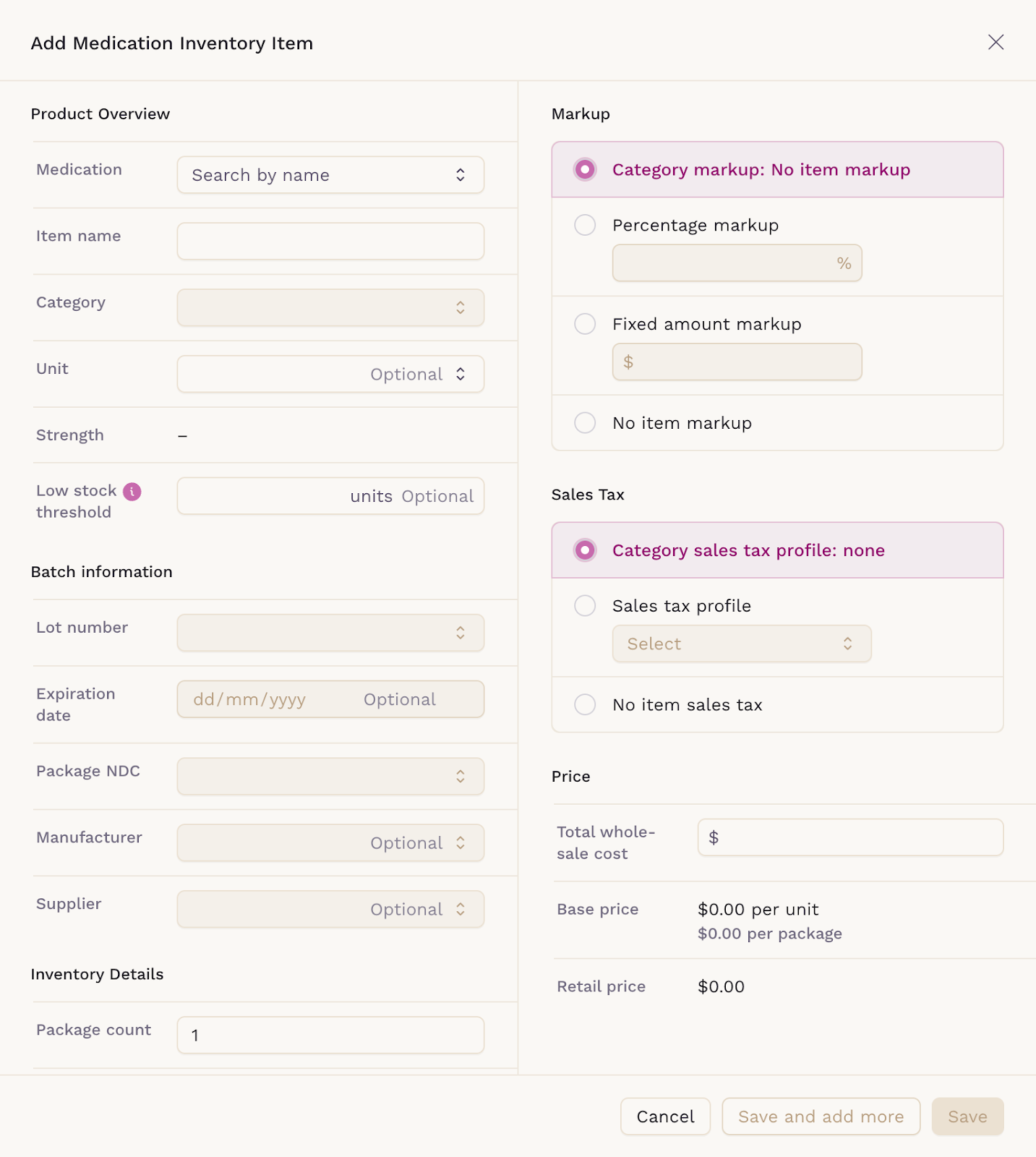
In the Inventory table, click + Add Item and choose Medication inventory, then fill in:
- Medication — the name or Medi-Span code; unit and strength fill in automatically when available
- Item name — prefilled from the medication, editable
- Category — an existing medication category
- Low stock threshold — an optional minimum alert
- Batch information — lot number, expiration date, package NDC, manufacturer, supplier
- Inventory details — package count and units per package
- Markup and Sales tax profile — inherited from the category, or overridden here
- Pricing — the wholesale cost, from which base and retail price are calculated
General inventory
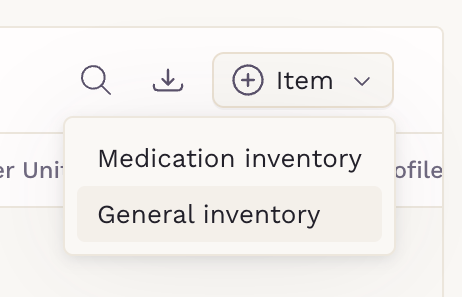
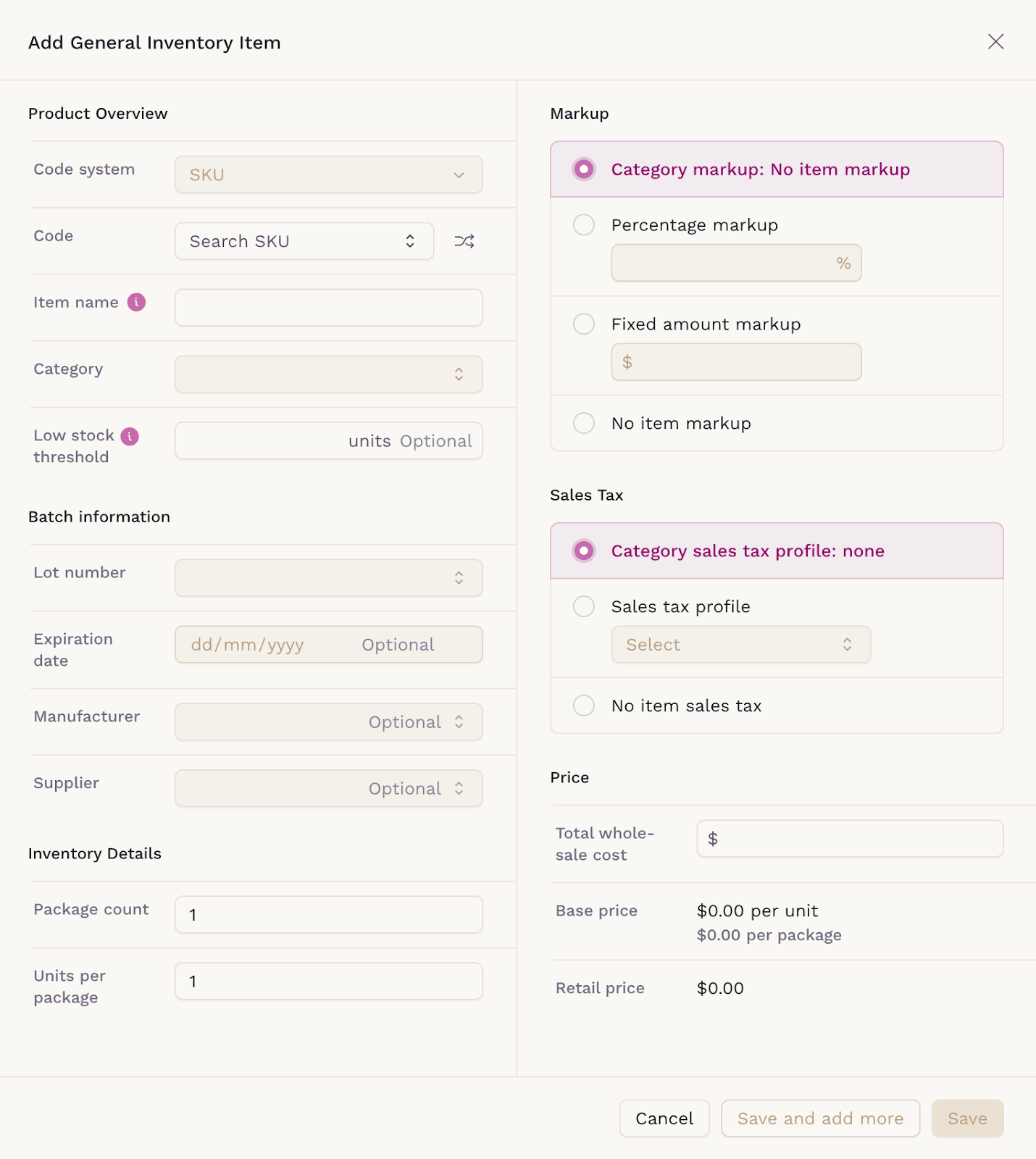
Click + Add Item and choose General inventory. The fields match medication inventory, except that instead of a medication you enter:
- Code — a SKU code, or click the button to generate one
- Item name — shared by all items with the same code
Saved inventory items appear in the list with stock status indicators. Dispensing one to a patient or putting it on an invoice deducts the quantity from stock automatically.
Non-inventory items
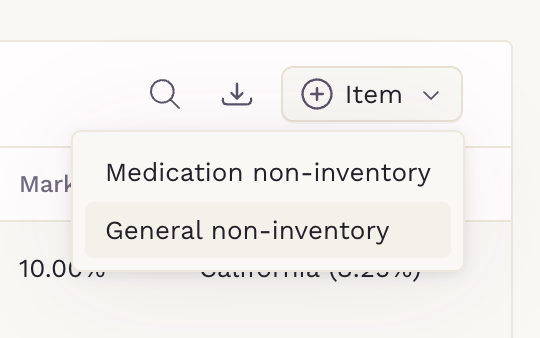
Non-inventory items are billable services or products you do not track in stock, such as lab tests, imaging and other procedures. They also come in a medication and a general form, created from the Non-inventory table with + Add Item.
- Medication non-inventory takes the same medication, name, category, batch, markup and tax fields as its inventory counterpart
- General non-inventory adds a Code system choice of SKU or CPT before the code itself
Neither tracks stock, so there are no package counts or low stock thresholds. Pricing starts from the base price, and the retail price is calculated from it.
Using charge items in invoices
Charge items are selected and added when you create an invoice, based on the treatment or service the patient received. For the full process, see Guide to Creating Invoices.
Keeping markup and tax on the category rather than on each item is what makes this scale: change a rule once and every item underneath it follows.