
How to Resolve a Chat
Resolving a chat helps you keep your inbox organized and focus only on conversations that still require action. When a chat is resolved, it’s removed from your active list but remains accessible in the patient’s chart.
Mark a chat as resolved
-
Open the chat.
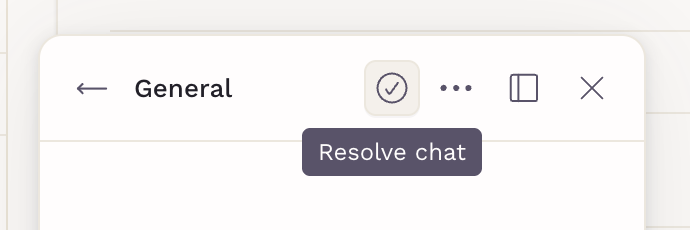
Click Resolve chat (checkmark icon at the top).
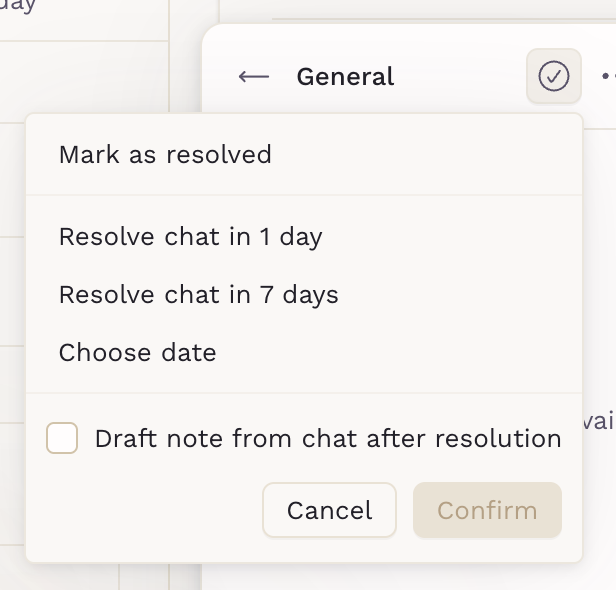
Click on the arrow down to schedule it for the future:
- Resolve chat in 1 day
- Resolve chat in 7 days
- Choose date (select a custom date)
- Click Confirm.

If you schedule a resolution (1 day, 7 days, or custom date), the chat will automatically move to resolved on the selected date.
From the patient's chart
On the patient's chart, open the chat, and click on the checkmark icon.
Choose how you want to resolve it:
- Mark as resolved (immediately)
- Or schedule it for later
Click Confirm.
Add the chat to a draft note when resolving
When resolving a chat, you can also create a draft note with the conversation content.
Below the scheduling options:
- Check Draft note from chat after resolution.
- Click Confirm.
Once confirmed, a draft note will be created in the patient’s chart containing the full chat transcript, including timestamps and participant names. The note is fully editable.
This is helpful when the chat includes clinical guidance, care decisions, or information that should be documented in the chart.
Canceling or Changing the Resolution
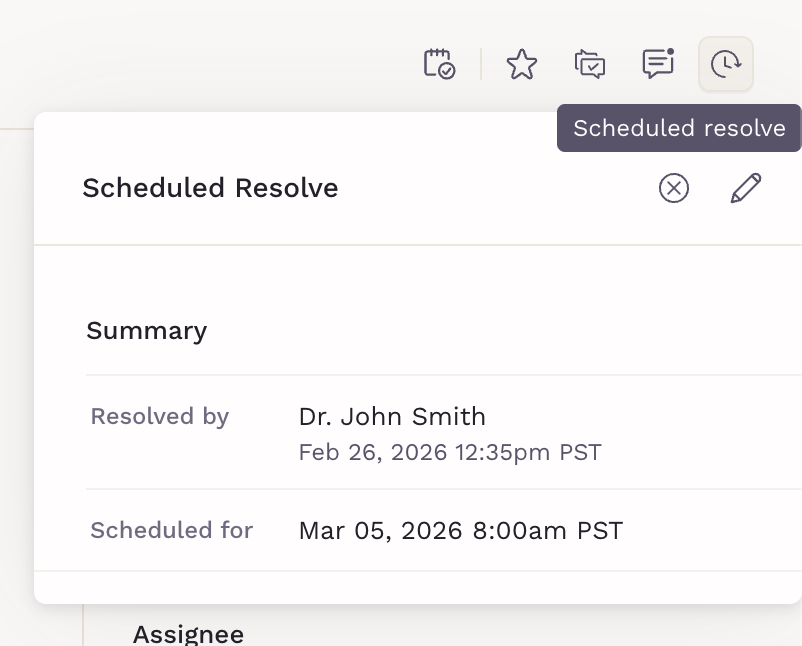
If you need to cancel the scheduled resolution or change its date, open the chat and click on the "Scheduled resolve" icon at the top right. Details about it will open.
Click on the X icon to cancel and on the pencil icon to edit the date.
Team chats
Conversations between staff members resolve the same way:
- Open the team chat and select Resolve chat
- The conversation shows a Resolved badge
- Scheduling options work as they do for patient chats
Because a team chat has no patient chart behind it, it is found again through the resolved filter rather than through a record.
On Your Clinician Mobile App
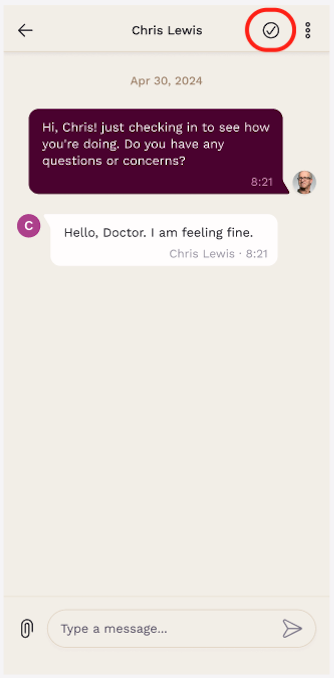
- Open the patient’s conversation.
-
Tap the check icon in the top-right corner.
-
Confirm the action.


Where to find resolved chats
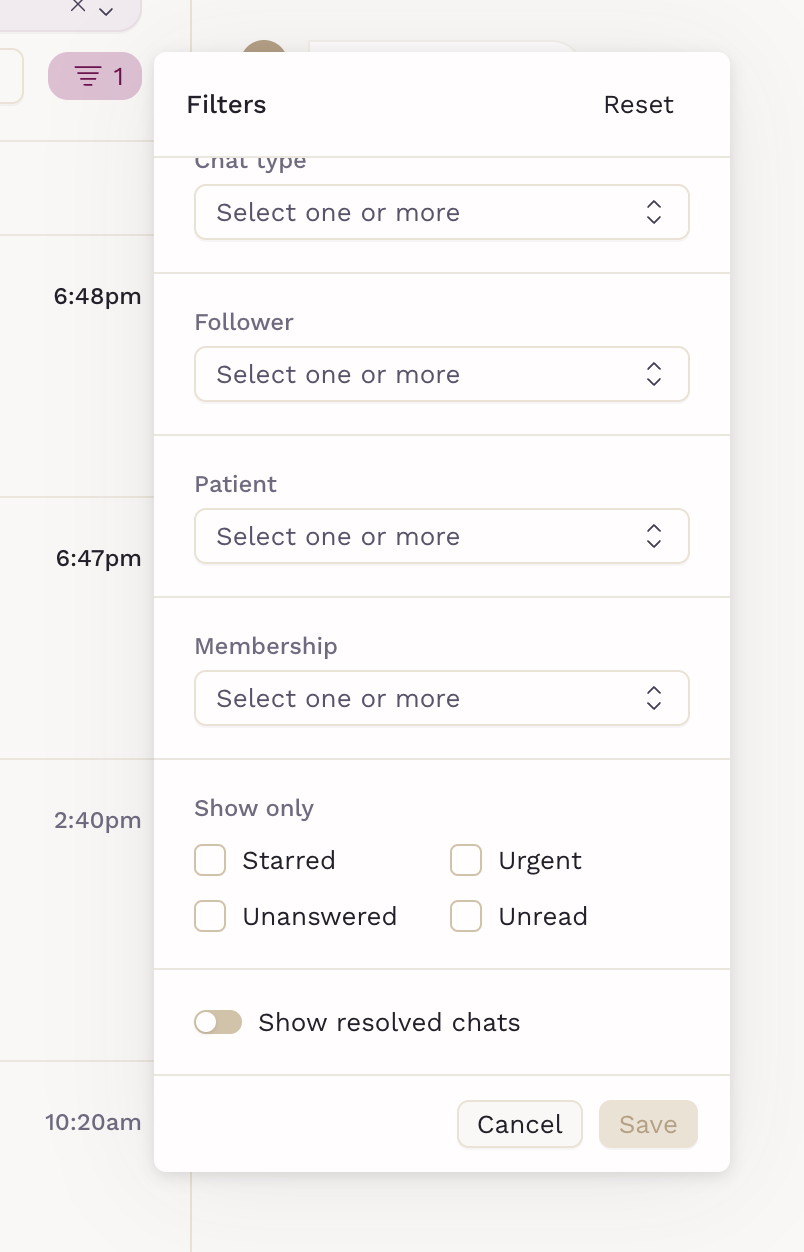
Resolved chats remain available in the inbox and the patient’s chart. You can view them anytime by adjusting your Inbox filters to include resolved conversations.
Keeping chats resolved and properly documented ensures your communication stays organized while maintaining a complete clinical record.
Important
After confirming, the chat will show a Resolved tag, it becomes read-only, and no further replies can be sent from patients or clinicians.