
Managing a Membership from a Patient's Chart
In SigmaMD, managing memberships directly from a patient’s chart is a seamless process. Here’s how you can navigate through the different membership statuses and make necessary adjustments:
First, access the Payments section of the chart from the left menu or select Payments when searching for the patient on the Command Center.


Membership Status and Available Options
Locate the Memberships section below the patient's demographics:

All membership plans the patient is or has been enrolled in will be listed. These are the possible statuses and actions:
- Pending
- Manage details
- Cancel
- Deferred
- Manage details
- Cancel
- Active
- Manage details
- Pause
- Cancel
- Paused
- Manage details
- Resume plan
- Cancel
- Inactive
- Manage details
- Archive plan
- Archived
- Archived memberships are permanently stored and cannot be edited or reactivated.
Viewing and Editing Membership Details
To view and edit a membership, click on "Manage details."
This will open a detailed view of the plan where you can edit most of its settings, like giving a discount, modifying the billing cycle, changing the payer and/or payment method, etc.

Pausing a Membership
To pause a membership:
- On an active plan, click the three dots and select "Pause".
- Specify the duration the membership will be paused (in cycles). I.e., to pause a monthly membership for four months, enter 4 cycles.
- You can resume the membership at any time by selecting the "Resume plan" option.

Canceling a Membership
To cancel a membership, click the three dots and select "Cancel". This will open the Cancel Membership screen, where three options will be available:
- Match cycle end date: This option synchronizes the cancellation date with the end of the patient's selected membership billing cycle.
- Choose date: Here, you determine the last active day of the patient's membership. The cancellation will happen the day after the date you've chosen.
- Effective immediately: As the title suggests, this option allows you to cancel the membership immediately.

- After you have chosen your option, select the Continue button at the bottom of the Cancel Membership screen.
- Choosing a Reason for the cancellation is optional, so the Continue button will remain enabled regardless of this field.
- This opens a Confirm Cancelation step. On a retail membership, this step lets you choose how to handle the final invoice before it's issued (for example, charging only the prorated amount, only the full cycle amount, or a custom amount). If the plan has a minimum commitment that hasn't been fully served, it also shows how the remaining cycles will be billed and offers charging all remaining cycles. When you schedule a cancelation on a retail membership and the billing cycle that contains the end date has already been charged, this step skips the final invoice choices and shows "This billing cycle has already been charged, so you won't be able to stop this cancelation later."
- Select Confirm to finish canceling the plan.
- Do not forget to review and manage outstanding membership invoices to make sure your patient's cancellation is seamless.
Canceling a membership will not delete the patient's chart or data. The patient will remain in the system, and all health records and chat history will still be accessible.
Stopping a Scheduled Cancellation
If a cancellation is scheduled but hasn't taken effect yet, the Memberships section shows a "Cancelation scheduled for [date]" notice with a Stop cancelation option next to it. Selecting it stops the scheduled cancelation and keeps the membership active. This option is available for retail and employer membership plans.
Stop cancelation is only available until the billing cycle that contains the cancelation date has been charged. Once that cycle is charged, the cancelation can no longer be stopped, even if the cancelation date is still in the future. This includes cancelations you schedule after the current cycle was already charged. For example, if a monthly membership was charged on October 1 and you then schedule a cancelation for October 10, the cancelation cannot be stopped.
When a cancelation can't be stopped, the notice shows "This cancelation can't be stopped because its billing cycle has already been charged. To keep the patient covered, enroll them in a new membership." in place of Stop cancelation.
If you need to keep a patient covered after the cancelation can no longer be stopped, enroll them in a new membership that starts the day after the cancelation date. You can skip or discount the enrollment fee when you do.
Tip: to keep the option to stop a cancelation, choose an end date in a billing cycle that hasn't been charged yet, such as the end of the next cycle under Match cycle end date. On bill-in-advance plans, the current cycle is charged on its first day, so a cancelation that ends in the current cycle can't be stopped.
Add or Remove Patients
To update a patient’s plan seat or add more patients to the plan:
-
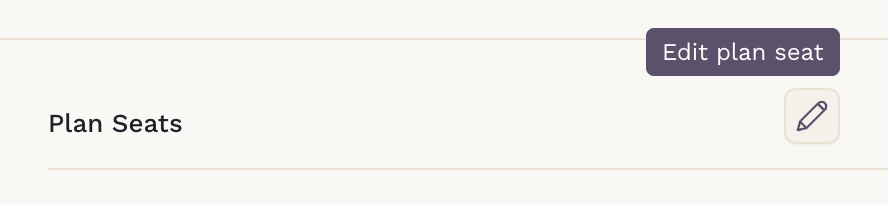
In the membership details view, click on the pencil icon next to Plan Seats.
- Change patients and seats accordingly.
- Save your changes to update the membership.
To remove a patient from the membership:
-
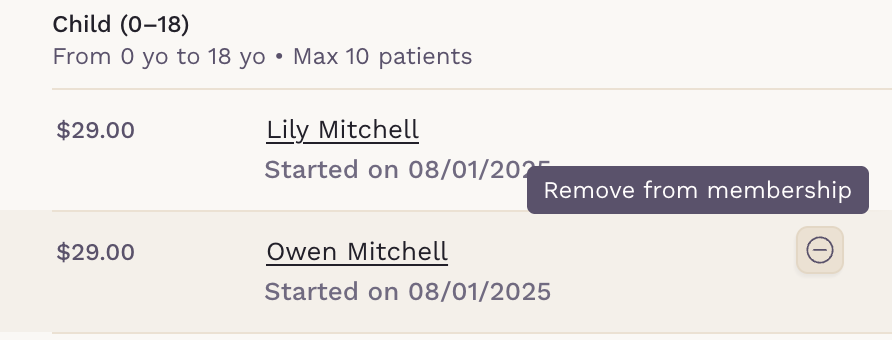
In the membership details view, hover over the patient under Plan Seats and click Remove from membership.
- Choose the Removal date: Match cycle end date, Choose date, or Effective immediately.
- Choose whether to notify the patient (Send on removal) and the Patient chart status after removal: Keep active or Set to inactive.
- Click Confirm.
The membership dues are adjusted accordingly. The option appears only when the membership has more than one active member, and a patient in a required seat must be replaced by another patient before they can be removed. A removal set for a future date shows Removal scheduled for that date, with Stop removal, and removed patients are listed under Seat History.
Note on Membership and Patient Status
Membership statuses are distinct from patient statuses. A patient can be active without having an active membership plan. To change a patient’s status (active, inactive, deceased), click "View patient details" next to the patient’s preferred name.
With these steps, you can manage every membership from the patient’s chart and keep each plan’s details accurate and up to date.