
How to Add a New Employer
Follow these steps to register a new employer in SigmaMD and set up their billing details:
Step 1: Access Employer Screen
- Access the Employers screen in SigmaMD under the Billing menu.
- Click the Add Employer button to begin the registration process.

Step 2: Add Employer Information, Contract Details, and Invoicing Rules
- Company name: Enter the employer’s company name.
- Address: Fill in the employer’s full address details.
- Administrator Details
- Add contact details for the company’s administrator.
- At least one primary administrator must have both an email and phone number.
- Invoice Issue Date: Enter the day of the month on which all future invoices will be issued. This will determine the date the employer’s contract starts.
- Membership Billing. Billing is based on the number of employees/dependents enrolled and can be set as:
- In advance: Membership is charged for the upcoming month, while covered employee expenses are charged based on the previous month's utilization.
- In arrears: Both memberships and covered employee expenses are charged based on the previous month's utilization.
- Due Date: Set the payment due date for invoices.
- Autopay: Enable this option to process payments automatically using the employer’s registered payment method.
- Prorate First Cycle: Select if the charge for new patients should be prorated or not, if they enroll mid-cycle.
- New Patient Start Date
- Immediately: Membership activates instantly upon enrollment.
- Fixed Day: Membership begins on a set day of the month; patients will have a Deferred status until activation.
- Notifications: Enable notifications to the company administrators when new invoices are issued.
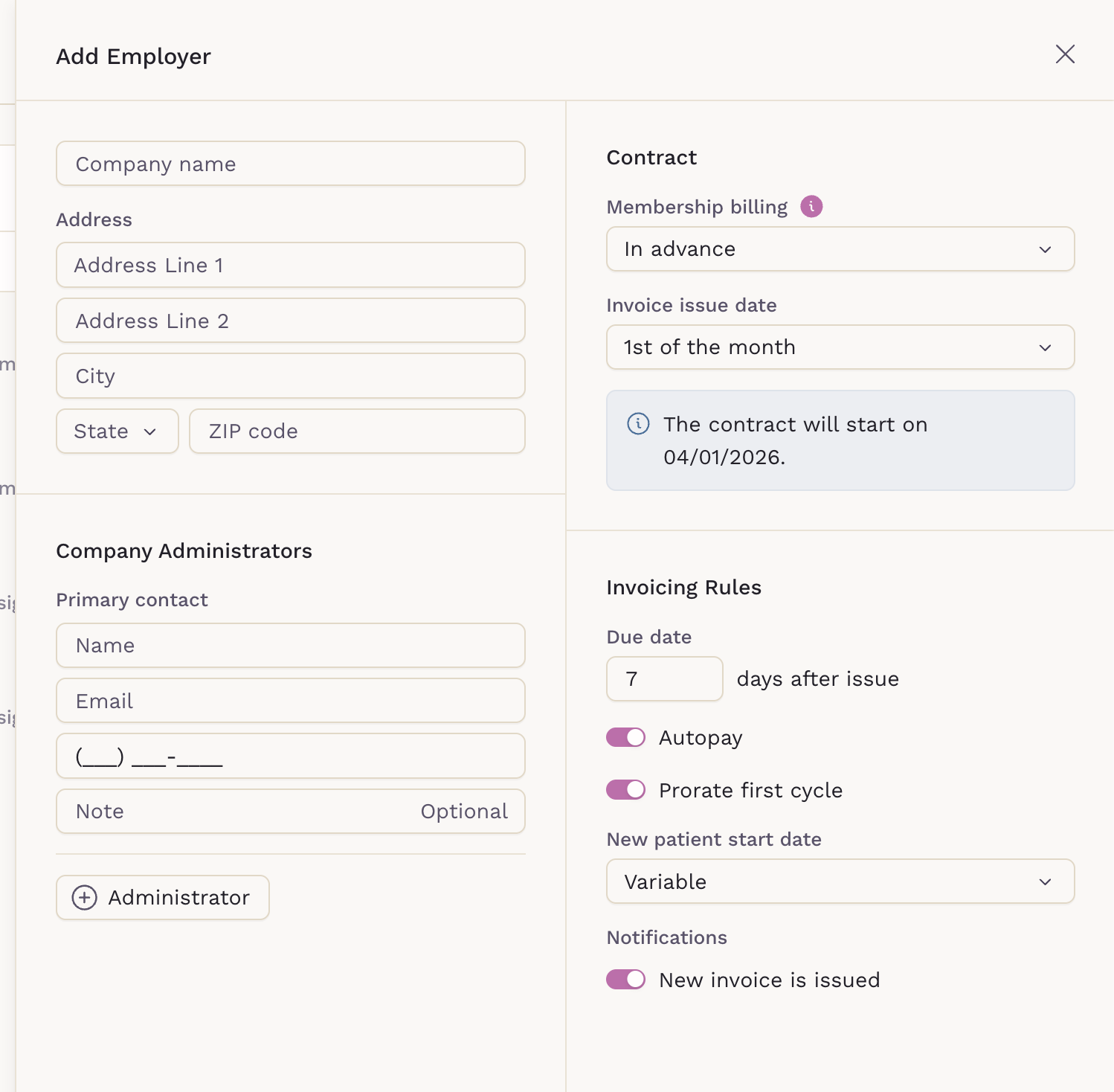
After entering all required details, click Save to add the employer.