
Managing Inventoried Items
SigmaMD allows you to efficiently manage medications and general stock directly from the Inventory Items tab. You can set availability, restock items, adjust details, and review history to maintain accurate inventory records.
Set All to Orderable / Set All to Inactive
Hover over a parent row to access the bulk status update button.
-
Set all to inactive: Disables all items under the parent row, preventing them from being used in invoices until reactivated.

-
Set all to orderable: Reactivates all items under the parent row, making them available for billing if they were previously inactive.

Set to Orderable / Set to Inactive
Each item can be managed individually:
-
Set to inactive: Temporarily disables the item. Useful if the item is no longer offered or should not be billed.

-
Set to orderable: Reactivates the item, making it available for invoices even if it was previously inactive.

Restock
You can quickly restock an item without re-entering all the basic information. Hover over the item and click the Restock button.


Manage Details
Hover over a child row and click Manage details to edit item information.

The panel shows the item form, where you edit all information related to that lot number. To review stock movements, use Medication history or Item history, described below.
For a compounded medication, the Ingredients are read-only here and when you restock it.

Manually Updating an Item’s Stock
If you need to manually adjust the stock quantity for an inventory item, you can update it directly from the Inventory Items tab.
- Hover over the inventory row and click the Manage details icon to open the item editing panel.
- Under the Inventory Details section, update the Remaining stock field with the correct quantity.
- Click Save to apply the stock update.

The updated quantity will immediately reflect across inventory and dispensing workflows.
To remove units that expired, were damaged, or were dropped, use Discard instead, so the reason is recorded in the lot’s activity log.
Discard
Hover over a lot row and click Discard medication (or Discard item) to remove units from stock and record the quantity, reason, and notes. Discards can’t be undone.

Item History
You can review all stock movements for any inventory item. Hover over a row and click Medication history (for medications) or Item history (for general items).


Clicking the button on a parent row shows the log for all lot numbers of that item, while clicking it on a child row shows the log for that specific lot only.
On a child row, the history opens in two tabs:
- Dispensing (medications) or Sales (general items): the history table and item details described below.
- Activity Log: every stock change for that lot, such as Stocked, Restock, Adjustment, and Discard with its reason. You can search by action, sort by date, and download a CSV file.

-
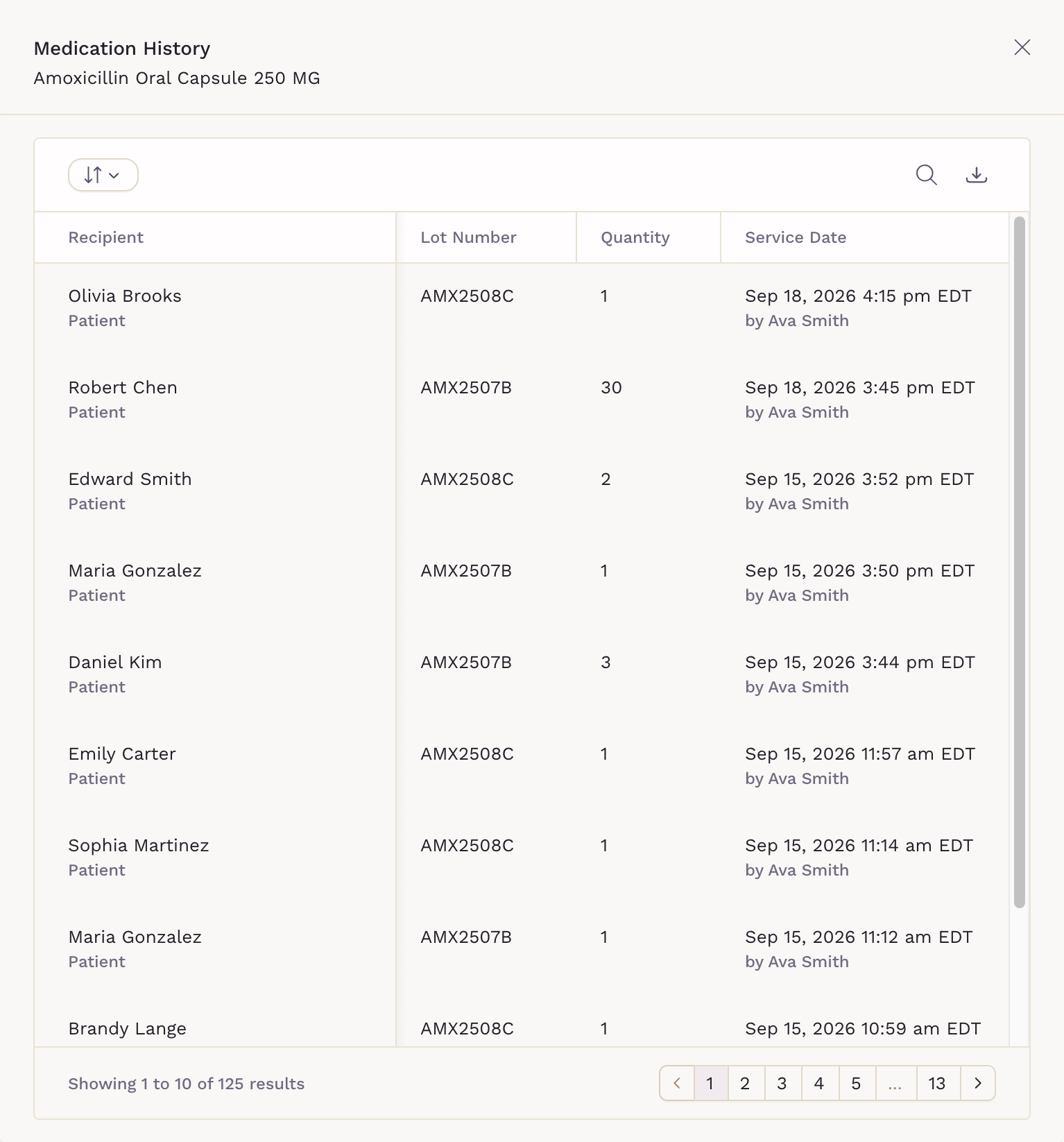
History Table: Shows a chronological log of all stock movements, including recipient, quantity, and service date.
-
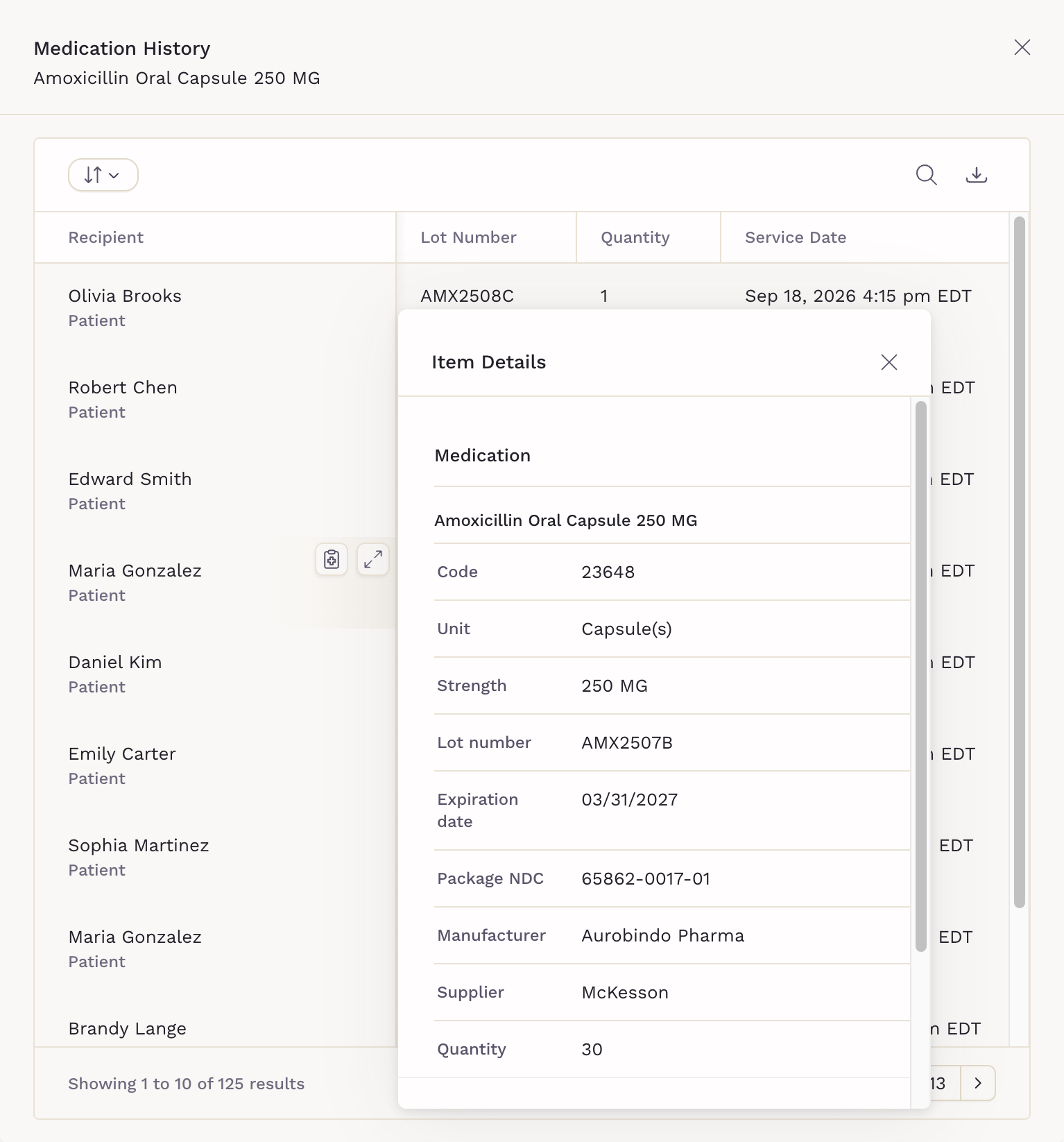
Item Details: Hover over a row and click View details to see details such as lot number, expiration date, manufacturer, supplier, and the provider who dispensed or updated the stock.
This feature lets you track restocks, dispenses, adjustments, and discards over time, providing full visibility into inventory management.