
Working with Multiple Locations
SigmaMD supports practices with more than one location while keeping patient care connected. Patient information stays unified across the practice, and your team can define how scheduling, billing, resources, and integrations behave at each site.
This guide explains how multi-location settings work across the platform.
How multi-location practices work
Patients are always assigned to a location, but clinicians can access all patient charts regardless of where they work.
Your practice can also choose whether patients may self-schedule only at their assigned location or at multiple sites.
Each location has its own revenue. Charge items and memberships follow the location selected when the patient is assigned or where the service is provided.
Adding a new location
- Go to Practice Settings/ Business Profile
- Then on the Locations tab
- Click Add location button
-
Enter address, contact details, open hours, and save
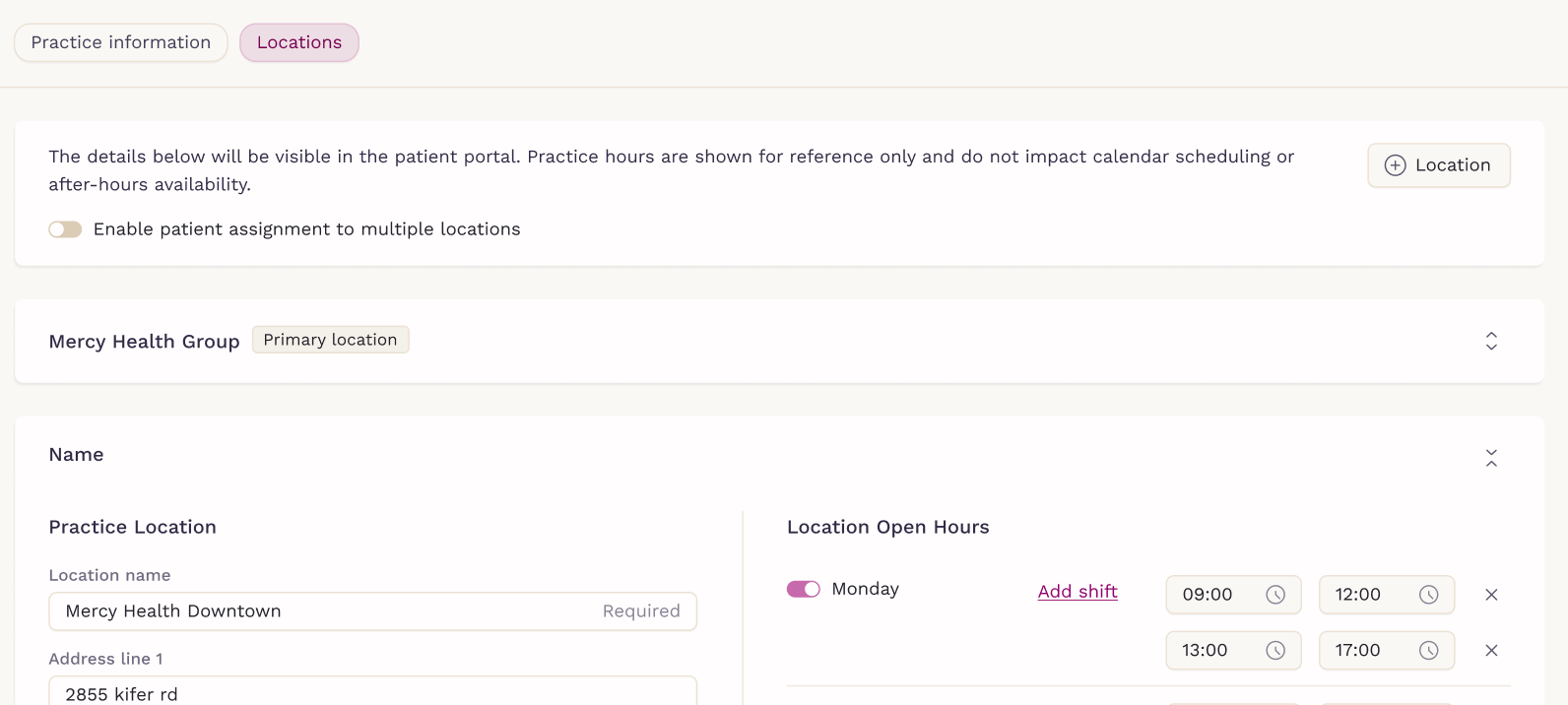
You can also enable or disable patient assignment to multiple locations. This setting controls how self-scheduling behaves across the practice.

Patient assigned location

Each patient has one assigned location used to:
- Pre-fill location in invoices and dispensing
- Determine default scheduling behavior
- Attribute membership revenue
Clinic Access

If Enable patient assignment to multiple locations is ON at practice settings, a Clinic Access section appears in the patient details under the patient chart. Clinic access controls where the patient can self schedule appointments:
- All locations
- Only at their assigned location
- A list of selected locations
If the toggle is OFF at practice settings, patients may self schedule only at their assigned location.
Team Setup and Working Hours
Assigning team members to locations
When inviting a team member, you can assign them to all locations or choose specific ones. Admins can edit these settings anytime.


Working hours per location
A clinician’s working hours are managed in Personal Settings → Working Hours.
Each shift includes a Location field. Patients can book in-clinic visits only during shifts tied to a location they have access to.

Scheduling and Calendar Behavior
Calendar view
Clinicians see a unified calendar in their own time zone and can filter by:
- All practice locations
- Their work assigned locations
- Any specific location

Creating appointments
Every in-clinic appointment requires a location. However, telehealth, at-home or phone consultation, don't have location associated with them.

Billing, Invoicing, and Inventory
Dispensing and invoices
When dispensing or creating an invoice:
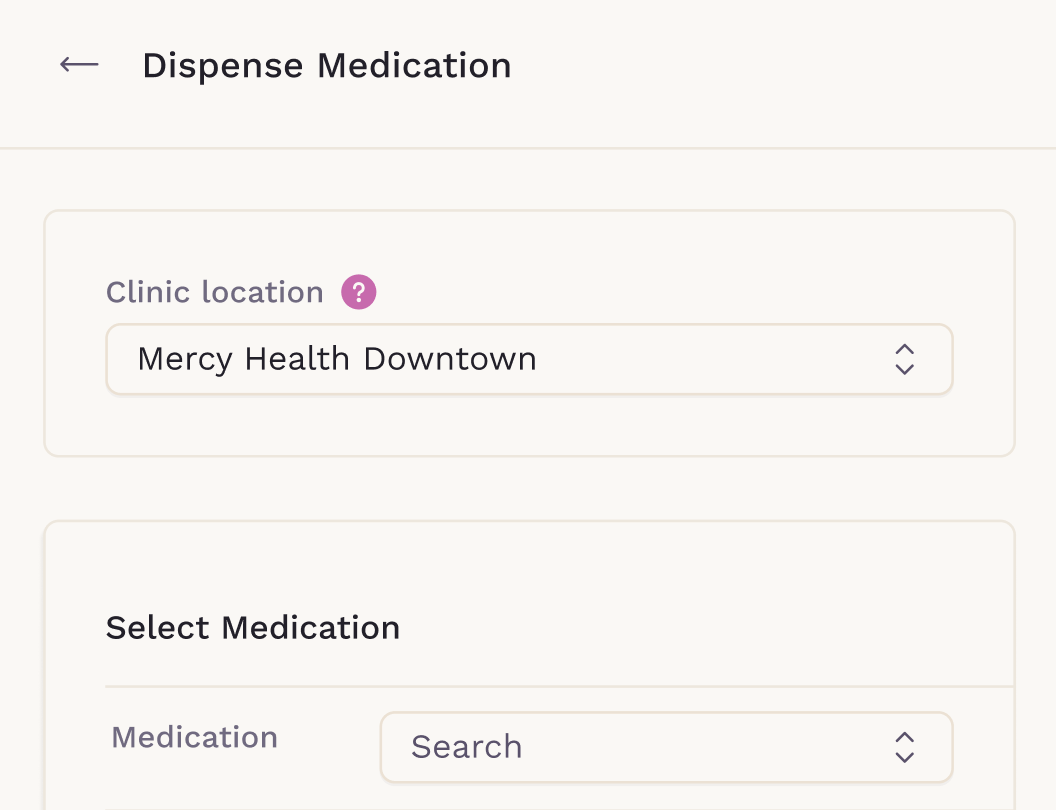
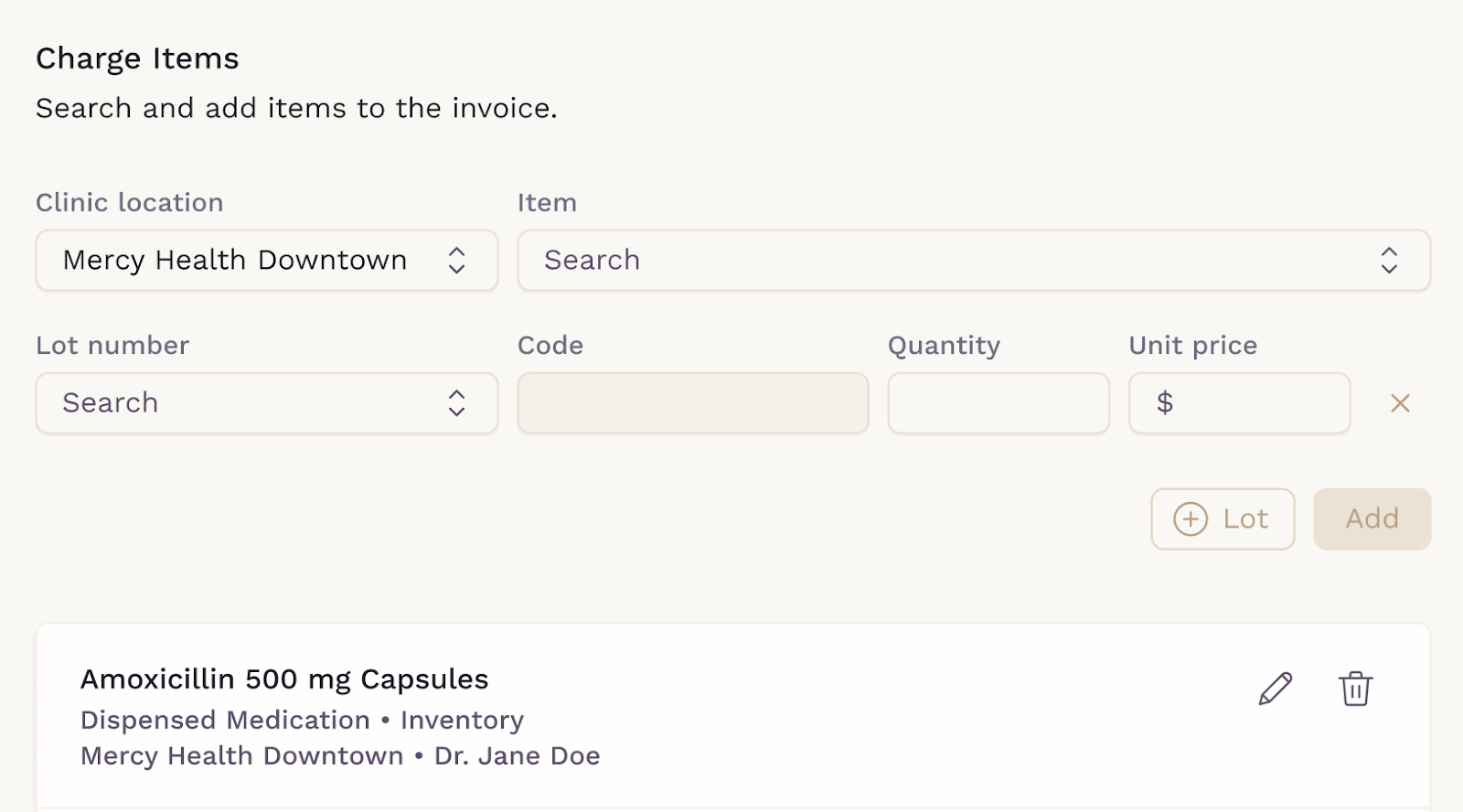
- A Clinic Location field is required before adding items to the dispensing or invoice
- For dispensing the field defaults to the patient’s assigned location
- Clinicians can change the location based on where the service was provided
-
Membership billing always follows the patient’s assigned location
Charge items per location
The Charge Items page includes a location selector. Anything created on the selected location applies only to that site, including:
- Categories
- Inventory
- Non-inventory items
Fax Numbers and Inbox
When setting up fax:
-
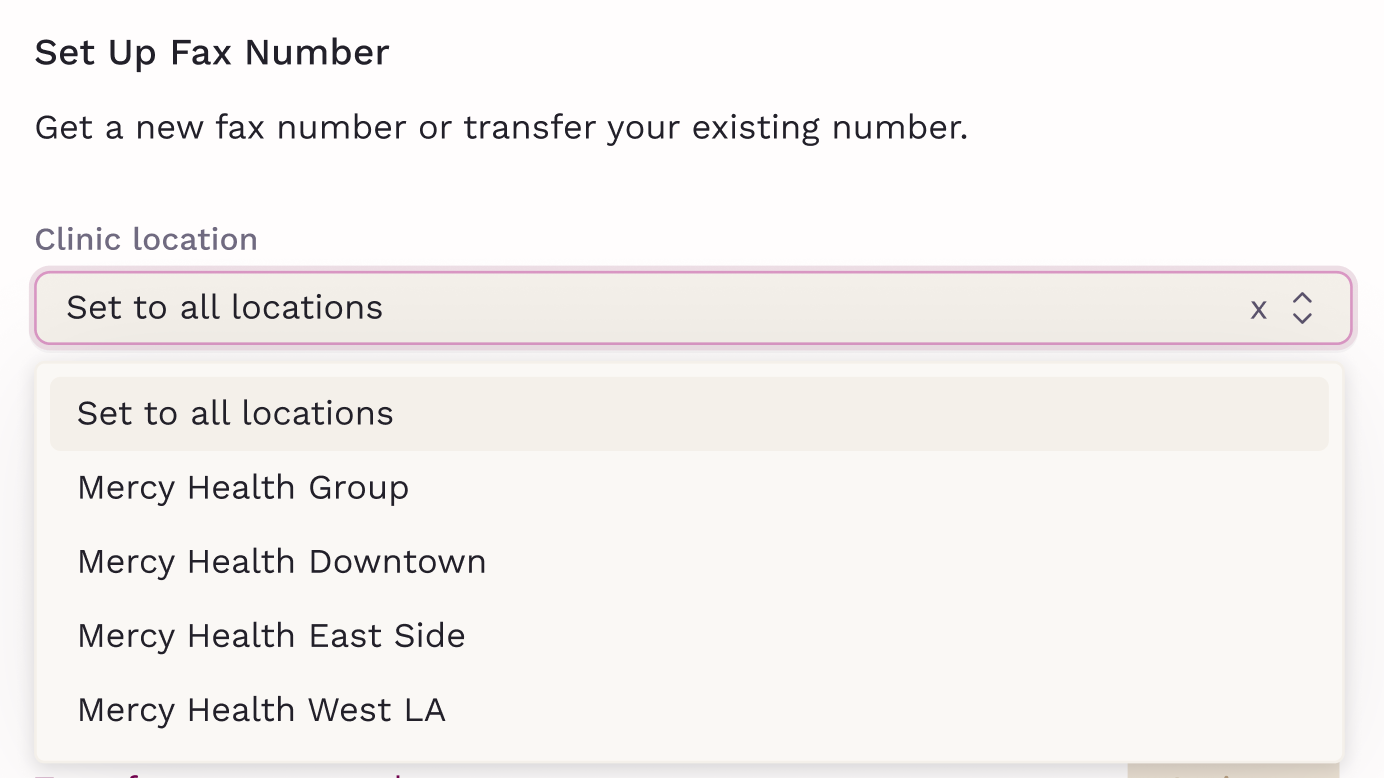
The first fax number can be applied to all locations or one specific location
-
Additional fax numbers can be added later and be assigned per site
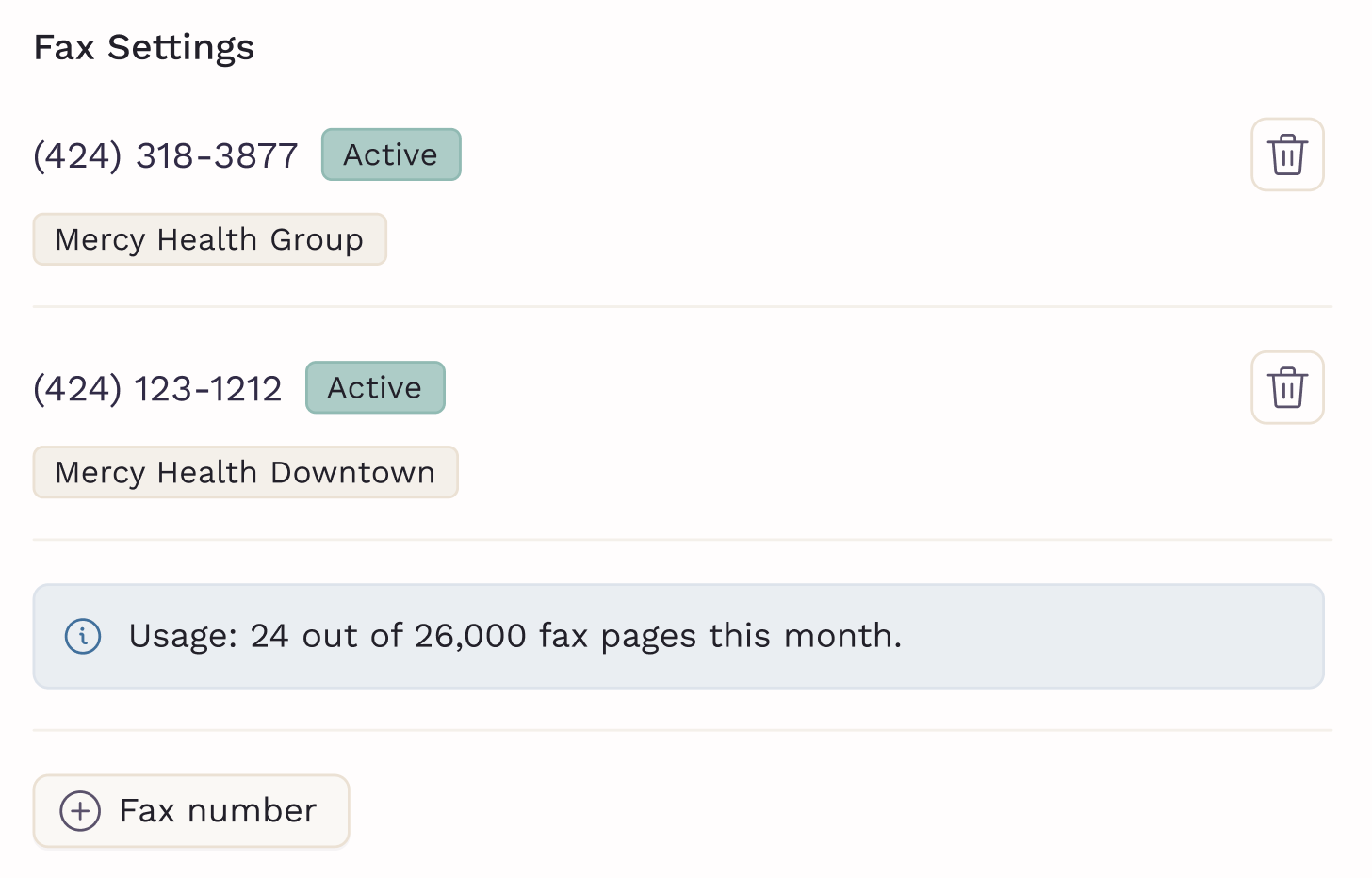
- To transfer a number, the location that will receive it must also be selected first.
Each fax number has its own inbox view so teams can review messages by location.

Chat messages and broadcast messages can also be filtered or targeted by patients assigned location.


Appointment Types and Locations
Restrict an appointment type to a specific location only when:
- The service is offered at specifics locations only
- Equipment is available only at specific locations
Otherwise, it is better to keep the toggle on, and create appointment types that will work for all locations, as patients are already assigned to unique locations.

Diagnostic Providers (Labs and Imaging)
When adding a diagnostic provider, clinic location is a required field.
- If the account is assigned to All locations, requisitions use the practice’s primary address and unified pricing.
- If the account is assigned to One location, requisitions use that location’s address and pricing must be set per site.

Managing multiple locations doesn’t add complexity for your team or your patients. With clear settings and location-specific controls, the platform keeps care consistent while giving each site the flexibility it needs.
Follow this guide to start setting up your locations.