
Sigma AI Overview
Sigma AI is an in-app assistant built into SigmaMD, currently in beta. It lets you ask questions in plain language — about one patient's chart, or across your whole patient panel — just as you'd ask a colleague, instead of clicking through charts or requesting a report to find what you need.
Where to find it
Look for the Sigma AI icon in the bottom-left corner of the screen. Click it to open the assistant from anywhere in the app, or press ⌘ / (Ctrl + / on Windows).

What can it do
Within a single chart
Ask about the patient whose chart you have open and Sigma AI retrieves what you need — history, problems, medications, allergies, vitals and lab results. To ask about someone else without leaving where you are, type @ and pick the patient from the list.
For labs, it reports the performing lab's own reference range along with any abnormal flags and criticality. For allergies, it gives the reaction and criticality on file and says plainly which entries are still unconfirmed.

Across your whole panel
Sigma AI is not limited to the chart you happen to have open. You can ask practice-wide questions and get an exact count back — for example, how many of your patients carry a given diagnosis, or are on a particular medication.
Counts are exact. When you ask to see the patients behind a count, Sigma AI returns a sample rather than the entire list — ask for the full list and it will return up to fifty records.
Your clinical notes
Sigma AI reads the narrative record, not only the structured fields. It can search your signed clinical notes — including notes written by the AI Scribe — to summarise the assessment and plan from a previous visit, so you can walk in already caught up.
The patient's documents
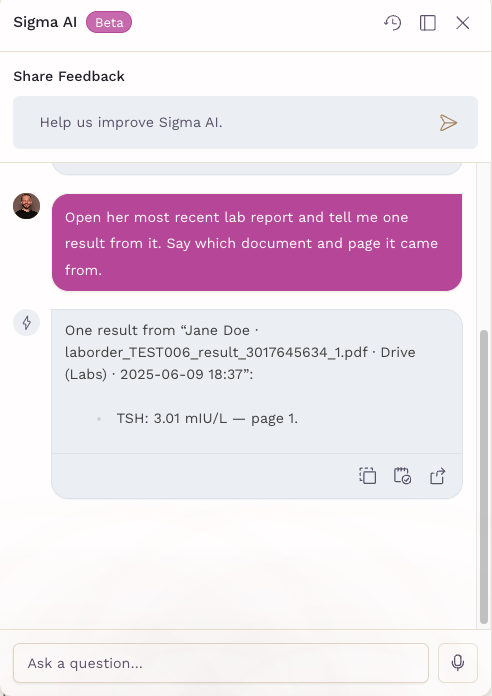
Sigma AI can find and read the patient's documents — faxes received and sent, scans, and the files in the patient's Files. Describe the document (“the last Quest report”, “her faxes from March”) or open it on screen, then ask what you need to know.
- Each answer names the document and the page it came from
- One question can cover up to five documents, such as comparing two reports
- When several documents match your description, it asks which one you mean
- Uncertain readings are marked as uncertain, never stated as fact
- When the document and the chart disagree, it gives both and says which is which
“The last” or “from March” refers to when the document entered SigmaMD, not a date printed in it. Long documents are read from their first 50 pages, and documents not yet linked to a patient can't be consulted. For a quick overview instead of a specific answer, see Summarizing Documents and Chats with Sigma AI.
Suggesting ICD-10 codes
Ask what a documented problem codes to and Sigma AI returns candidate ICD-10 codes beside the condition each one matched, so you are checking a suggestion against the chart rather than searching a code book. Treat the codes as candidates: they are not filtered to billable codes only, so confirm before you use one on a claim.
Asking by voice
Tap the microphone in the message box and ask out loud. Sigma AI transcribes what you said and answers exactly as it would if you had typed it. Note that the transcript is sent as soon as you finish speaking, with no edit step in between, and the microphone appears only when the message box is empty.
Your conversations are saved
Threads are kept and titled automatically, so you can reopen an earlier question later instead of starting again. Conversations are private to you within your practice.
How to check an answer
Sigma AI tells you the rule it applied to reach an answer — which records it counted, and what it deliberately left out. If it sorted by most recent, limited the number of records shown, restricted to active entries, or expanded a diagnosis into a family of ICD-10 codes, it says so in the answer itself.
Use that to check the working before you act on a result. Always verify anything clinically significant against the chart.
Adding an answer to a note
When you are in a patient's chart, each answer has an Add to note option that inserts it into your draft note. Nothing reaches the note unless you click it — Sigma AI never changes the chart on its own.
Every answer also has Copy, which copies the text, and Add task, which opens a new task with the answer as its description. For a document summary opened outside the chart, Create note starts a new note for that patient.
What can't it do yet
Sigma AI reads your records; it does not act on them. It cannot place orders, write prescriptions, book appointments or change the chart. Apart from adding an answer to a draft note or a task when you ask it to, it makes no changes anywhere.
It also does not yet have access to your schedule — it's on the roadmap for future releases. Documents in your inbox are read only once they're linked to a patient.
Why is it still in beta?
We're rolling out Sigma AI early so we can collect real feedback from real visits before adding more capabilities. As the feature evolves, expect regular updates that expand what it can do. There is a feedback box above every conversation — we read it.
Will I be charged?
Sigma AI is free of charge during the beta program.
Important notes
- Sigma AI is read-only. The only thing that reaches a note is what you choose to add.
- It works within a single chart, across your clinical notes, across the patient's documents, and across your whole patient panel.
- Counts are exact; lists of the records behind a count are capped at fifty.
- ICD-10 suggestions are candidates and are not restricted to billable codes.
- It does not yet have access to your schedule, and reads inbox documents only once they're linked to a patient.
- Sigma AI can make mistakes. Always verify before clinical action.