
Forms Overview
Forms help you collect clear, structured information from patients before or after a visit. The experience encompasses the full lifecycle: from building a form, to the patient completing it, to reviewing submissions in the chart. Each step is designed to reduce friction for patients and give clinicians reliable, organized data.
Please note that forms are targeted to patients only, therefore, can only be shared with them.
Accessing Forms and Creating a New Form
You can manage all form templates and published forms from the Forms screen. To access it, open the main menu and select Forms. This page lists every form available in your practice, including published, unpublished, and archived items. You can sort, filter, and review activity directly from this view.

To create a new form, click Add Form. You can start from scratch with a standard form, upload a PDF, or choose from a pre-built template. Each option opens the builder so you can review and customize the structure before publishing.

Creating a Standard Form
The Standard option offers a flexible workspace for designing multi-section forms tailored to your practice. Each form can use a mix of text blocks, structured inputs, file uploads, and clinical information modules. The preview updates live, so you always know how the form will look once sent.

The form can include elements such as:
- Short/long text
- Numbers with validation
- Dropdowns, multiple choice, and yes/no fields
- Date and time inputs
- File uploads
- Matrices (single-select, multi-select, and text input), with optional scoring
- Contact and address blocks
-
Legal agreements
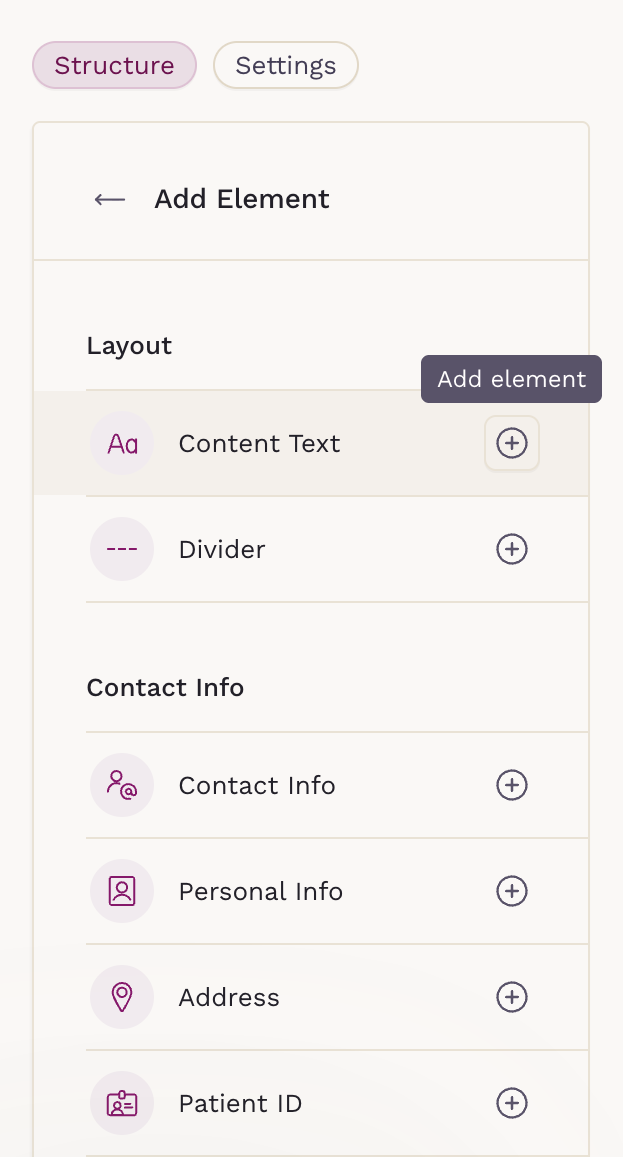
Every component follows clear rules set by the clinic—required fields, character limits, allowed ranges, alphabetical choices, and file-size limits. Conditional logic helps keep long forms manageable by showing follow-up questions only when needed.
Pre-filling Fields from Chart Data
Personal Info, Contact Info, and Address elements include a Prefill from chart data toggle in their settings. When enabled, these fields populate automatically from existing chart data for signed-in patients (they stay blank for anyone not signed in). Patients can review and edit any prefilled value before submitting.

Creating a PDF Form
You can also build forms by uploading an existing PDF, which is useful when your practice relies on standardized documents or needs to preserve a specific layout.
Please note that you cannot upload a password-protected file or a PDF that already contains interactive components.

Once the upload is complete, the PDF opens in an editor where you can place interactive fields directly on top of the document.

Inside the editor, you can add text inputs, checkboxes, and signature fields, positioning them precisely where the patient needs to enter information. Each field can be marked as required and adjusted to fit the original form's structure.

Practice Annotations
Alongside patient-fillable fields, you can add practice annotations—read-only elements your practice completes during form building, such as pre-checked consents, boilerplate text, or an official signature. Add one via Add Element › Annotation (under Practice Notes), choose Checkbox, Text, or Signature, and place it on the document. Patients see annotations as read-only.

PDF forms behave like standard forms once published—they can be sent to patients, linked to appointment types, and later reviewed in the patient chart.
Using Templates
Templates give you a faster way to build forms without starting from scratch. Each template can be customized once duplicated—sections can be renamed, questions edited, components added or removed, and conditional logic adjusted to match your needs.
Please note that templates are for convenience only and may not meet all clinical or legal needs. Clinics are responsible for testing and validating them for accuracy before using them with patients.
Previewing and Publishing Forms
Before sharing a form with patients, you can use the preview option to confirm that the layout, fields, and instructions appear exactly as intended. The Preview button is located in the top-right corner of the screen.

The preview reflects the full patient experience, allowing you to verify spacing, conditional logic, and required fields.

Once everything looks right, publishing the form makes it available to send directly or link to an appointment type.
Any edits made after publishing automatically generate a new version, ensuring that forms previously sent or completed remain unchanged and fully preserved.
Sending Forms to Patients
Send from the Forms Table
You can send any published form directly from the Forms table. Selecting Send form opens a panel where you can choose one or multiple patients, add an optional message, and send the form instantly. This is helpful when you need to distribute a form broadly or outside of a specific appointment.

Send from the Patient Chart
Forms can also be sent directly from the patient chart using the Send forms button. This opens a full list of published forms, allowing you to select one or multiple items before submitting them to the patient. This workflow is ideal when reviewing a chart and identifying forms the patient still needs to complete.

Send on a Chat
From the patient’s chart or the Inbox, open a chat and click the Forms icon next to Attachments. Then, select one or more forms from the list to share.
The form will appear as a message in the conversation, and the patient will also receive an email notification with the form link. They can access and complete the form from either the chat or the email.

Linking Forms to an Appointment Type
Forms can be linked to appointment types either from the Form settings or directly within the Appointment Type settings. Once linked, the forms are assigned automatically every time that appointment is booked. Patients receive the secure form links as part of their appointment confirmation and reminder messages. Only pending forms are displayed—any form they have already completed is automatically hidden—so patients always know exactly what they need to fill out before their visit.
To avoid asking for the same information twice, turn on Exclude previously completed forms under Forms in the appointment type settings. When the appointment is booked, any linked form the patient has already submitted is left out and only the rest are sent. A form stays completed even after you publish a new version of it, while a form the patient started but never submitted is sent again.

How Patients Fill Out Forms
Patients will receive a link by email once a form is sent to them.

Forms are web-based rather than inside the app, so they can be opened on any device size.
By default, forms do not prefill personal information. However, when the Prefill from chart data setting is enabled on Personal Info, Contact Info, or Address elements, those fields populate from the chart for signed-in patients. Patients can always review and edit any prefilled information before submitting.
How Forms Appear in the Chart
All activity flows back into the patient chart, helping your team review, document, and track progress in one place.

Form List and Statuses
Each form appears under the Forms tab with statuses such as:
- Not started
- In progress
- Submitted (Pending review)
- Submitted (Reviewed)
- Locked (Pending review)
- Locked (Reviewed)
Reviewing and Marking Responses
Opening a form displays the full submission, organized by the structure you created. Clinicians can scroll, add the content to a note, and view the activity log.
New submissions arrive as Pending review. After reviewing, click Mark as reviewed to update the status.

To make further changes, open the three-dot menu and choose Set to pending review—reviewed forms can't be edited until they're set back to pending.

Editing Responses
Clinicians can update values directly in the chart, which is useful for fixing typos or filling skipped fields without asking the patient to resubmit. Open the form, click the Edit responses (pencil) icon, make your changes, and Save. Legal components, such as acknowledgement checkboxes and signatures cannot be edited, and required-field validation still applies. If the form is already Reviewed, set it back to pending first. All edits are captured in the Activity log.

Adding Patient Info to the Chart (Entry Review)
Elements connected to the chart—Contact Info, Personal Info, Address, Patient ID, and Health Resource categories (Demographics, Social History, Medical History, Family History, etc.)—can flow into the chart when the Add to chart toggle is enabled in the builder. These submissions stay pending until a clinician confirms them: review them in the Entry Review tab on the Forms screen, or as cards in the related chart sections (Problems, Medications, Allergies, and so on). For each entry, choose Review and edit to save the values, or Dismiss to discard them.

Locking Forms
You can lock a form that's Not started or In progress to stop a patient from accessing or submitting it—useful for cancelled appointments or incorrect submissions—while keeping any data already entered. Open the form, choose Lock form, and confirm; use Unlock form to restore access. Patients see a "Form Locked" screen directing them to their care team. Clinicians can still view and edit responses, and the lock is recorded in the Activity log.

Archiving Forms
Archiving hides a form from the chart view without deleting it, and works on forms in any status. Open the form, choose Archive from the more menu (⋯), and confirm. Use the Filter icon to show archived forms (marked with an "Archived" badge) and Unarchive to restore them. Patients can no longer open an archived form that wasn't submitted; already-submitted forms remain visible to them as submitted.

Activity Log
Every form has an Activity log tab with a complete, timestamped record of actions—sent, started, submitted, edited, file uploads and deletions, and review-status changes—shown newest first with the actor and time. Edit entries expand to show old values struck through beside the new ones. The log is read-only, giving your practice a reliable audit trail.

Scored Forms
For scored forms (such as PHQ-9), the chart displays:
- Score per matrix
- Total score (if enabled in form settings)
- Result definitions, if configured
This makes it easier to identify severity thresholds and document follow-up plans.
Where Patient-Uploaded files are saved
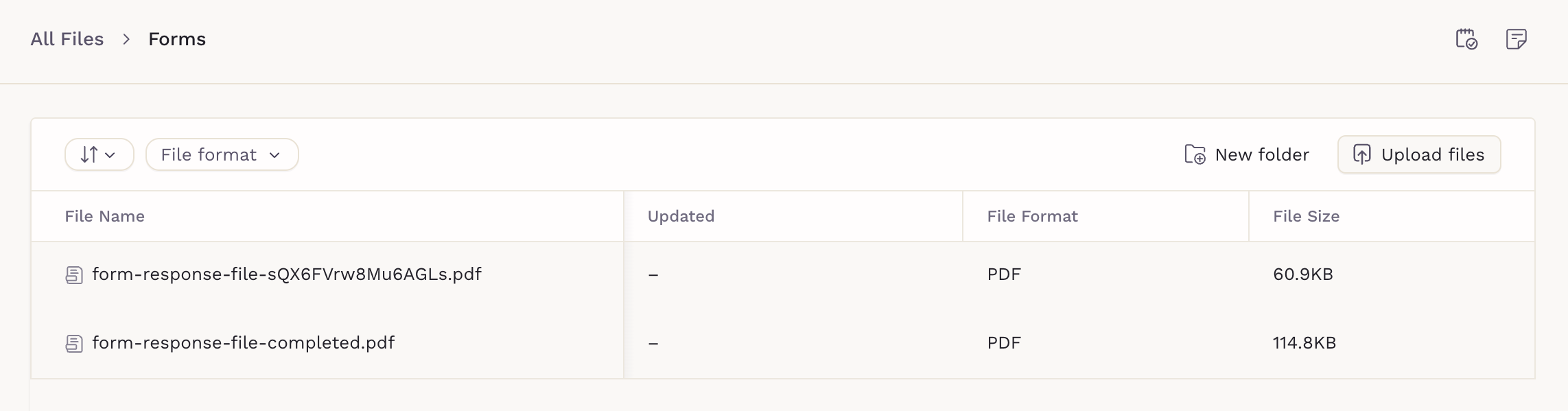
Any files uploaded by patients are automatically stored in the Patient Files. These files are organized under the Forms folder, making it easy to find documents submitted through intake forms or questionnaires without manually sorting or moving them.
Summary
Forms support clinics at every step of care. The builder helps you design structured, reusable inputs, patients complete them quickly from any device, and clinicians receive organized responses that automatically connect to the right place in the chart. Whether you're collecting health history, screening data, consents, or administrative documents, forms provide a clean, reliable path from patient entry to clinical decision-making.