
Creating Standard Forms
The Standard option offers a flexible workspace for designing multi-section forms tailored to your practice. Each form can use a mix of text blocks, structured inputs, file uploads, and clinical information modules.
When to Use a Standard Form
Standard Forms are ideal when you need to collect patient information. Common use cases include intake questionnaires, consent forms, follow-up questions, medical history updates, and administrative paperwork.
They work best when:
- You need free-text responses, uploads, or acknowledgments
- Questions should appear or hide based on patient answers
- Information may integrate into the patient chart for review
Creating a Standard Form
To create a Standard Form:
- Go to Forms
- Click + Form
- Select Standard to start from scratch or use a template

Building the Form Structure
Standard Forms are organized using sections and elements.
- Sections group related questions, and each section appears as a separate step for the patient when completing the form.
- Elements are added within each section.

Each element can be reordered using drag and drop, duplicated, removed, or edited at any time. All elements appear in the Structure tab of the panel on the left, making it easy to manage even complex, multi-section forms. The builder opens on the Settings tab, which holds form-wide options such as the Title and Notifications, including patient reminders.

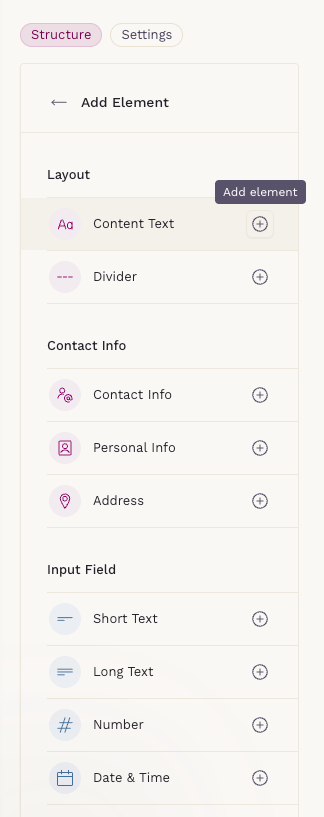
Available Elements
The form can include elements such as:
- Short/long text
- Numbers with validation
- Dropdowns, multiple choice, and yes/no fields
- Date and time inputs
- File uploads
- Matrices (single-select, multi-select, and text input), with optional scoring
- Contact and address blocks
- Legal agreements
-
Health Resource elements such as Demographics, Medical History, Social History, Family History, and more
Element Settings and Properties
When you select an element, its settings appear in the right-side panel. Depending on the element type, you can:
- Mark fields as required or leave them optional
- Apply validation rules (such as email or numeric input)
- Enable or disable chart integration for Health Resource elements
- Adjust labels and helper text
These controls allow practices to precisely tailor how information is collected and stored.

Chart-Connected Components
The Integrate With Chart toggle is available for all Health Resource elements, including Demographics, Social History, Medical History, Family History, Cycle History, GYN History, OB History, Specialists, and Insurance.

Once the patient submits the form, the information appears in the Forms screen under Entry Review tab.

If a form entry is still pending review, a card will be added to the Overview tab and will remain there until the entry is reviewed or dismissed. Each pending form generates its own card, making it easy to track outstanding items.

A card is also added to other areas of the patient chart, such as Problems, Medications, Allergies, Vaccines, and Procedures, when any information in those categories is pending review from a submitted form.

This ensures clinicians stay in control of what becomes part of the medical record.
Conditional Fields and Sections
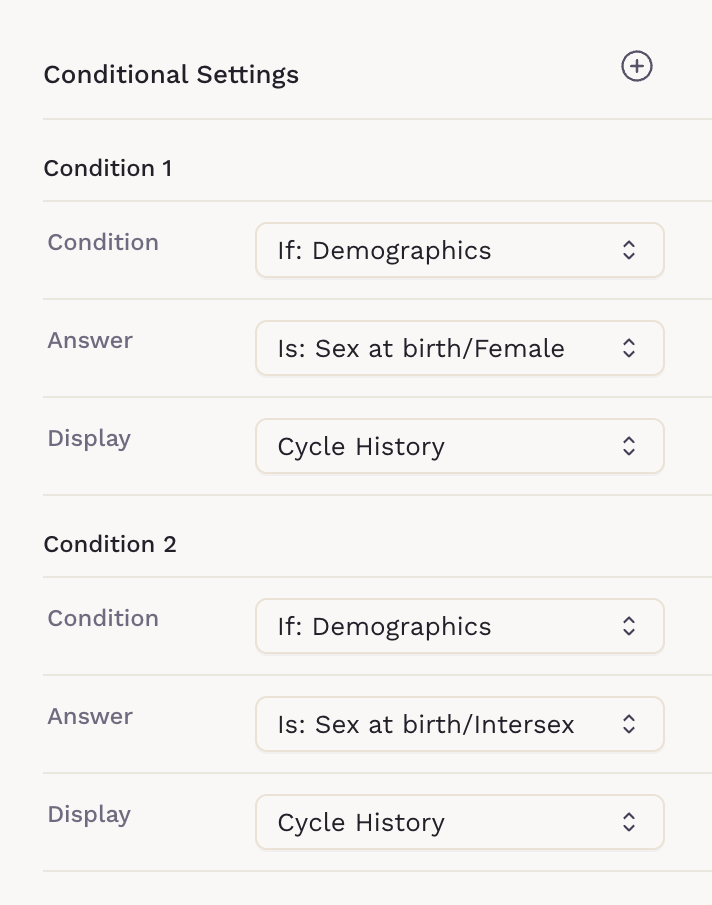
Standard Forms support conditional logic to show or hide fields or entire sections based on patient responses. This keeps forms focused and avoids unnecessary questions. You can create conditional rules at any time by opening the three-dot menu next to the section title and selecting Edit.

Conditional logic uses two parts:
- Condition: the element or field that controls whether the section should appear (such as a Yes/No question, Demographics, or Social History).
-
Answer: the value that triggers the section to display. For Demographics, this references a specific field and response, for example, Sex at Birth → Female.
Previewing and Publishing
Before publishing, use Preview to see the form exactly as a patient will. This helps confirm layout, required fields, and conditional behavior.
Once published:
- The form can be sent directly to patients, or
- Linked to appointment types for automatic delivery
Any changes made after publishing create a new version, preserving previously completed submissions.