
Creating Conditional Sections in Forms
Conditional sections let you build smarter, more focused forms by showing or hiding content based on patient responses. This helps reduce unnecessary questions, keeps forms easier to complete, and ensures you collect only the information that’s relevant to each patient.
What Are Conditional Sections?
Conditional sections are form sections that appear only when specific conditions are met. Instead of displaying every question to every patient, you can control visibility using answers from earlier fields, such as Yes/No questions or values from Health Resource elements like Demographics or Social History.
This approach is especially useful for clinical workflows where follow-up questions depend on prior responses.
When to Use Conditional Sections
Conditional sections work best when:
- Certain questions apply only to a subset of patients
- You want to reduce form length and fatigue
- Follow-up information is needed only after a specific answer
- Clinical sections (such as OB History) depend on earlier responses
Common examples include pregnancy history, lifestyle habits, or specialty-specific intake questions.
Creating a Conditional Section
To create a conditional section:
- Open the standard form in the builder.
- Identify the question that should trigger the conditional section.
-
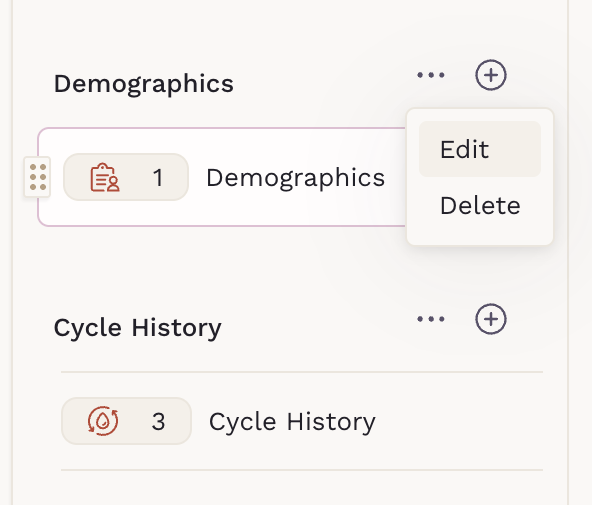
Go to the section where the question is located, open the three-dot menu next to its header, and select Edit.
-
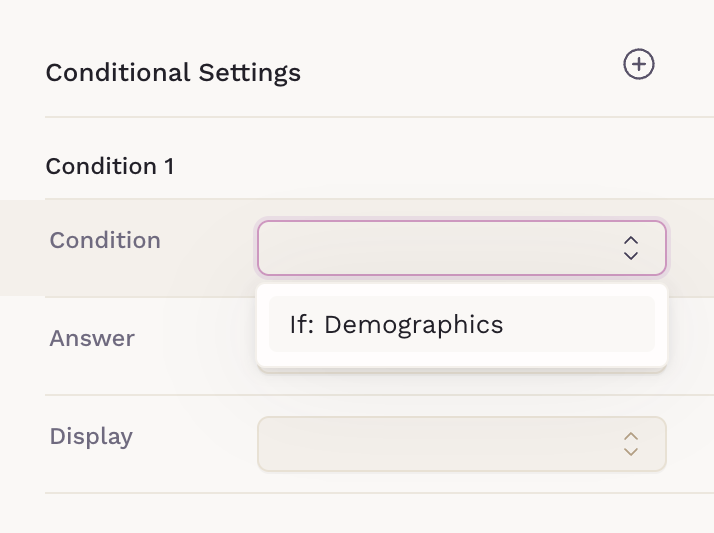
Select the Condition: the element or field that controls whether the section should appear. This can be a Yes/No question, a multiple-choice response, or an element such as Demographics.
-
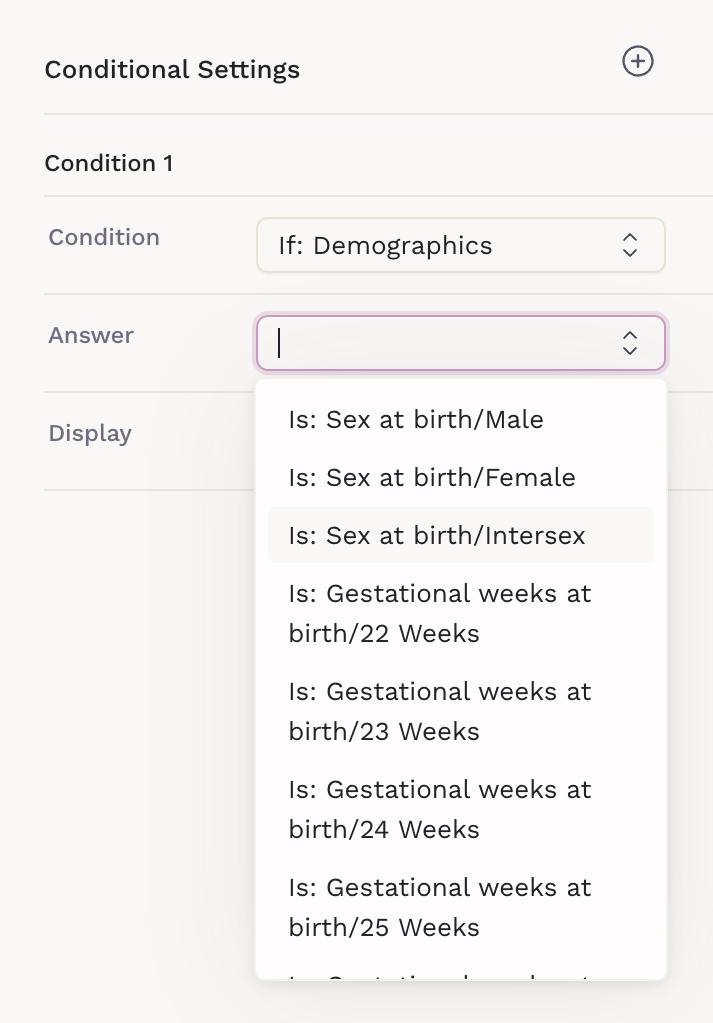
Select the Answer: choose the specific value that triggers the section to display. The dropdown shows the available questions followed by their corresponding answers. For example, the Demographics element includes multiple questions, so each question and its possible answers are listed in the dropdown.
-
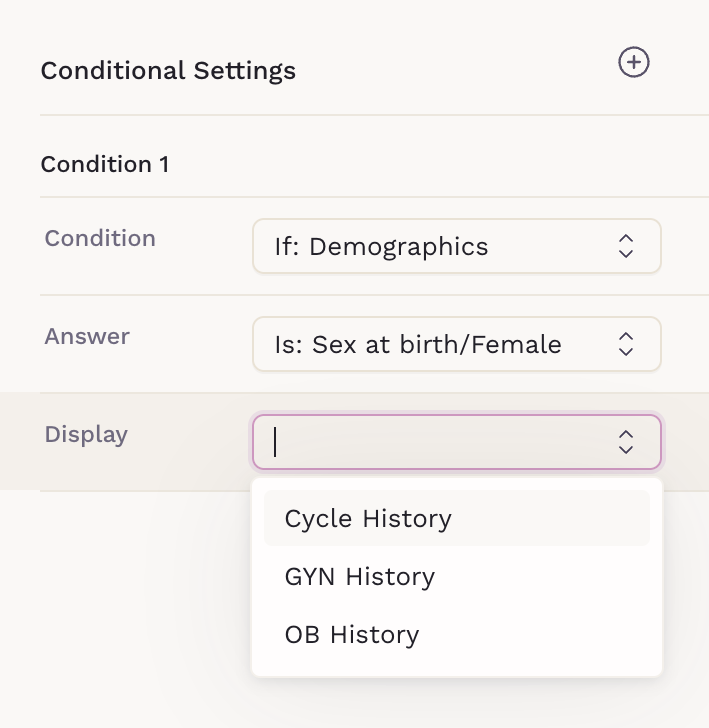
Define which section will be Displayed: This input shows only sections that appear after the selected question.
Triggering a Section with Multiple Answers
If a section can be triggered by multiple answers, you can add multiple conditions to the same section.
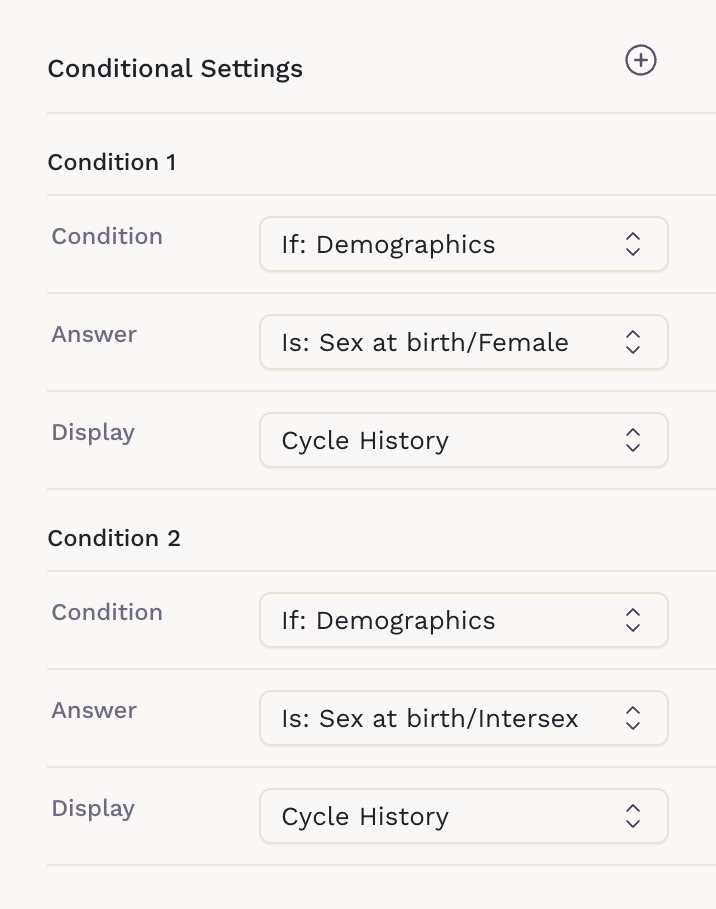
Example: The Demographics element includes the Sex at Birth question. If a patient selects Female or Intersex in that section, the Cycle History section is displayed.
Removing Conditional Rules
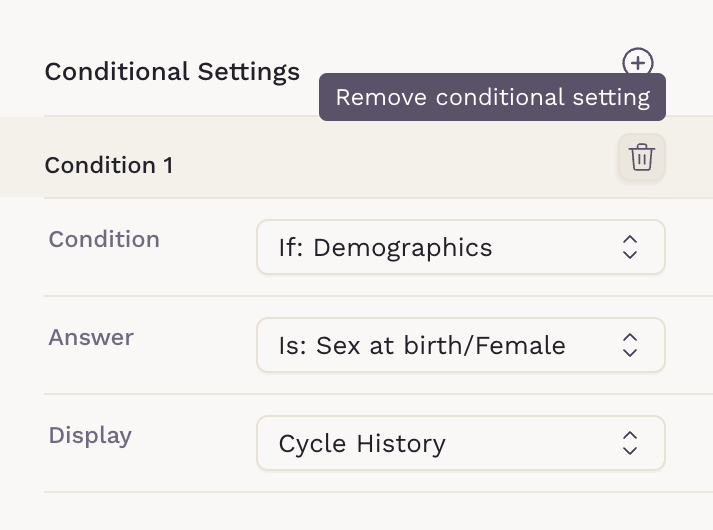
Conditional rules can be removed by hovering over the condition you want to delete and selecting the delete option.
Previewing Conditional Behavior
Use Preview to test how conditional sections behave from the patient’s perspective. Previewing helps confirm that:
- Sections appear at the right time
- Irrelevant questions remain hidden
- Required fields behave correctly
Previewing is strongly recommended before publishing.
Best Practices
- Keep conditions simple and easy to understand
- Avoid deeply nested conditions when possible
- Clearly label questions that trigger follow-up sections
- Always preview before publishing
To learn more about creating forms, explore our articles on Forms Overview, Standard Forms, and Building Interactive PDF Forms.