
How to Complete Forms on Behalf of a Patient
When a patient can't fill out a form on their own, such as during a visit or over the phone, you can enter their answers yourself from the chart. Send the form, lock it, and then edit the responses.
Completing a Form for a Patient
- If the form isn't in the patient's chart yet, click Send forms in the chart header, select the form, and click Send to patient.
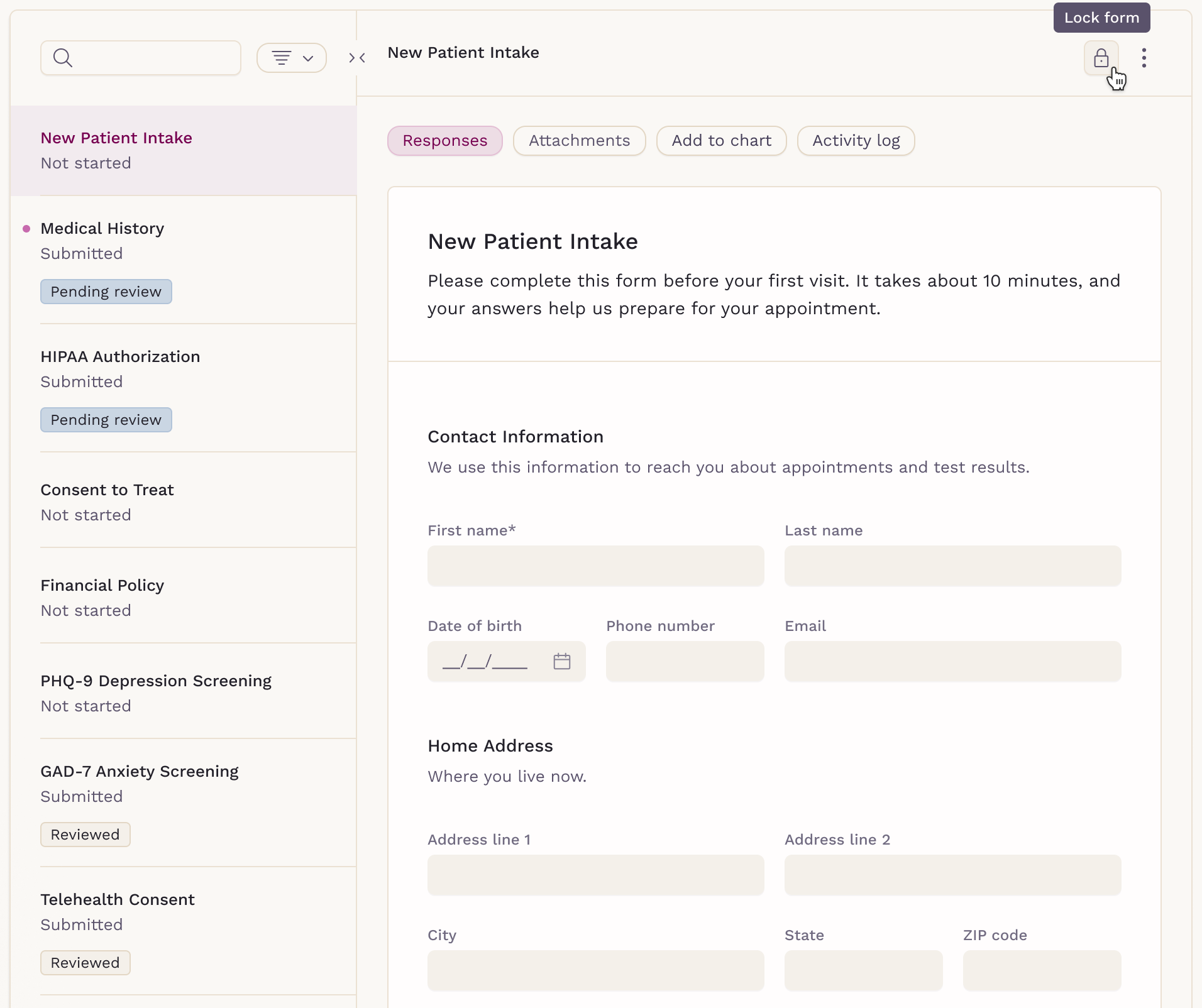
- Open the Forms tab and select the form.
-
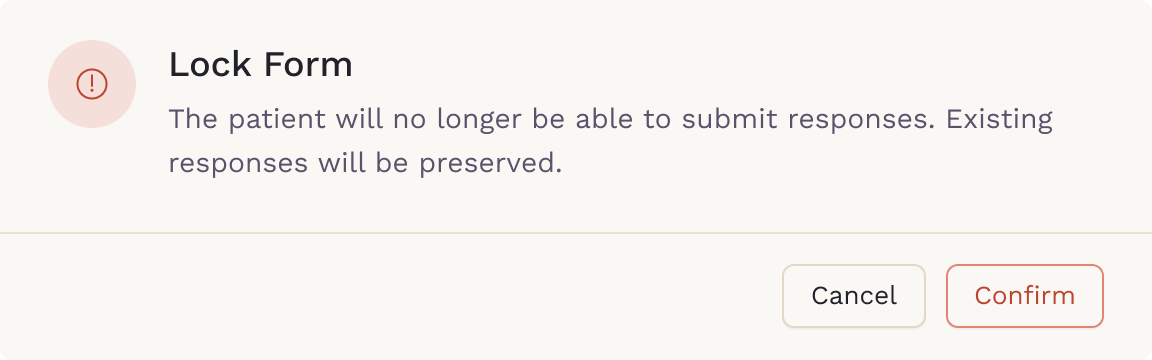
Click the Lock form (lock) icon at the top of the form, then click Confirm. The status changes to Locked.
-
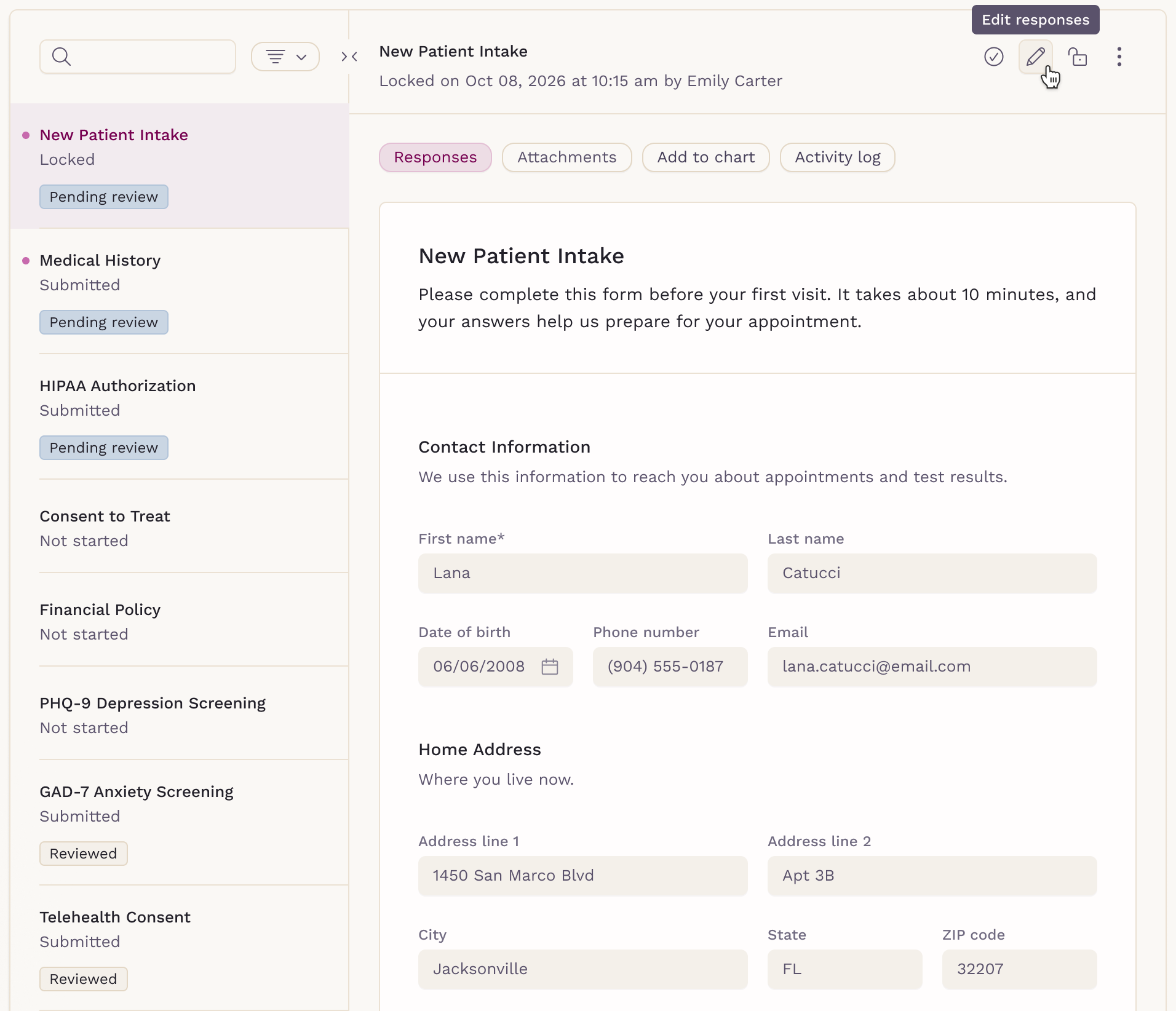
Click the Edit responses (pencil) icon, enter the patient's answers, and click Save.
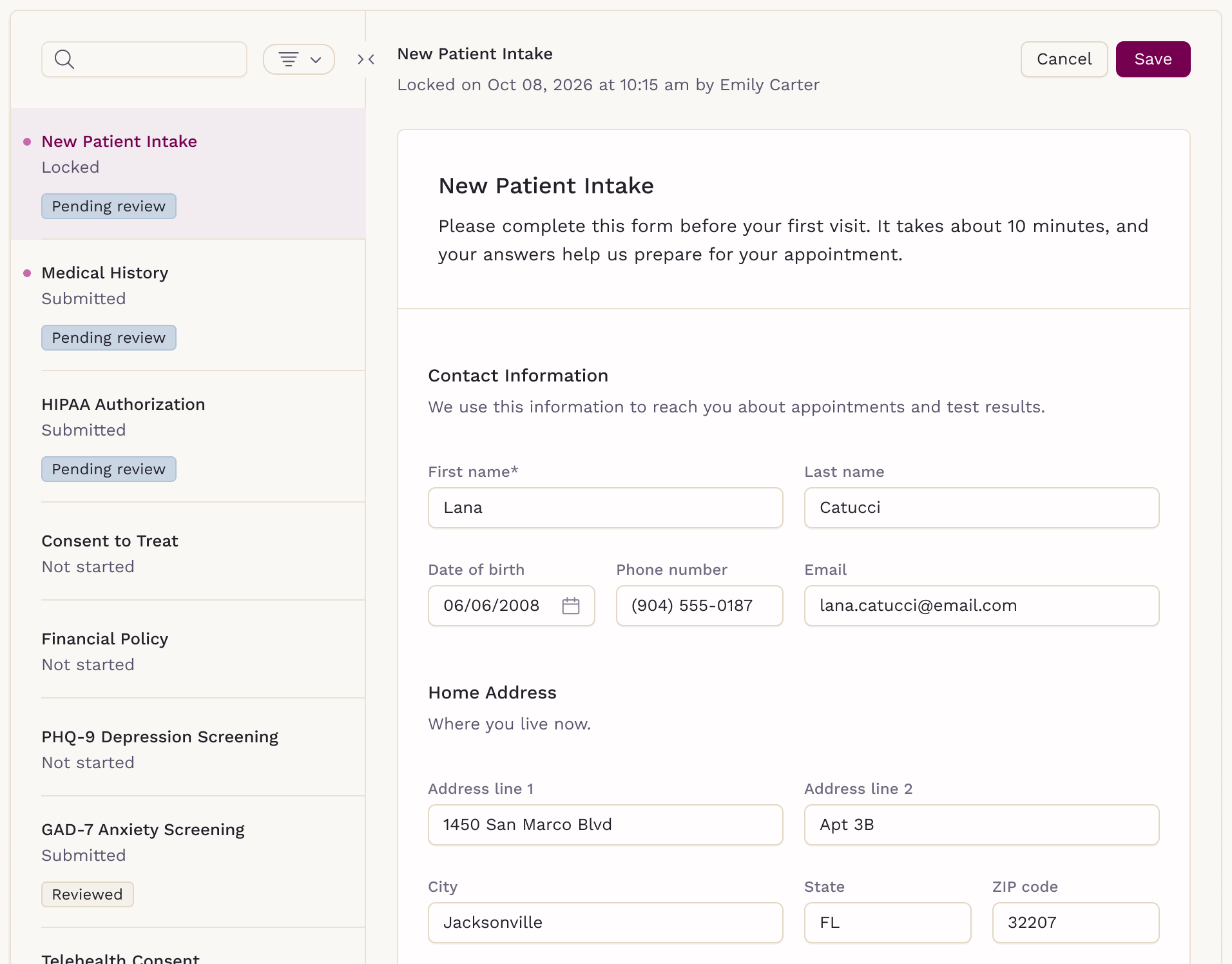
The answers are saved to the form, and each change is recorded in the Activity log. When you finish, you can mark the form as reviewed.
Important Considerations
- The patient receives the form by email when you send it
- Once locked, the patient can't open or submit the form
- You can lock a form that is Not started or In progress, and anything the patient already entered is kept
- Click Unlock form to let the patient finish it, as long as the form hasn't been marked as reviewed
- Reviewed forms are read-only; click Set to pending review first
- PDF forms can be edited only when they have fillable fields
- The Add to chart tab only lists answers the patient entered, so add the details you enter directly to the chart
Completing the form in the chart keeps every answer in one place, with a clear record of who entered it. To learn more, see Locking Forms and Editing a Patient's Form Responses.