
State Immunization Registry
Florida SHOTS, the Florida Department of Health's registry, is the state registry available in SigmaMD.
Connecting Your Practice
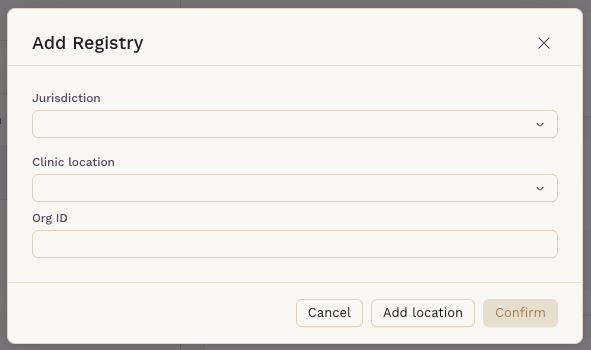
The registry is set up once, on the Immunization Registries card under Practice Settings > Integrations. Click + Registry and fill in:
- Jurisdiction: the state registry.
- Org ID: your practice's organization ID in that registry.
- Clinic location: shown when the practice has more than one location. Each location can have its own Org ID, or one Org ID can cover All current and future locations.
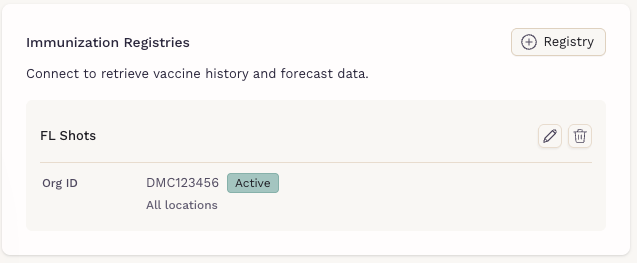
After you click Confirm, the card lists the registry with each Org ID, its location, and its status. Patients already in the practice are assigned to the registry; a location-specific Org ID covers the patients assigned to that location. Removing the registry stops reporting and queries for its patients.
Connection Status
Before using an Org ID, SigmaMD certifies it with the registry using test messages with fictitious patients, then activates it once Florida SHOTS approves the connection. Each Org ID shows its status:
- Processing: certification is under way. Vaccines aren't reported until the registry approves the connection.
- Active: vaccines are reported, and the registry can be queried.
- Error: vaccines aren't reported; contact SigmaMD support.
Changing an Org ID starts a new certification, and that connection goes back to Processing.
While a patient's connection isn't Active, you can still record vaccines in the chart, but Link registry record, Query registry, the Forecast tab, the Registry Status column, and the Report to the Florida SHOTS registry checkbox don't appear.
Patient Registry and Consent
Each patient reports to one registry. From the chart, click View patient details; under Clinical Details, Immunization registry shows the registry and Org ID, or Not connected. Only Active connections can be selected; when the patient's connection isn't Active yet, its status follows the Org ID.
When a registry is selected, the Patient consents to registry reporting toggle appears. It's on by default, since Florida SHOTS works on assumed consent. When it's off:
- No vaccine records for the patient are reported to the registry.
- Link registry record and Query registry still send the patient's name, date of birth, sex, address, and MRN to find their registry record.
- Reporting to the Florida SHOTS registry is locked on the patient's vaccines, with the note: The patient didn't consent to registry reporting.
- Records Florida SHOTS already holds stay there; to remove them, the patient contacts Florida SHOTS directly.
Linking the Registry Record
Linking matches the patient to their record in the registry, so the registry's history and forecast come into the chart. Doses are reported whether or not the patient is linked.
On the Vaccines tab, click Link registry record; it needs a patient address on file. You can add a Registry MRN to narrow the search, then click Next. Patient Match shows what the registry found: confirm the match, or select the right patient when there are several. When nothing matches, No Match Found appears.
Once linked, the tab shows History and Forecast, plus Query registry. The registry is queried only when you link the patient or click Query registry, which brings in the latest history and forecast. The info icon beside it shows when it was last queried.
The Forecast Tab
Forecast lists the vaccines the registry recommends for the patient. Each row shows the vaccine, the series, a status such as Overdue, Due Now or Complete, and the recommended and earliest dates.
The forecast also feeds the due-now and overdue immunization variables in note templates.
Registry Status
The Registry Status column on History shows where each dose stands: Sent and accepted, Sent and partially accepted, Sent and rejected, From registry, or Not sent.
Vaccines ordered from the chart, as described in Administering a Vaccine, are reported automatically when the patient's registry connection is Active, and the patient consents. A vaccine added to the history by hand has a Report to the Florida SHOTS registry checkbox, checked by default and locked once the registry accepts the dose. For a patient who consents, marking a reported dose as entered in error also removes it from the registry.
Important Considerations
- Patients added after the registry is set up start as Not connected; select the registry in their Clinical Details.
- A dose is sent only when the patient's address has a street, city, and state.
- Vaccines recorded before a connection is Active aren't reported automatically once it becomes Active.
With the registry connected, the vaccines your practice gives reach the state, and the patient's full vaccine record stays in the chart.