
Requesting a Lab or Imaging Interface
Before requesting a lab or imaging interface in SigmaMD, your practice must first establish a business relationship with the diagnostic provider and obtain an account number, if the provider requires one. See Working with Diagnostic Providers: Account Setup for help with that step. Once your account is active, add the provider in SigmaMD so we can configure the integration.
Adding a Diagnostic Provider
- Go to Practice Settings › Diagnostics › Diagnostic providers.
- Click the Provider button in the top right of the table.
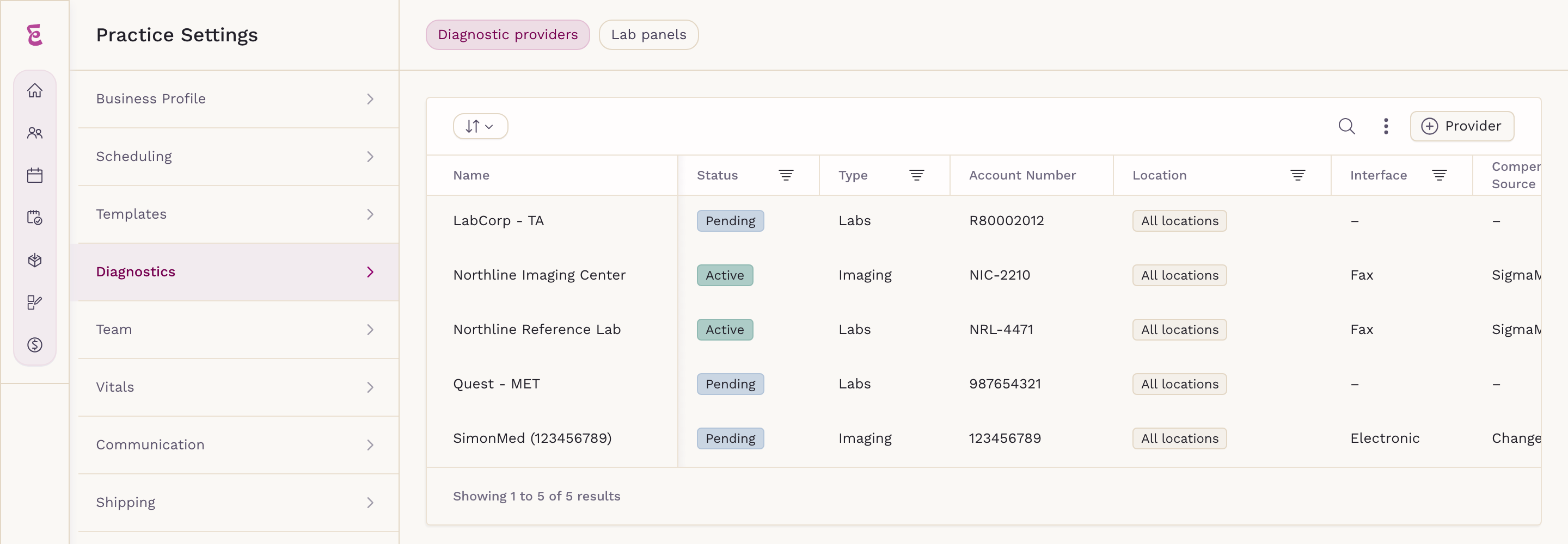
The Add Provider dialog opens. Complete it once for each lab and imaging provider you want to work with.
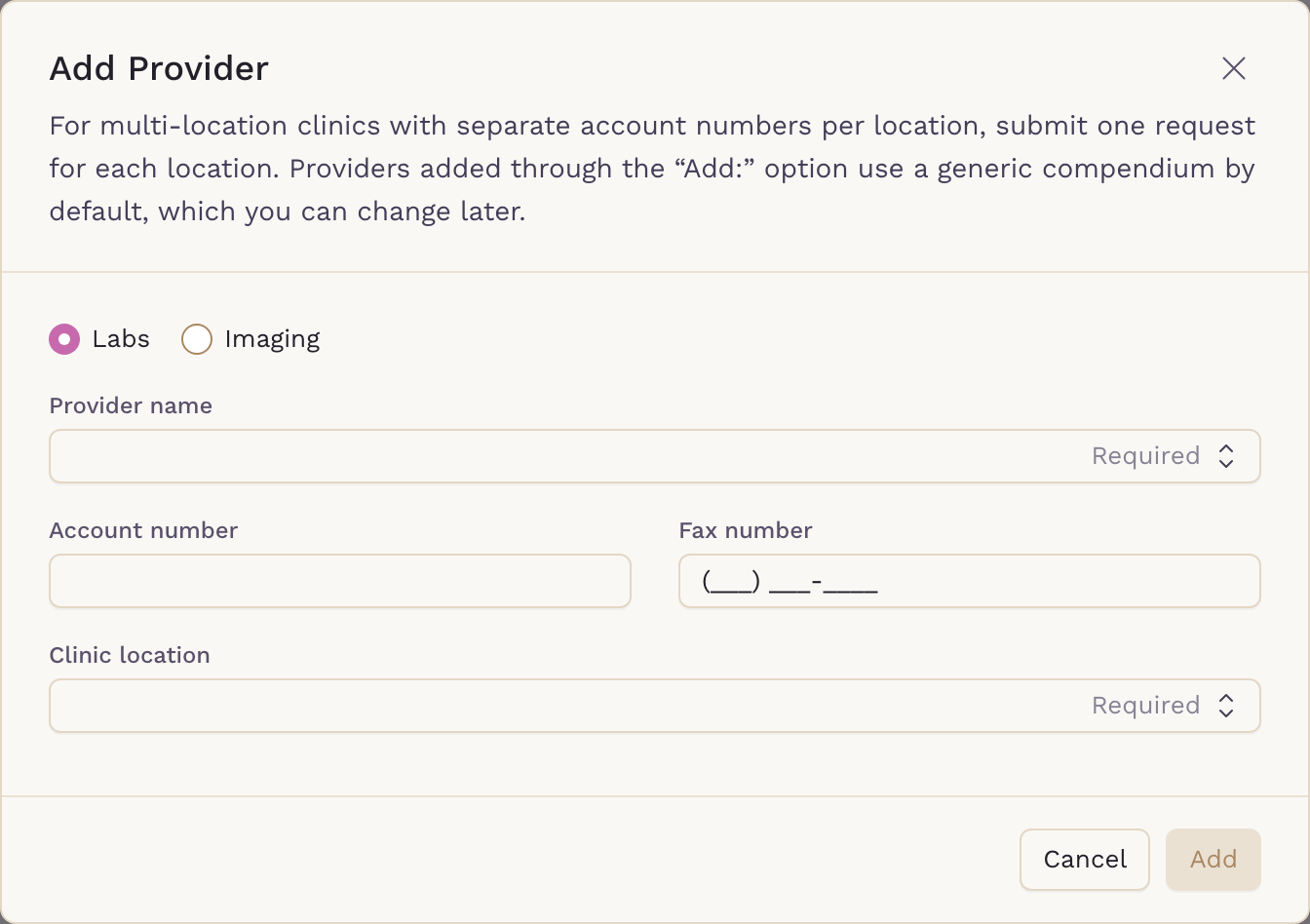
What to Enter
- Labs or Imaging: Choose the provider type at the top of the dialog. Changing it clears the provider name, so pick it first.
- Provider name (required): Select the provider from the dropdown. If it isn’t listed, type the name and choose the Add: option that appears below it.
- LabCorp & Quest note: These providers have multiple business units, listed separately. Choose the city closest to your practice. If your account turns out to be managed by a different LabCorp or Quest business unit, our team will correct it during setup — you don’t need to get this exactly right upfront.
- Account number: Enter it if you have one. If you have an established relationship but no account number yet, leave it blank.
- Fax number: Optional, but it determines how quickly the provider becomes usable. See What Happens After You Submit below.
- Clinic location (required): Choose Use for all current and future locations, or select a single clinic location. See One Account or One Per Location below.
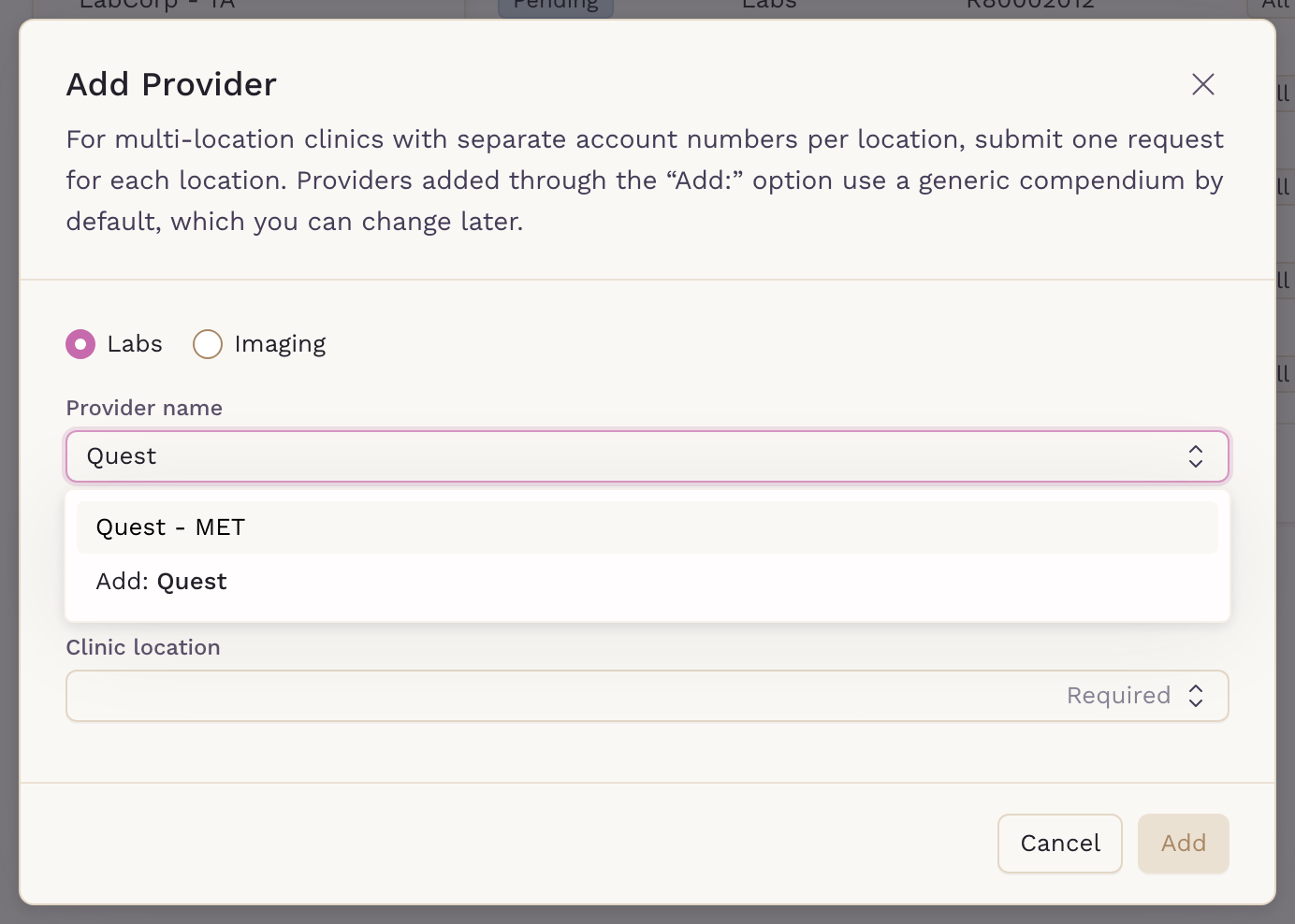
Click Add to submit the request.
What Happens After You Submit
What happens next depends on whether you picked the provider from the dropdown and whether you supplied a fax number.
- You selected a provider from the dropdown. SigmaMD requests an electronic interface. The provider is added with a Pending status, and our Customer Success team is notified automatically to set the connection up with the provider.
- You typed a new provider name and entered a fax number. The provider is set up as a fax interface and becomes Active right away — you can order from it immediately, and the clinicians at your practice who are set up to order are notified that the provider is available. Customer Success is notified for their records.
- You typed a new provider name but left the fax number blank. The provider is added as Pending, and Customer Success will follow up to collect the fax number before it can be used.
Providers you add by typing a new name start on a generic test compendium, which can be replaced later. Fax providers that activate immediately also start with default billing and draw settings — see Setting Default Billing and Draw Options for Diagnostic Providers to adjust them.
You can check whether a provider already supports an electronic interface in Diagnostic Providers Available for Electronic Integration.
Why Provide the Fax Number
If a provider can’t be integrated electronically, the interface relies on fax, so a fax number is required for orders to reach them. Supplying it upfront is what allows a newly added provider to become active immediately instead of waiting on a follow-up from our team.
If you don’t have the fax number handy, you can still submit the request without it. Customer Success will reach out to collect it, and you can also add it yourself later — see Editing Diagnostic Provider Connections.
Account Manager Details
The Add Provider dialog does not collect account manager details. If you have a named account manager or sales contact at the provider, send their name and email to Customer Success along with your request. Having the account manager involved often speeds up approval for an electronic integration.
One Account or One Per Location
The Clinic location field controls how the provider maps to your clinic locations. The clinician-facing experience is the same either way — the difference is how the account is structured at the provider.
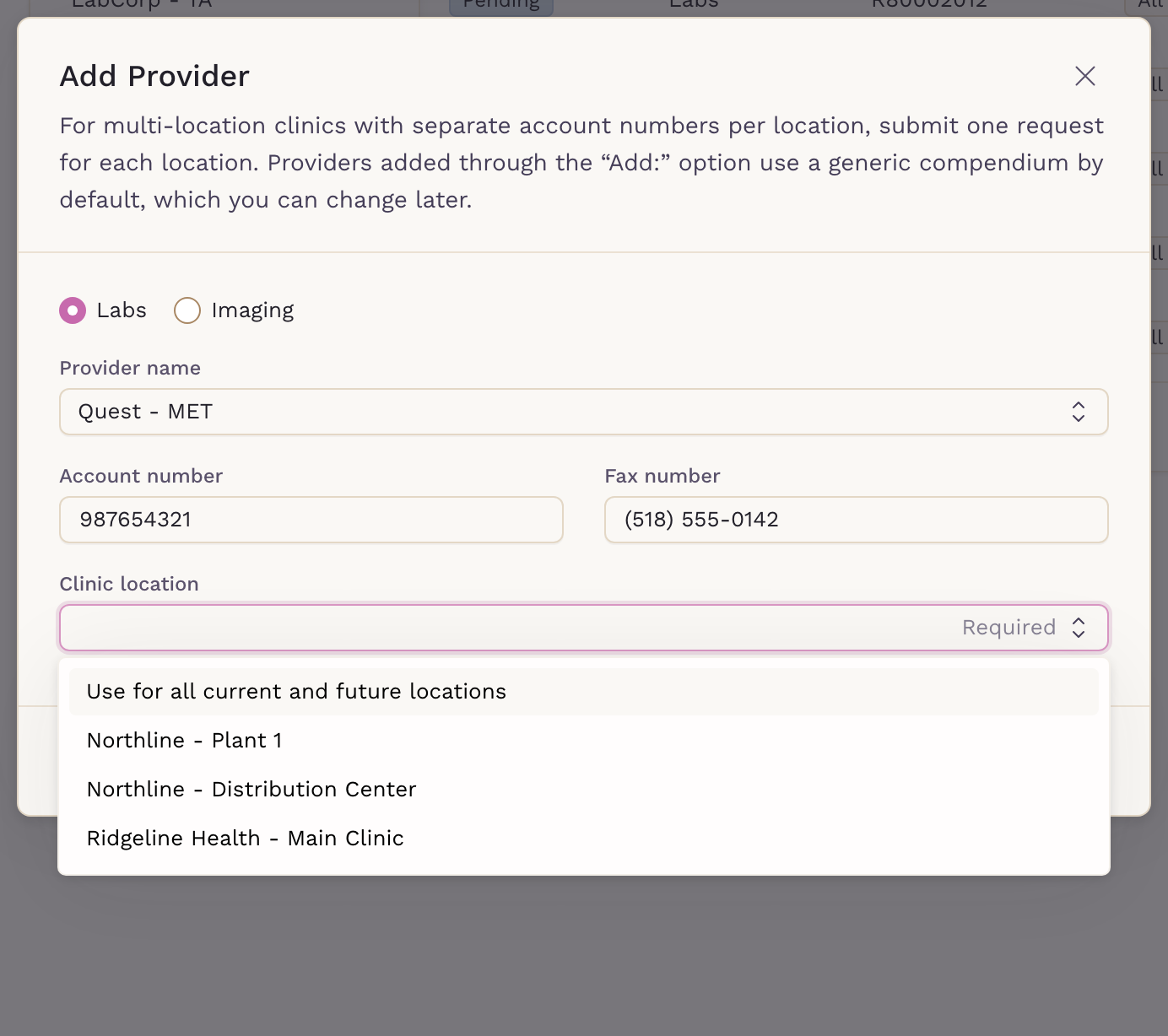
- One account for the whole practice: Choose Use for all current and future locations. All orders and results flow through a single account number regardless of how many locations you have. This is the simplest setup and works for most practices, including those working with large labs like LabCorp or Quest.
- A separate account per location: The provider manages a parent account that groups one child account per site. Add the provider once for each location, select that clinic location, and give it its own account number. This also ensures the correct ordering address appears on the requisition.
Which model you use depends on how your practice is set up at the provider — it isn’t determined by the size of the lab. Confirm it with your account manager before submitting so we can configure the integration to match.
By following these steps, your practice can connect with diagnostic providers for lab and imaging orders within SigmaMD.