
Uploading Your Own Test Compendium for a Fax Diagnostic Provider
Every fax-interfaced lab or imaging provider starts with SigmaMD’s preloaded test compendium (its catalog of orderable tests). When you order, set up charge items or build lab panels, the test search only shows tests from that compendium. If a test you need isn’t there, such as an EEG, or a specialty lab’s own test codes, a practice admin can upload your practice’s own test list for that provider.
This applies to providers with a Fax interface. For an electronically interfaced provider, the test list comes from the lab itself — see Adding Missing Tests for an Electronically Interfaced Diagnostic Provider.
Before You Start
- Only practice admins can upload or reset a provider’s compendium. Anyone who can open Diagnostic providers can download it.
- The Test compendium row appears once a fax provider is Active.
- Your file replaces the provider’s whole test list. Tests that aren’t in your file stop appearing in the search for that provider. To add a few tests, download the current list first and add your rows to it, as described below.
- The first time you switch a provider to your own list, and when you reset it back, that provider’s open draft orders are archived. Send any drafts you need first.
- If the test is performed by a facility you don’t order from yet, you can add that facility as its own fax provider instead and upload a list with just its tests. See Requesting a Lab or Imaging Interface.
Step 1: Download the Current Compendium
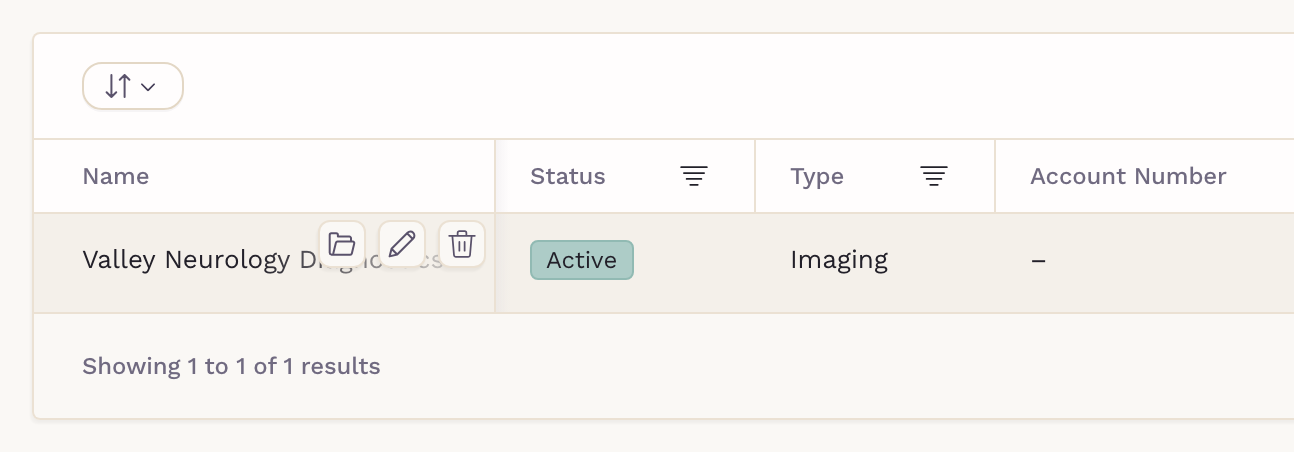
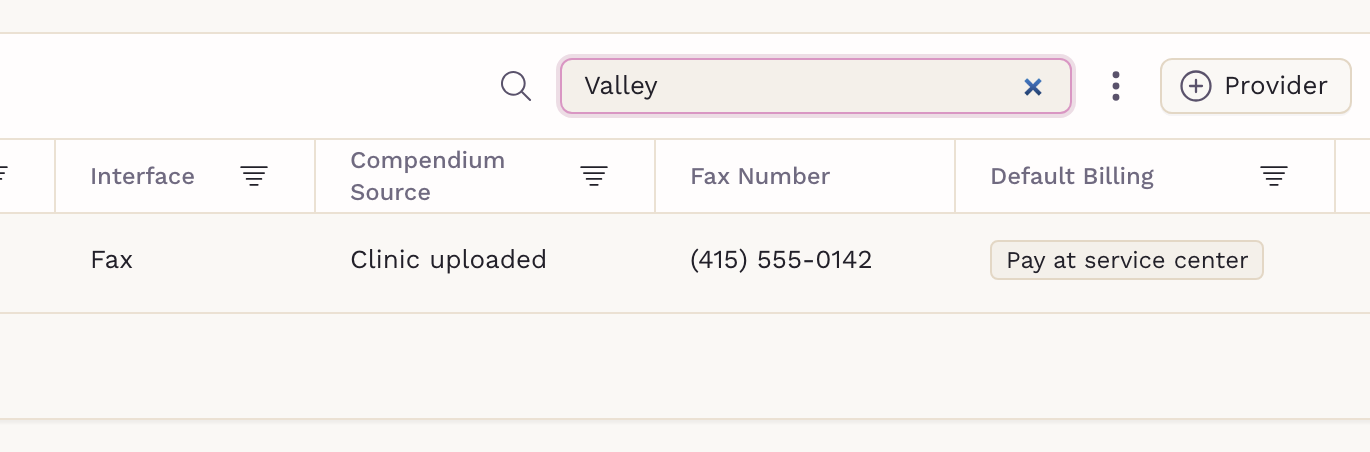
- Go to Practice Settings › Diagnostics › Diagnostic providers. The Compendium Source column shows SigmaMD for a provider on the preloaded list and Clinic uploaded for one using your own.
- Click the pencil icon on the provider’s row.
- In the Edit Provider window, find the Test compendium row and click the Download test compendium icon.
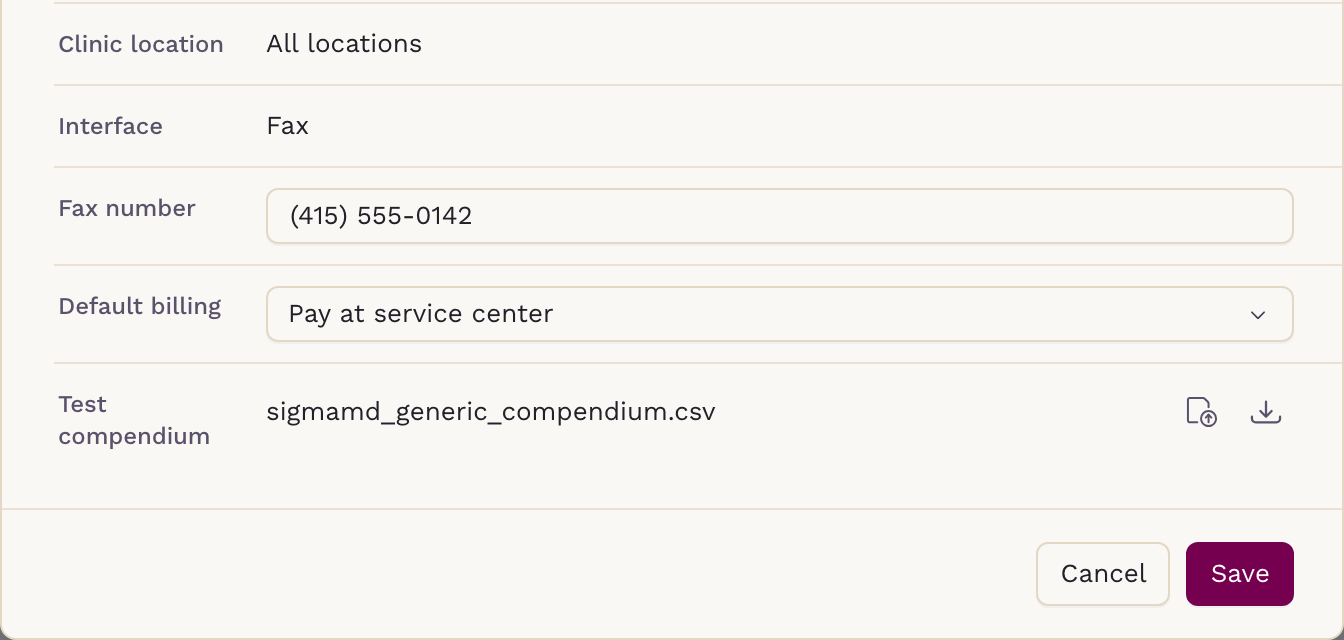
The file has three columns: Test Name, Test Code and CPT Code.
Step 2: Prepare the File
Add a row for each test you need. For a provider whose tests are all your own, you can build the list from scratch instead.
Test Name– the name clinicians search for and see on the order.Test Code– the provider’s own order code for the test. If the provider doesn’t use codes, make up a short, unique one, such asEEG-RTN. Use each test code only once. Rows without a test code are skipped.CPT Code– optional. Separate multiple codes with a semicolon, such as78803;78804.
Keep the three column titles in the first row, in this order, even if you leave the CPT codes blank. Save the file as a .csv file of up to 5 MB.
Here, three EEG studies are added to the end of the downloaded list:
Test Name,Test Code,CPT Code
MR CARDIAC WITH CONTRAST W/TISSUE CHARACTERIZATION,SS00000001,0649T;75561;A9575
MR ADV TBI PROTOCOL WO CONTRAST,SS00000004,70551;70554;76376;76377;76390;76498
...
EEG ROUTINE AWAKE AND DROWSY,EEG-RTN,95816
EEG AWAKE AND ASLEEP,EEG-SLP,95819
EEG EXTENDED 41-60 MINUTES,EEG-EXT,95812
Don’t change the test codes of tests you already use. Prices are matched to tests by test code, so tests you have already priced keep their prices as long as their codes stay the same.
Step 3: Upload the File
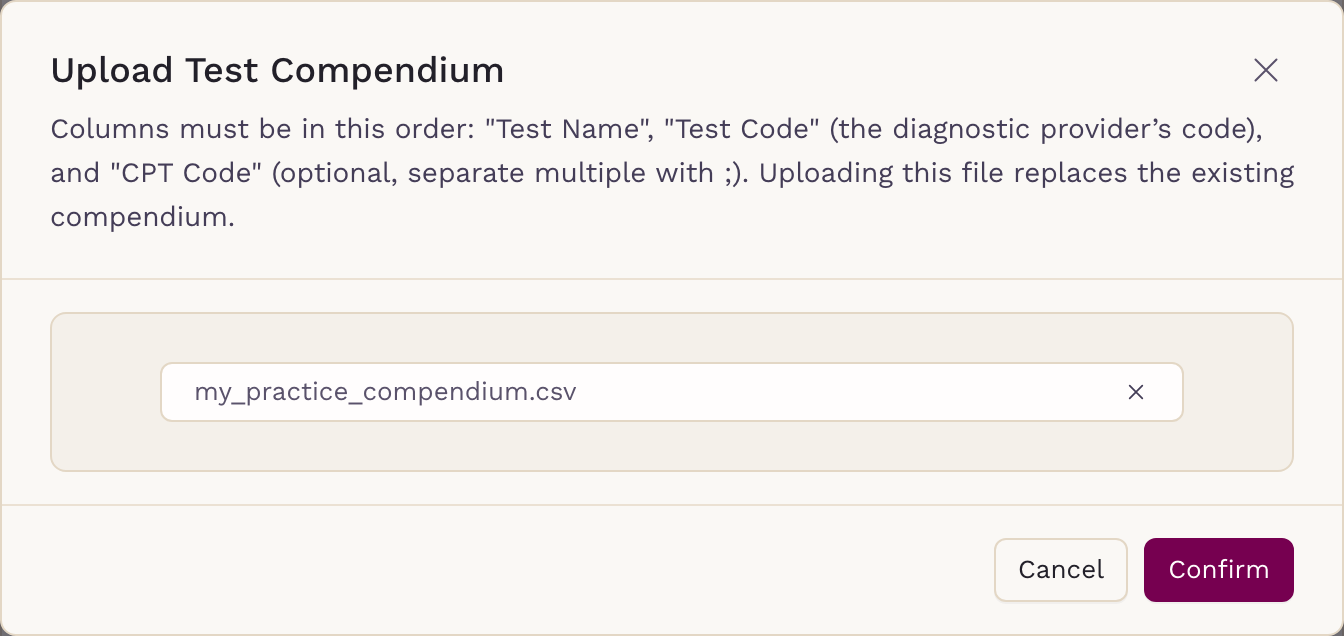
- On the Test compendium row, click the Upload test compendium icon.
- Select your .csv file and click Confirm.
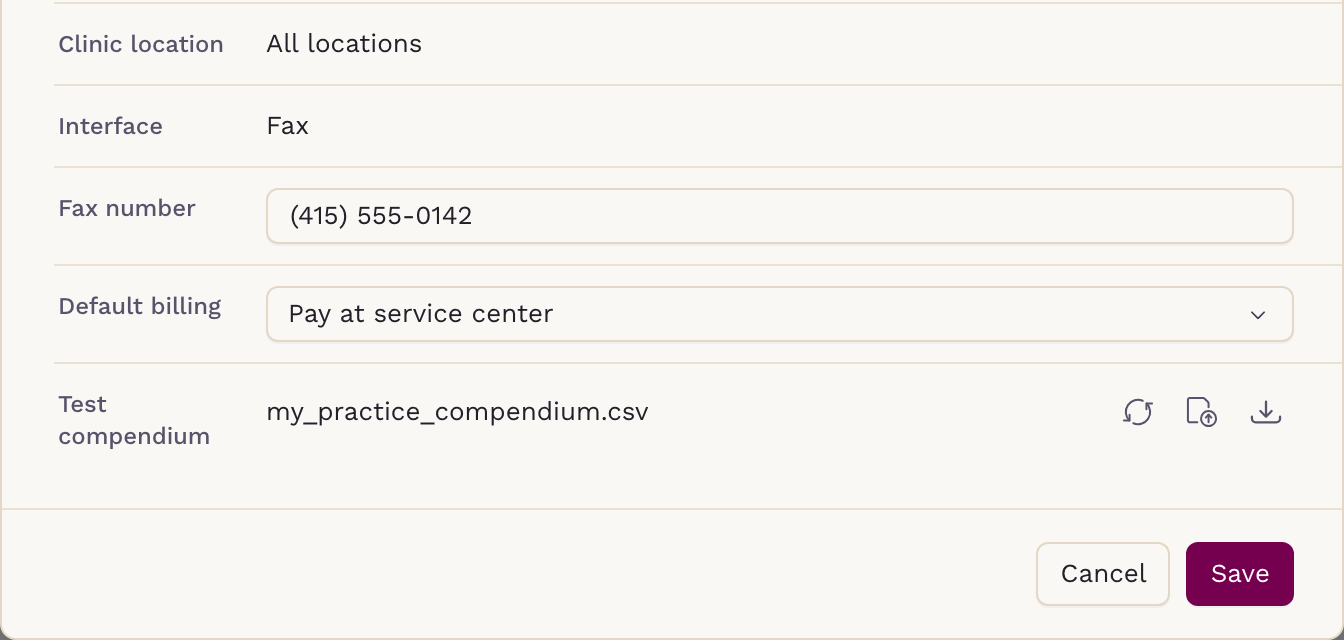
- The Test compendium row now shows your file’s name. Click Save. The new list isn’t applied until you save.
Step 4: Wait for the Confirmation Email
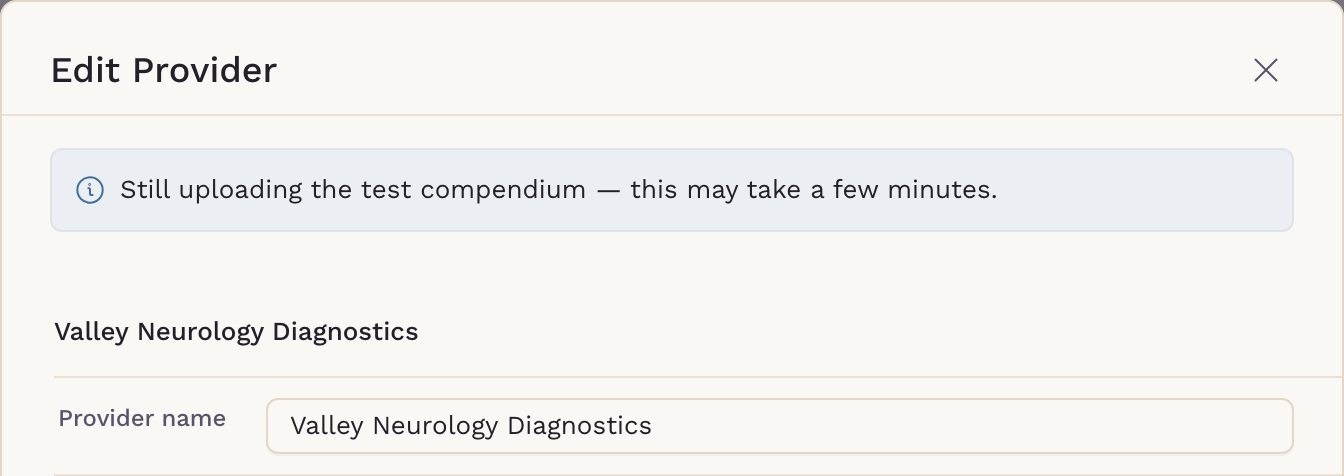
SigmaMD processes the file in the background, which can take a few minutes. Until it finishes, the Edit Provider window shows Still uploading the test compendium — this may take a few minutes. You can’t upload another file or reset the compendium, and orders for this provider can’t add tests.
Once you save, the provider’s Compendium Source shows Clinic uploaded.
When processing ends, the person who uploaded the file gets an email:
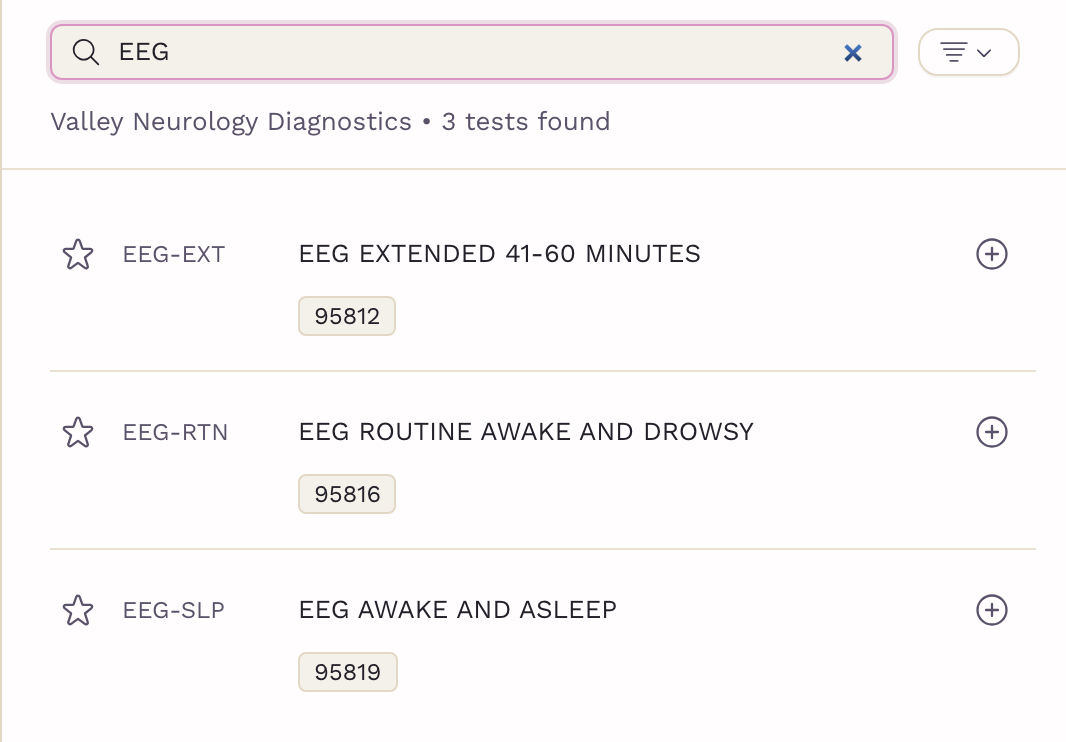
- Upload completed: your tests appear in the test search for orders and charge items, and, for lab providers, lab panels.
- Upload failed: the file couldn’t be read, usually because a column title is missing or misspelled, or no row has a test code. The provider keeps its previous test list. Fix the file and upload it again.
Step 5 (Optional): Add Pricing
Your new tests can be ordered as soon as the upload completes — see How to Create and Submit an Imaging Order or How to Create and Submit a Lab Order.
A price is only needed for tests your clinic bills to the patient (Pay in Clinic). You can enter it on the order itself, or set prices ahead of time as charge items — see Adding Charge Items for Diagnostic Tests and follow the steps under For Fax Interface Providers.
Updating Your Compendium
To change your list later, download it from the Test compendium row, edit it, then upload it and click Save again. Each upload replaces the whole list, so tests you remove from the file stop appearing in the search. If a lab panel uses a test you removed, update the panel — see Creating Lab Test Panels.
Going Back to the SigmaMD Compendium
- Open the provider’s Edit Provider window and click the Reset test compendium icon on the Test compendium row. The icon appears only when the provider has an uploaded list.
- The Reset Test Compendium dialog lists the draft orders, lab panels and charge items tied to this provider. Click Confirm.
- Click Save.
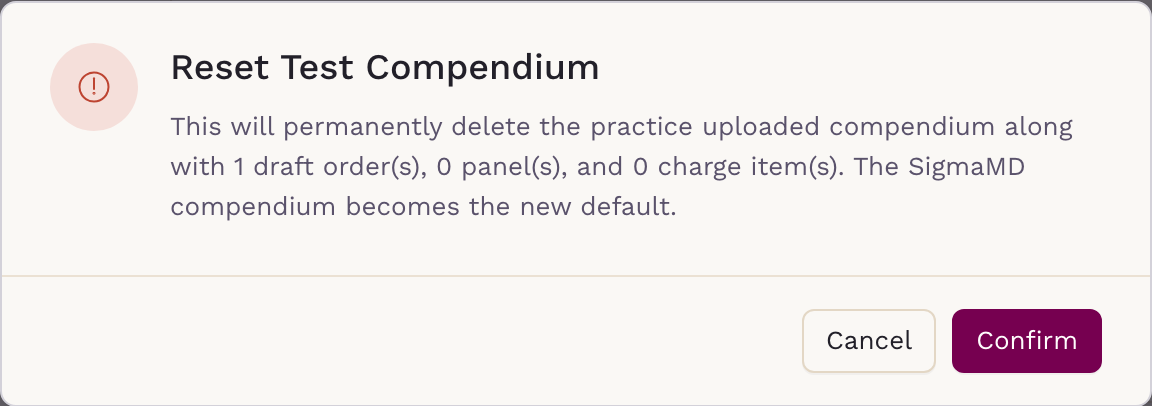
The provider goes back to the SigmaMD compendium, and your uploaded tests are removed from the search. Its open draft orders are archived. Lab panels that use tests no longer in the list are marked as missing tests so you can update them, and charge items for tests that aren’t in the SigmaMD compendium can no longer be ordered.
Related Articles
- Requesting a Lab or Imaging Interface
- Editing Diagnostic Provider Connections
- Adding Charge Items for Diagnostic Tests
- Creating Lab Test Panels
- Adding Missing Tests for an Electronically Interfaced Diagnostic Provider
For additional assistance, contact our support team.