
Overview: Dispensing Medications
SigmaMD makes it easy to dispense medications directly from your clinic. The workflow is fully integrated with inventory, billing, and patient records, keeping everything organized, compliant, and simple to manage.
Dispense In-House Medications
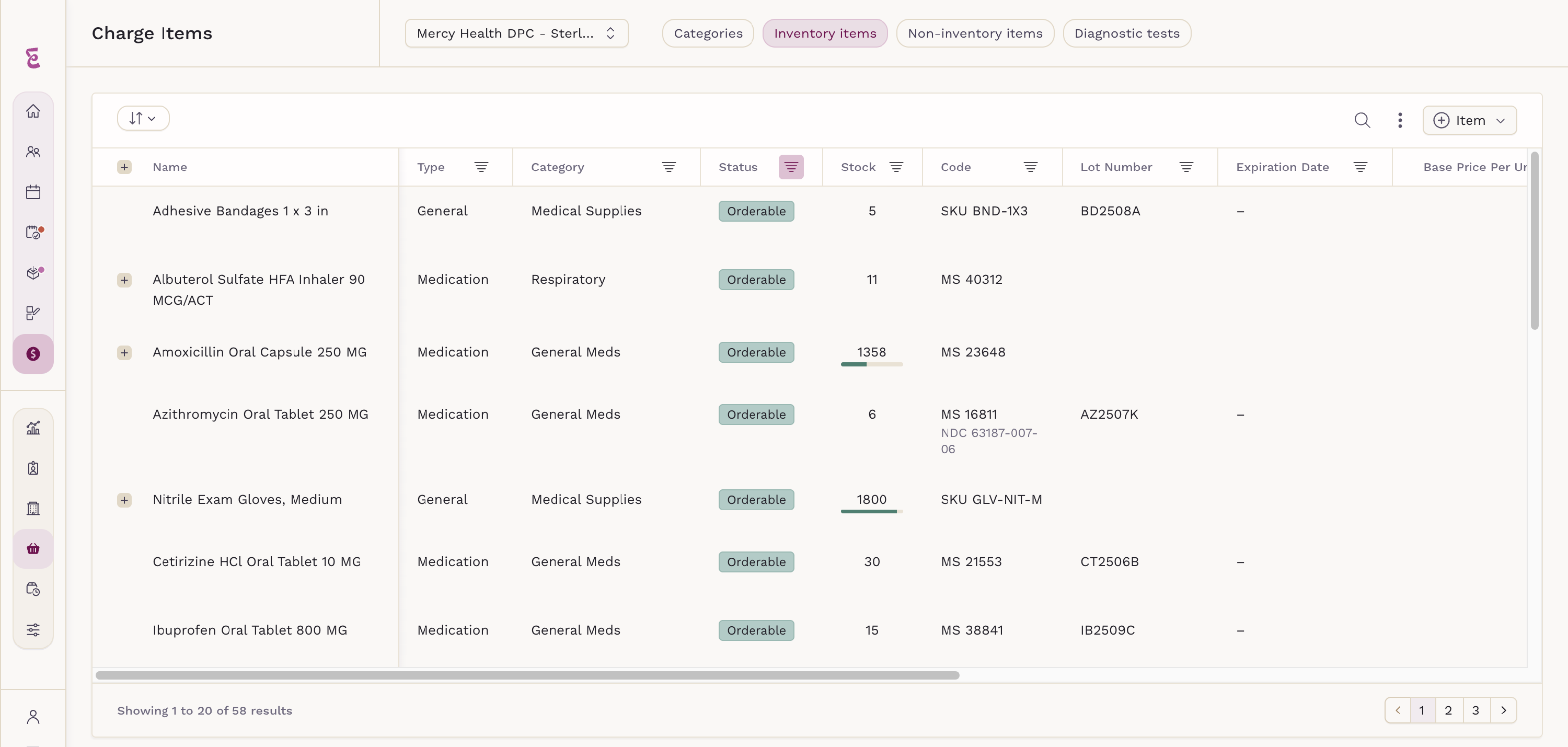
To dispense in-house medications, the medication must first be added to your inventory.
To access the Dispense Medication button, open the patient’s chart and click Dispense medication in the top-right corner of the screen to start a new dispensing entry.

Order Details
The Order Details card at the top of the screen sets who the order belongs to before you add anything to it:
- Clinic location — which location's inventory the lots come from
-
Prescriber — the ordering clinician the dispense is recorded under
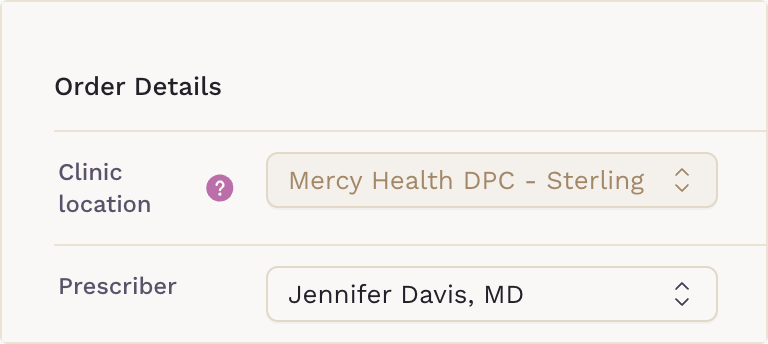
The prescriber list holds the practice's active ordering clinicians. If you can prescribe, your own name is filled in and you can change it to hand the order to a partner. If you cannot — nurses, medical assistants and allied health staff — the field starts empty and the order cannot be placed until you pick someone. Selecting a prescriber who does not hold ordering privileges is refused with The prescriber must have ordering privileges to dispense medications.
The selection is saved on the draft, so it survives a reload, and it locks once the order is dispensed.
In a single-location practice the Clinic location row stays visible but is not selectable. In a multi-location practice it locks as soon as the first medication is added, since every lot in one dispense has to come from the same location's inventory.
Adding Medications
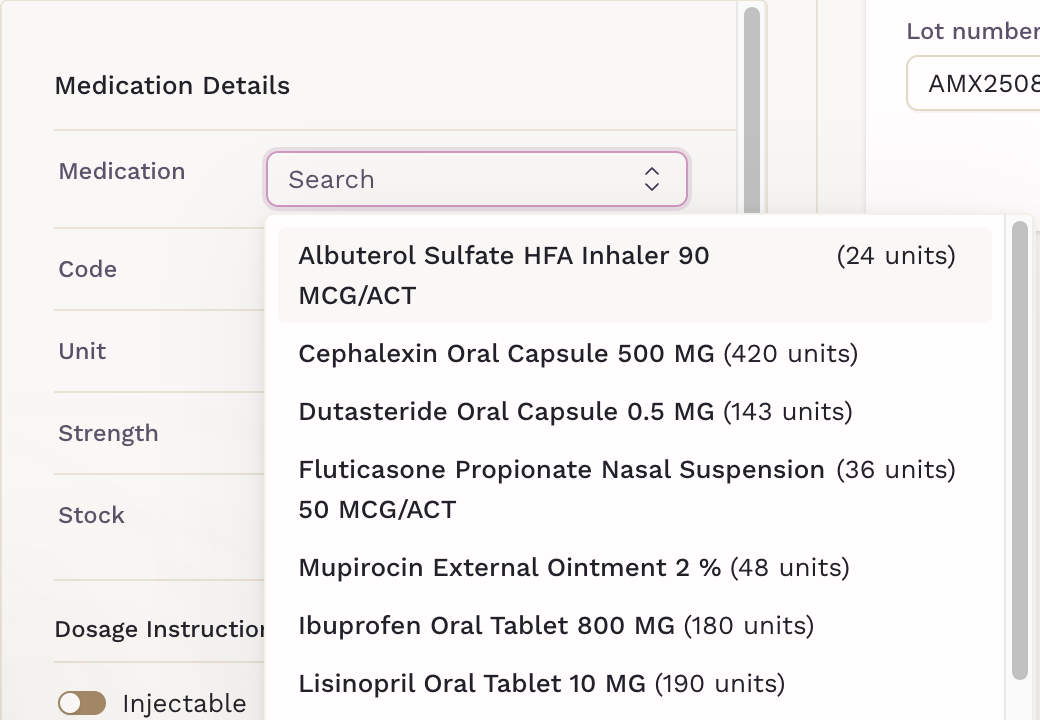
When prescribing, start by searching and selecting the medication from your available list. The system will display both inventory and non-inventory options, along with the remaining stock for each inventory medication.
When you select a compounded medication, its Ingredients appear on the form and on the medication card. They're also printed on the bottle label and the prescription.

Next, enter the quantity to be dispensed and the number of refills. You can also complete fields such as days’ supply, start date, and patient directions. The details added under patient directions will automatically appear on both the bottle label and the prescription generated when the medication is prescribed. If the inventory item has a dispensing preset, Patient directions fill in when you select it.
To be reminded when the patient may need more, turn on Refill reminder task below Refills and enter the number of days in Due in (1 to 365). When you dispense, SigmaMD creates a task titled Medication Refill for [medication name], linked to the patient, assigned to you, and due that many days after the dispense date. The reminder is not available for injectables.
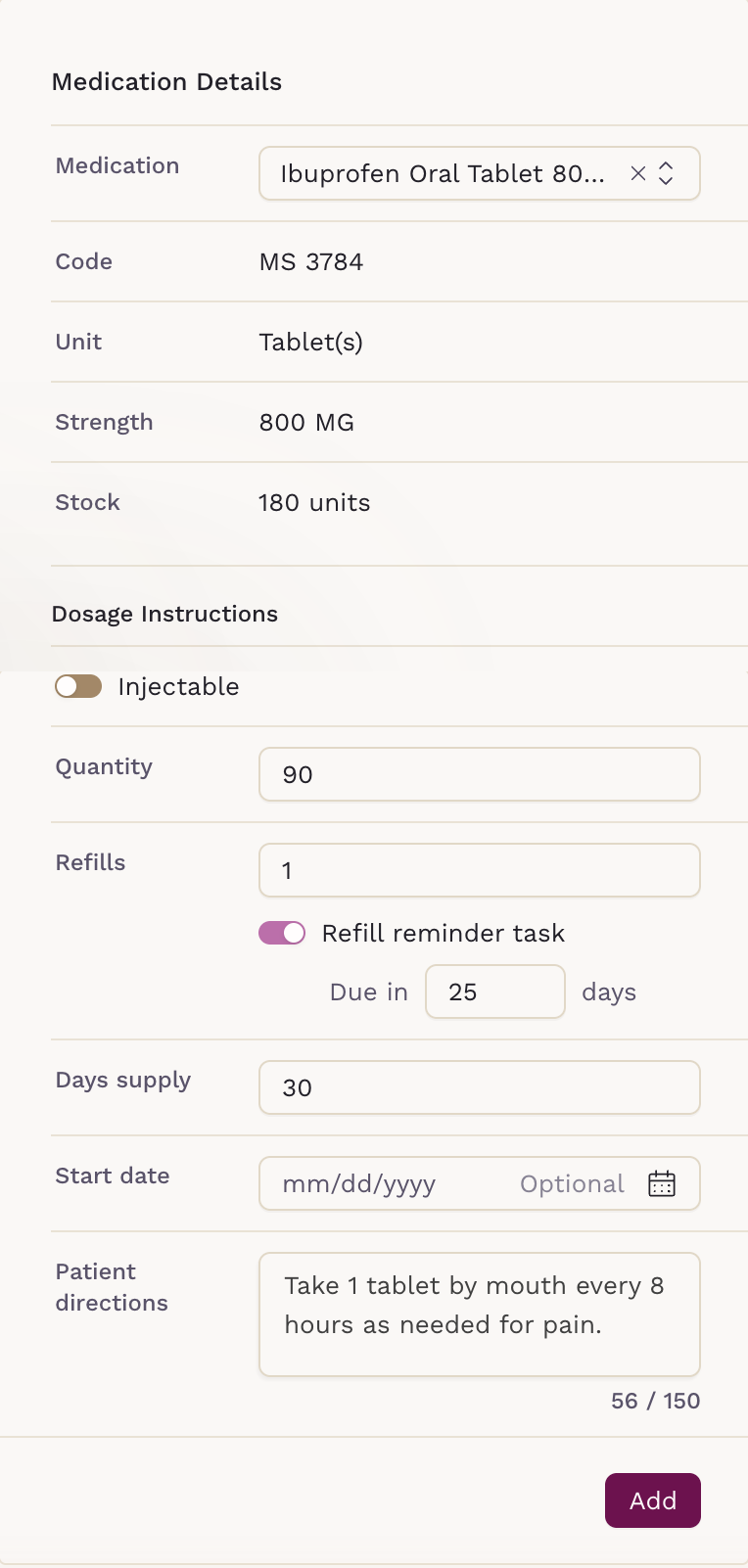
After entering all the required details for the selected medication, click Add to include it in the list. The medication will appear on the right side of the screen, showing its dosage, quantity, and lot details. The system automatically selects the lot that expires the soonest from your inventory.
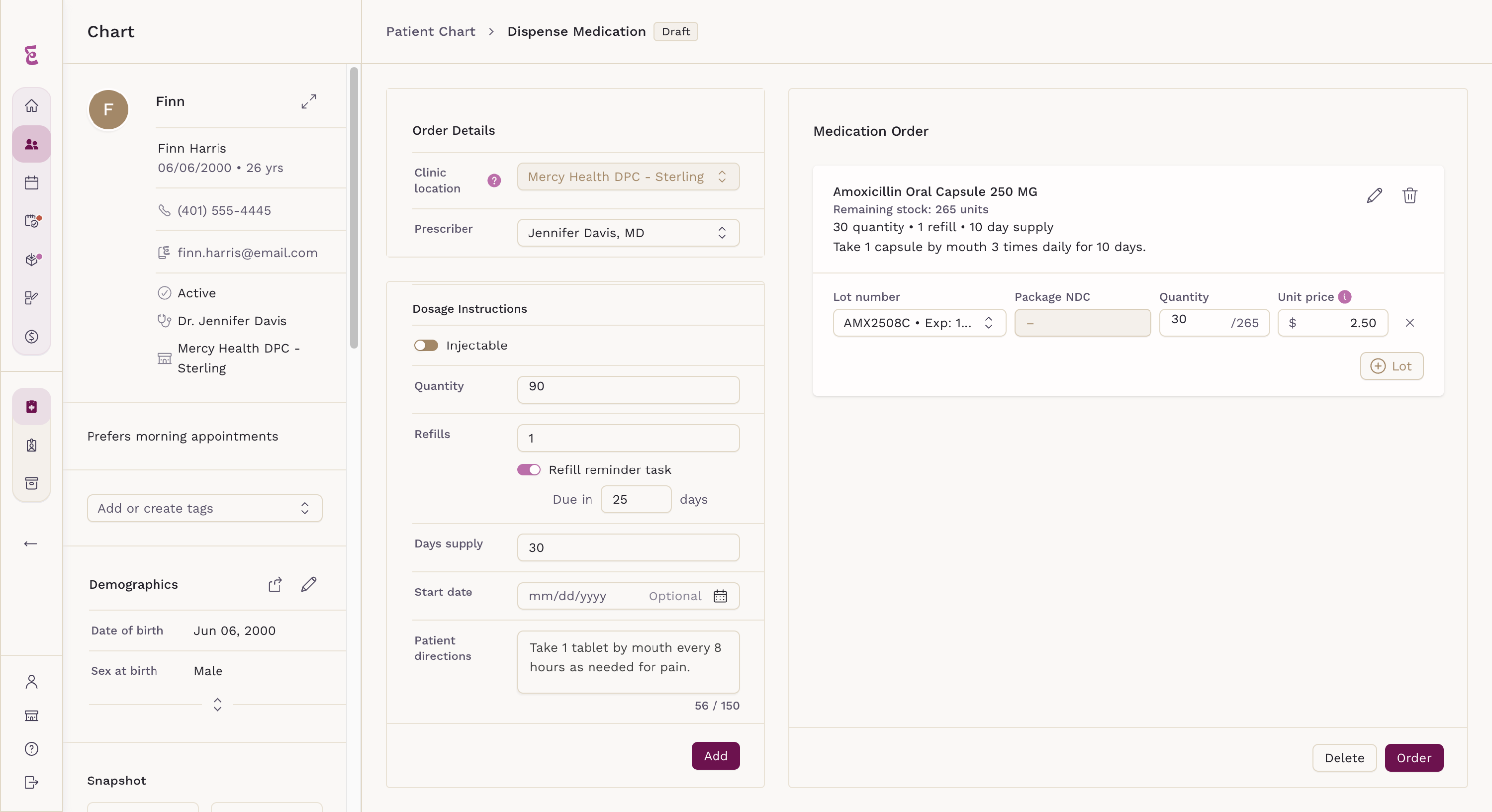
Unit Price
The unit price is automatically populated based on the value entered in your inventory settings. When you create an invoice after dispensing the medication, this amount determines the price per unit charged to the patient. You can still adjust the total by applying fees or discounts during invoice creation.
Keep in mind that the patient is only billed once an invoice is issued.
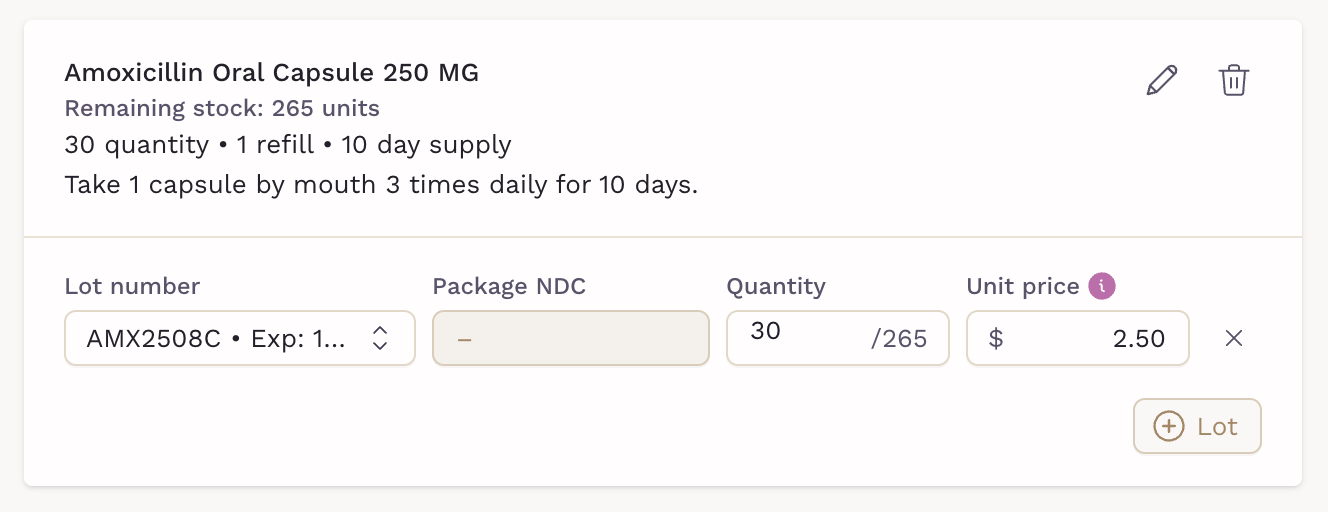
Add More Lots
If multiple lots are available for the selected medication, click Lot to include additional batches in the same dispense. You can divide the total quantity across different lots as needed. If no other lots are available in your inventory, the Lot button is disabled. To remove a lot, click the X button next to it.

Edit
To make changes to a medication before dispensing, click the Edit icon beside the prescription card. This allows you to adjust details such as refills, days’ supply, start date, or patient directions.

Remove
If you need to remove a medication entirely, click the Trash icon in the upper right corner of the card. The item will be deleted from the list and won’t be included in the final dispense.

Add More Medications
You can add multiple medications to the same prescription. Once all details are complete, click Order to finalize and record the medications.
Before dispensing, SigmaMD checks the lots you selected. If a lot expires soon, the Lot Expiring Soon dialog lists it. If you ordered more units than a lot has available, the Stock Availability dialog shows the ordered and available quantity for each lot. If both apply, the Review Lot Issues dialog lists them together. Click Review to go back and update your selection, or Confirm to dispense as entered.
Dispensed Items
Once a medication is dispensed, SigmaMD automatically tracks it against your inventory. The remaining stock is updated in real time, ensuring quantities stay accurate.
From this screen, you can create an invoice for the dispensed medications or cancel the prescription if any adjustments are needed.
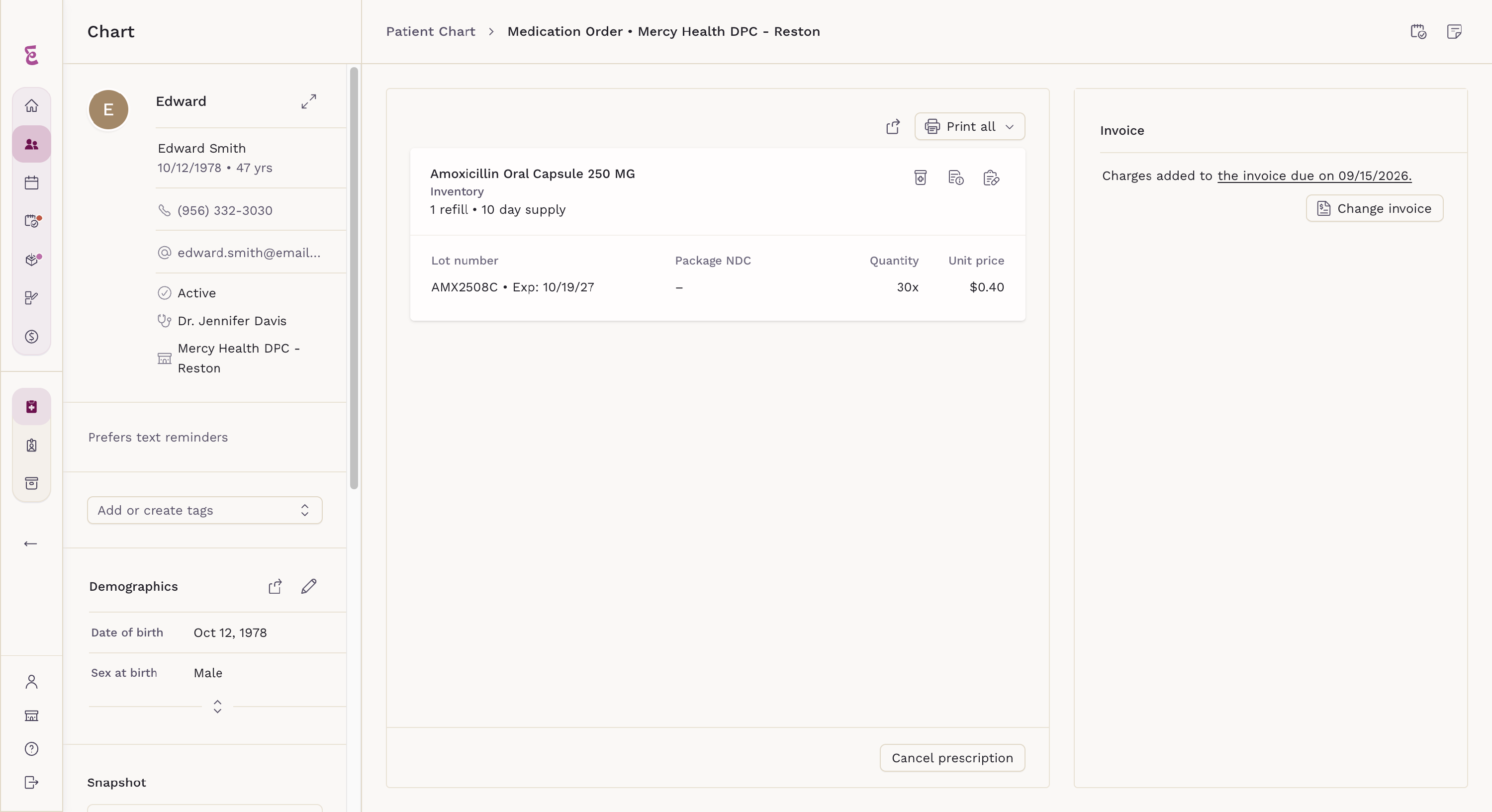
Dispensed medications are automatically added to the patient’s chart under the Medications tab. From there, you can review the full prescription details, including dosage, quantity, and refill information.
The Medication Order screen also gives you quick access to related work:

- Add task: creates a task for this patient.
- Clinical notes: opens the patient’s notes beside the order.
- Add to note: adds the dispensed medications to the open note.
- Print all: prints one document type for every medication.
Reorder a Medication
To dispense a medication again, hover over it on the patient’s Medications tab and click Reorder. The button appears only on Clinic dispensed medications and is hidden for non-clinical users.
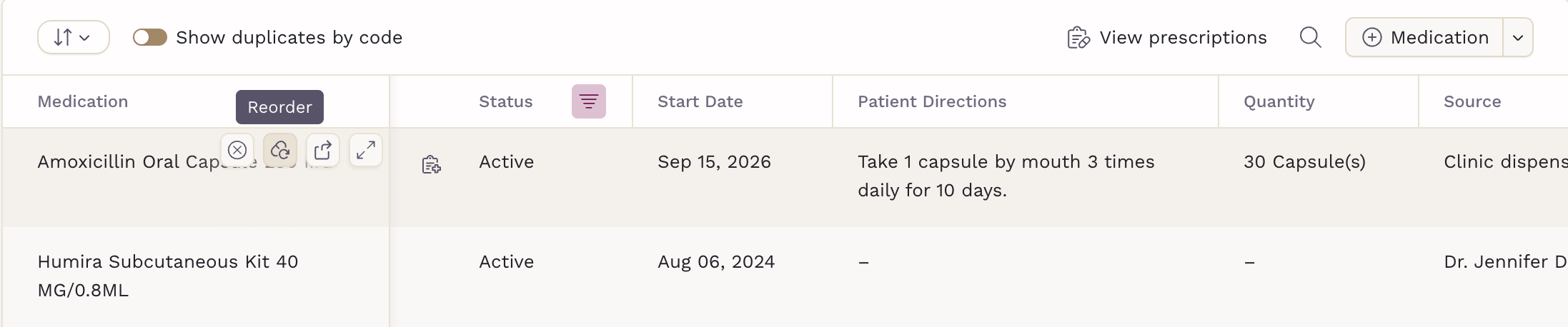
The Dispense Medication screen opens with the details of the previous order already filled in:
- The medication, when it’s still in stock at the selected location
- Quantity, Refills, Days supply and Patient directions
- For injectables: dose, route and site, with you as administering clinician
- Today’s date as the start or administration date
Review the details, adjust anything that changed, and click Add to continue as with any new dispense.
Labels and Documentation
Each time you dispense a medication from your inventory, SigmaMD generates a set of documents to support clinical safety, compliance, and patient understanding.
Click a document’s icon on a medication to open a preview. From there, click Open in a new tab to print it or Download file to save a copy. To print one document type for the whole order, click Print all and choose Bottle labels, Drug monographs or Prescriptions. Each opens as a single PDF covering every medication in the order. Bottle labels is unavailable when every medication is an injectable, and Drug monographs when none has a monograph.
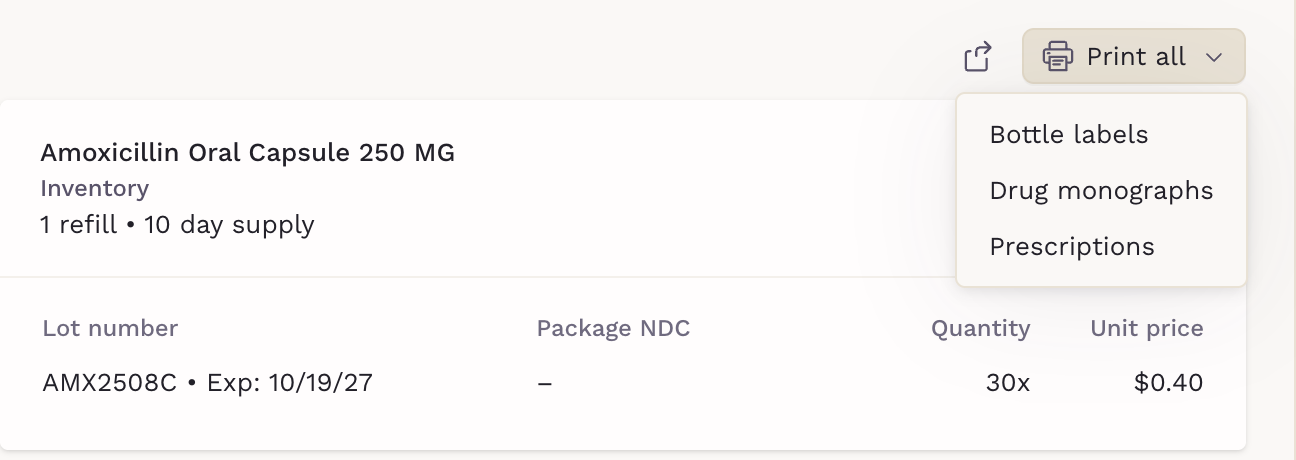
Bottle Label
Displays the patient's name and date of birth, medication and prescription details, lot number, and clinic info, ready to print and apply to the dispensed item. Each lot number dispensed will have its own bottle label.
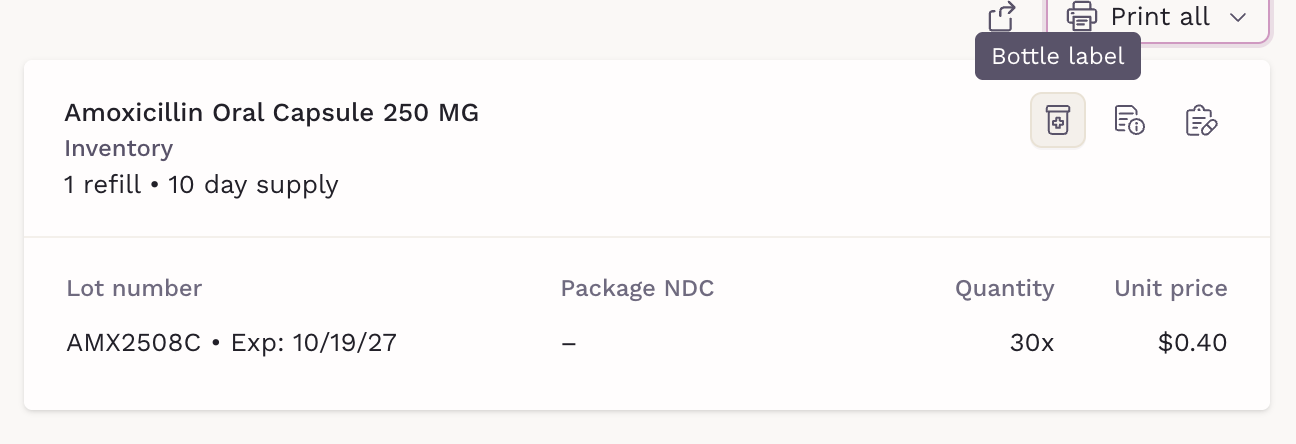
Drug Monograph (Optional)
A patient-friendly information sheet covering usage, side effects, and safety precautions. Auto-generated if enabled in your settings. Please note that some medications may not have a monograph available.
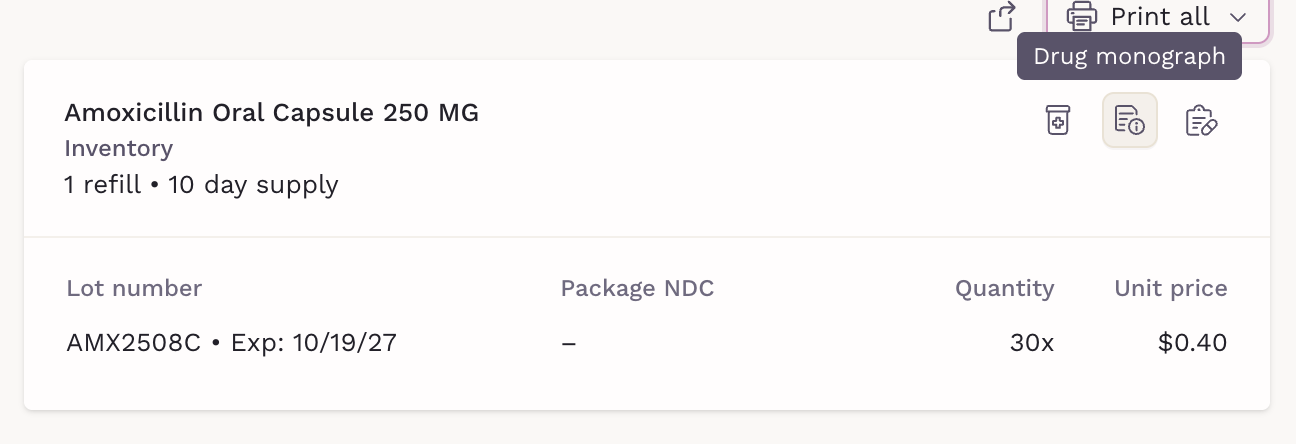
Prescription
A PDF with key prescription details: medication, dosage, refills, and provider information. Automatically saved to the patient’s chart.
Create Invoice
After dispensing a medication, you can generate an invoice directly from the Medication Order screen. Click Bill patient in the Invoice panel to open the Invoice Selection window.

From there, choose an existing draft invoice to add the dispensed items or click Create new invoice to start a new one. All dispensed medications will appear automatically with their quantities, unit prices, and tax details.

Once the invoice opens, you can edit or add more items, apply fees or discounts, and confirm the service date, due date, and payment details before issuing the invoice.
Please note that medications added directly from an invoice will not appear in the patient’s chart or generate labels. Use the chart’s dispensing feature for proper prescribing.

From the invoice, you can also ship items to the patient.
Dispense Integration
Dispensing connects to several areas of the platform:
- Inventory: Quantity is deducted, and restock thresholds are monitored.
- Patient Chart: The prescription appears under Medications, with dispense details logged.
- Files: Generated documents are saved under the patient’s files.
- Invoices: The medication can be billed directly to the patient or an employer.
- Injectables: Use the Injectable toggle to record administration details.
- Uncoded Medications: Dispense items that don’t have a drug code using SKU-based entries.
- Compounded Medications: Dispense compounds from your inventory with their ingredients.
- Lot Safeguards: Lots with zero or negative remaining units are automatically hidden from the lot picker.
- Tasks: Refill reminders are created as tasks.
Tracking
On the Charge Items screen, all items with inventory tracking include a record of their sales, making it easier to follow dispensing history.
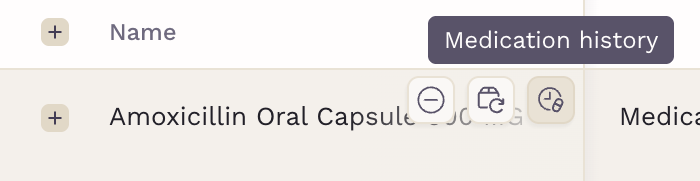
Pending Clinic Prescriptions
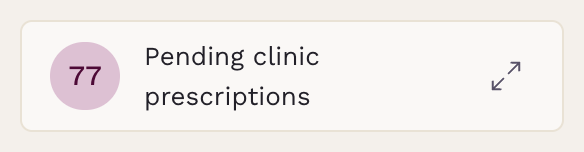
Dispense orders that have medications added but haven’t been dispensed yet are counted on the Pending clinic prescriptions card on the home screen. Click the expand icon on the card to open the list.
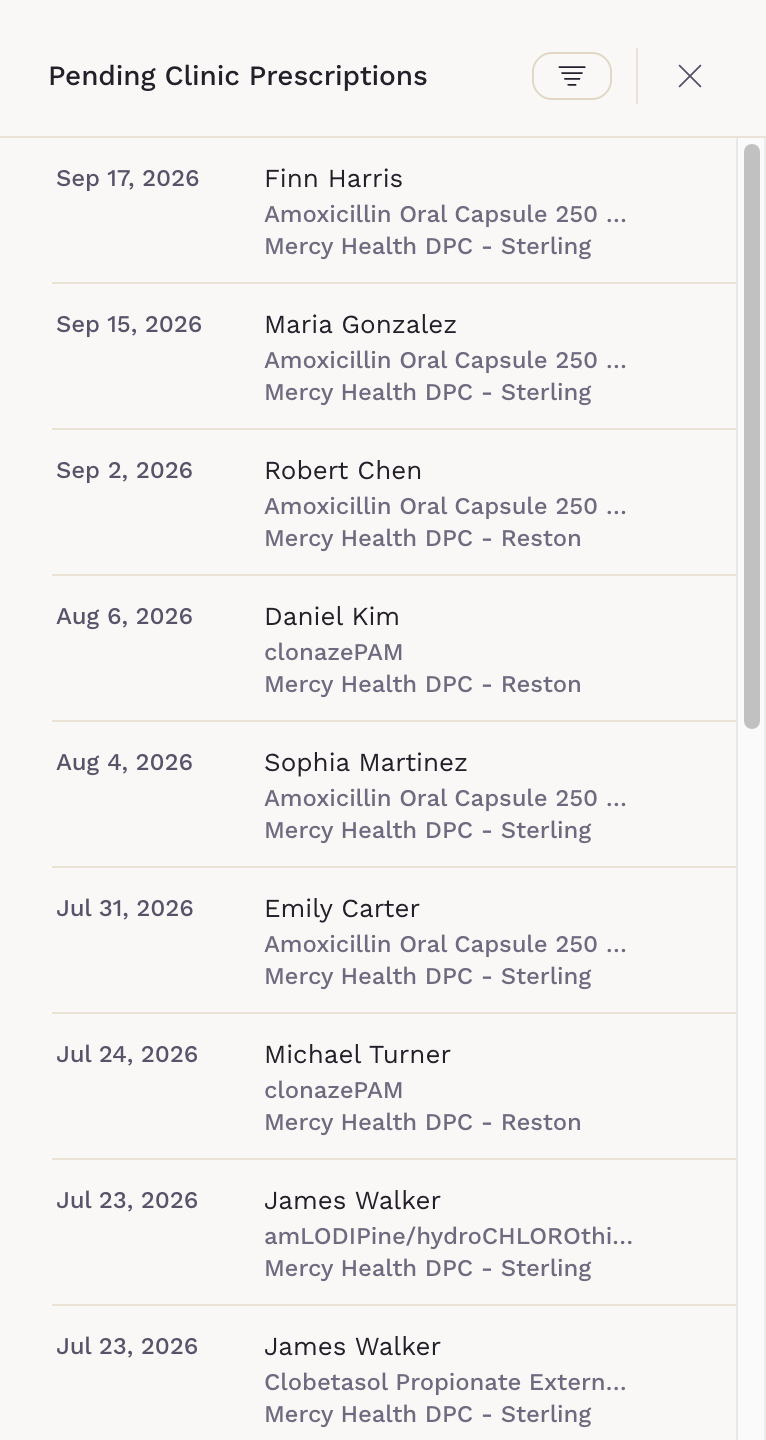
The list shows one medication per row, newest first:
- The date the order was created
- Patient and medication name
- Clinic location, in practices with more than one location
Hover over a row and click Review to open that order on the dispensing screen. Use the filter icon to narrow the list by Assigned clinician, Clinic location or a date range. Your filters stay in place the next time you open the list on the same browser.
By unifying prescribing, dispensing, and billing, SigmaMD gives your practice the tools to run a compliant and efficient in-house pharmacy.